











KŌLOGY · Screens & features
How to schedule a driver
Put a driver on the schedule for one day or the whole month; they get a notice in the app.
On this page
What it is for
The schedule says who works on each day. It feeds the roll call (点呼), the daily report reminders and the reports.
Where: web Operations → Shifts; app, the Shifts tab (or More → Operations → Shifts).
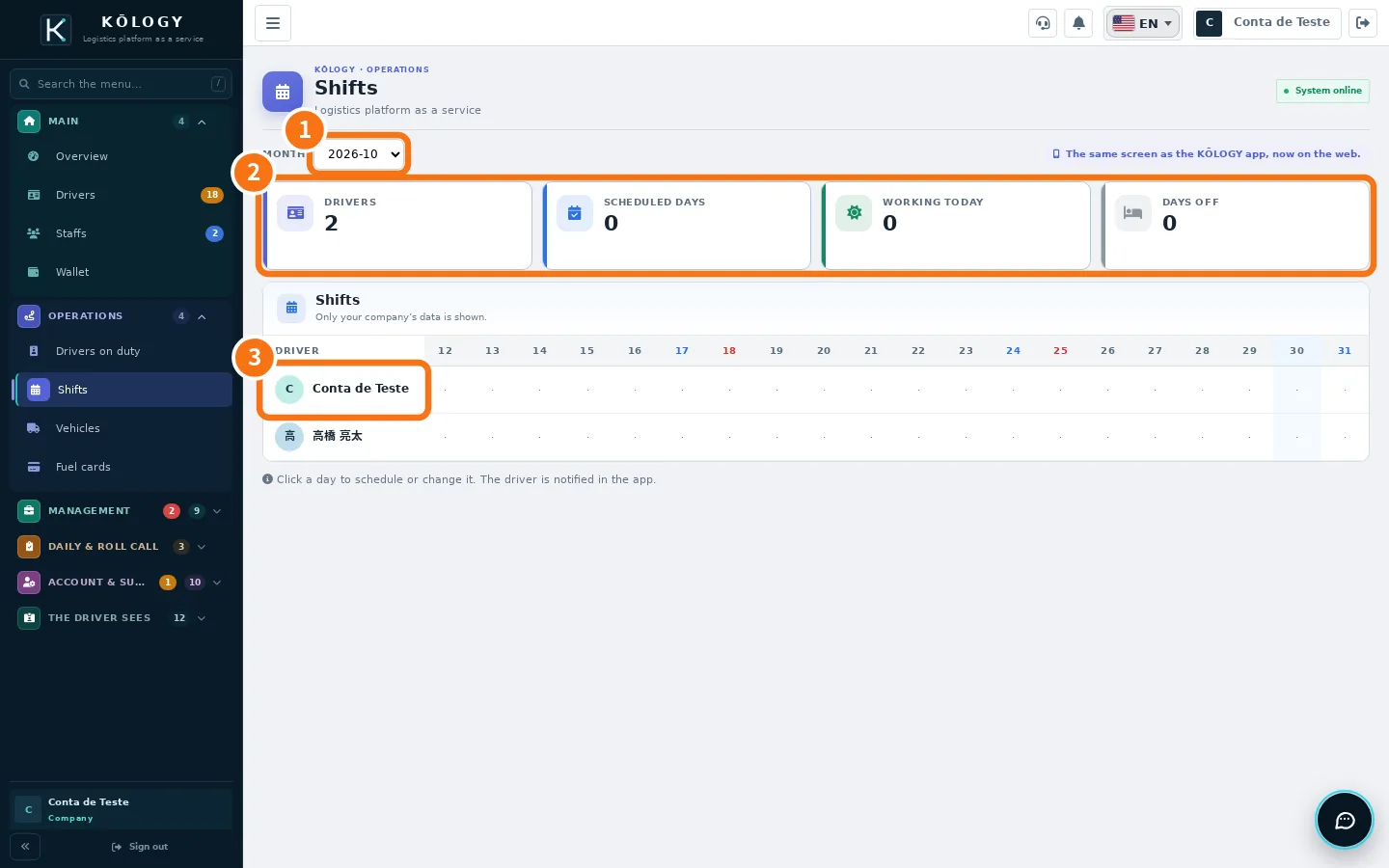
Schedule one day
- Pick the ① month.
- Check the month's ② numbers (scheduled days, working today, days off).
- On the ③ driver's row, click the day.
- In the app, Add shift opens: choose the Work type — Work, Office, Maintenance or Off —, the Carrier, the Branch and the time (HH:MM). Add a note if needed.
- Tap Save shift. The driver gets the notice in the app.
Schedule the whole month
- In the app, tap Bulk schedule.
- Choose the driver and the courses (Choose courses). Days already filled show as «Already scheduled».
- Tap Apply.
Change or delete
Click the scheduled day, change it and save. To delete, use Delete and confirm («Delete shift?»).
Tip: start with fixed-route drivers using Bulk schedule, then adjust only the days that differ, such as holidays and swaps.
What the driver sees
The driver sees their own schedule in the app's Shift tab, with working days, days off and the time of each shift. Every change you save arrives as a notification. On a scheduled day the driver's Today screen reminds them of the daily report; if they do not start, their name appears under «Not started» in Roll-call for the day and on Overview. Keeping the schedule up to date avoids false alerts.
Common errors
- «Use HH:MM». Type the time with a colon, for example 08:30.
- The driver is not in the grid. They must be Active in Drivers.
Related questions
- Shifts, leave requests, people and salary advances
- Roll call, daily operations and daily reports