











KŌLOGY · Screens & features
How a manager delivers (driver mode)
Enter driver mode with the same account, run your route and go back to management.
On this page
What it is for
In many companies the manager also drives. Driver mode (DRIVE) turns your account into a driver without another login: you pick the vehicle, see your route, navigate and record deliveries like any driver.
Step by step in the app
- On Overview, in the You as a driver card, tap Work as a driver. Or, in the Staffs tab, switch STAFFS | DRIVE to DRIVE.
- The first time, your driver profile is created on the spot with your account name.
- Work the day as a driver (see the driver manual).
- To go back, tap Back to STAFFS on the purple bar.
Step by step on the web
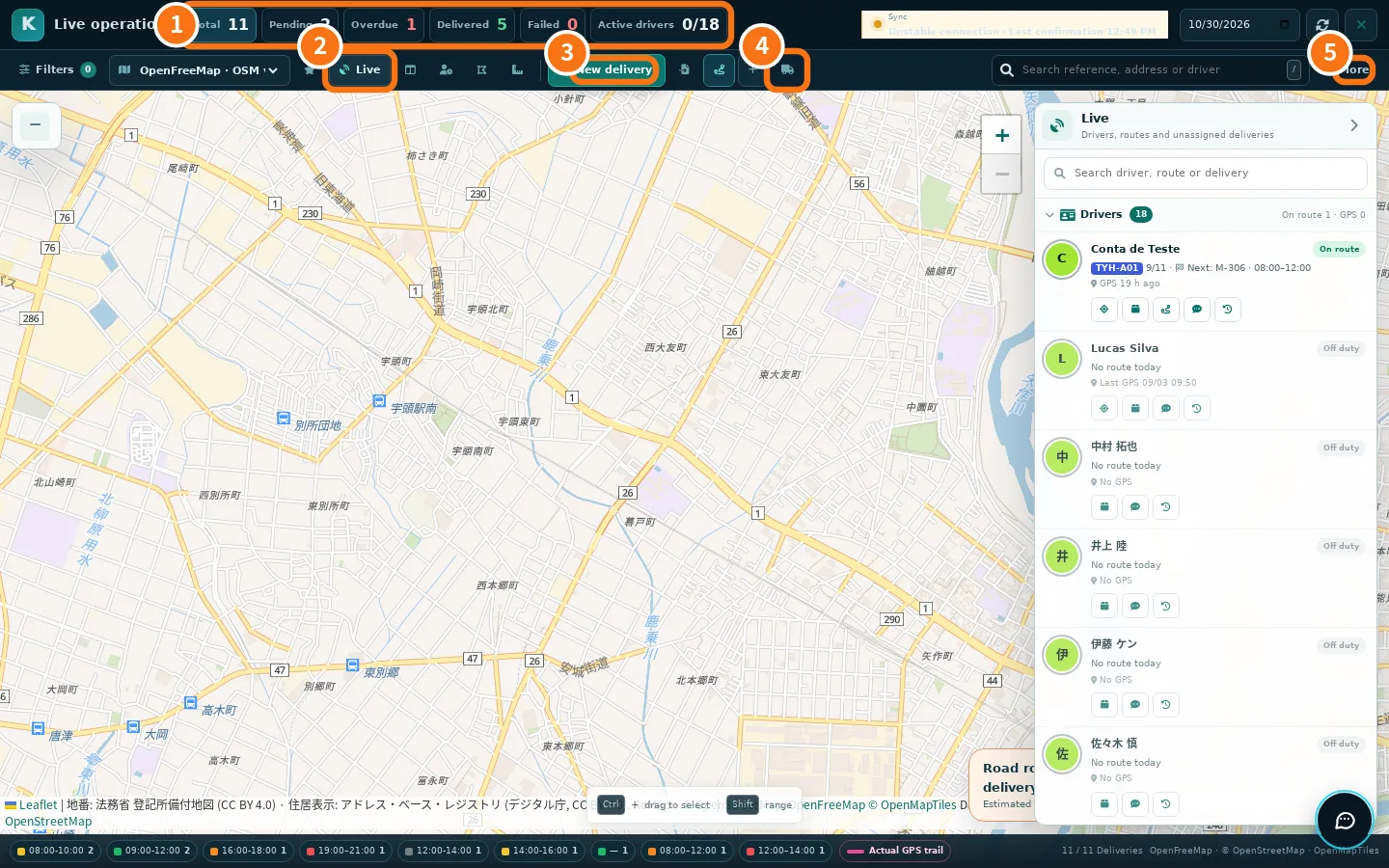
- Open the route centre (Main → Staffs).
- Click button ④ «Do your own deliveries as a driver».
- To go back, use the purple «back to management» button of the driver portal.
Give deliveries to yourself
You appear in the company's driver list marked as manager. In New delivery → For driver, choose your name. The app uses your open route of the day (or creates one) and, when the delivery lands on YOUR route, asks whether you want to enter driver mode now.
What changes in driver mode
In driver mode you use the same screens as drivers: choose the vehicle, see the route, navigate, mark delivered or failed with a photo and do the daily report. You show on the team map like the other drivers, with your photo. Management is one tap away: the purple bar takes you back to STAFFS.
Common mistakes
- I cannot enter as a driver. No free seat: suspend a driver or change the plan.
- My position does not show on the dispatch map. In driver mode GPS is only sent on duty/route; in management, turn on «Share my location with dispatch» in Settings → General.
Related questions
- Roles and team access
- How to create a route and add deliveries