











KŌLOGY · Screens & features
How to add a driver with sign-in and password
Create the driver, generate the password, hand over the access and know where they sign in.
On this page
What it is for
When the driver has no email, or when you want everything ready before their first day, create the driver yourself with sign-in and password.
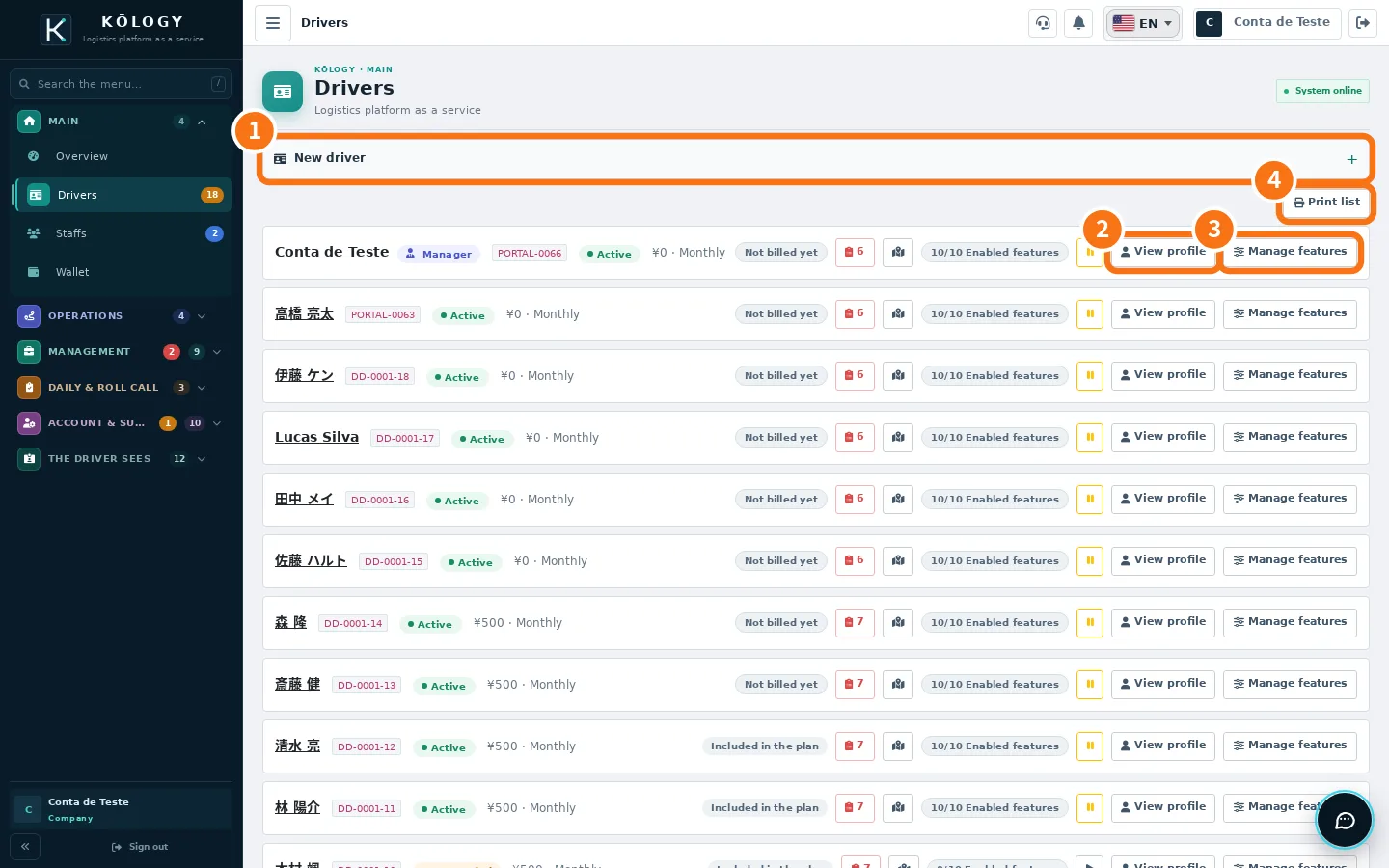
Where: web Main → Drivers → New driver; app, Drivers → New driver (on the web also Staffs → More → New driver).
Step by step
- Tap ① New driver. The top shows Plan seats: X of Y.
- Fill in the Driver name. The Driver ID is generated automatically when you save.
- Under Driver sign-in, enter the E-mail (login) and/or the Mobile (login). The app checks right away whether they belong to another account.
- Type the password twice or tap Generate. Rules: 8–128 characters, at least one letter and one digit. The Strength bar shows weak, good or strong.
- If you like, tick Send access to the driver: they get the sign-in link by email or SMS (the password is not in the message).
- Tap Create driver. The Driver created screen shows the ID, login and password — the password appears only now. Use Copy login + password and hand it to the driver.
Where the driver signs in
In the KŌLOGY app (iPhone or Android), choosing I am a driver, with the ID, email or mobile and the password. See the driver manual for their first day.
Common errors
- The email or mobile is already the login of another account. Use different sign-in data or invite the person through their own email.
- The access could not be sent. The driver was created; only the message failed. Hand over the details in person.
- Plan full. All seats are in use: suspend someone or change the plan.
Related questions
- Company drivers
- How to invite drivers by email
- KŌLOGY plans and limits