











KŌLOGY · Screens & features
Live team and drivers on duty
See where each driver is on the map and who is on duty, send messages with sound and set up alerts.
On this page
What it is for
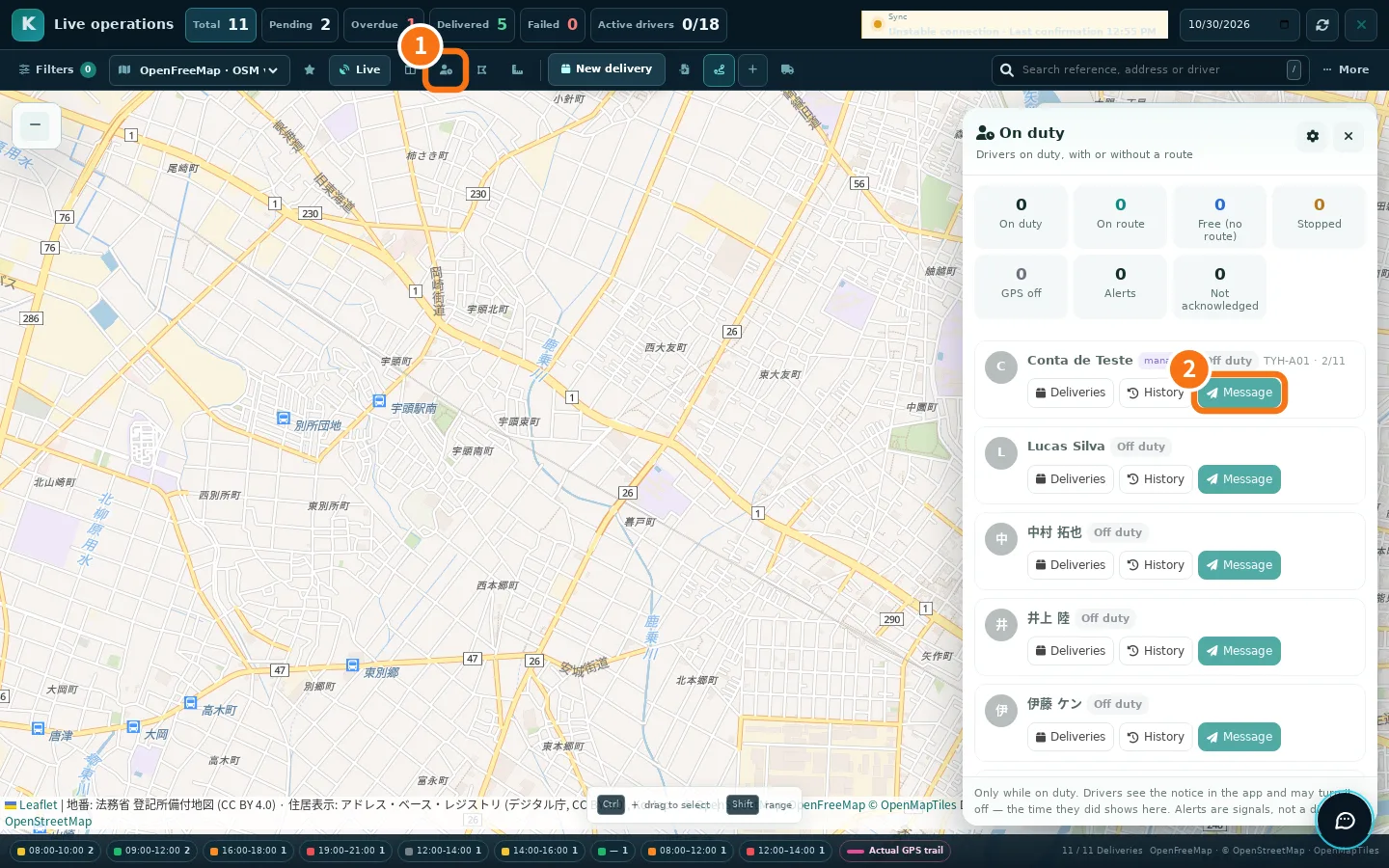
The Staffs tab shows your team live: where each driver is, where they are heading and what is left today. Drivers on duty lists who is working, with or without a route, and lets you send messages.
Where: app, the Staffs tab (middle of the bar) and More → Operations → Drivers on duty; web, Main → Staffs and Operations → Drivers on duty.
What is on the screen
- Map with drivers shown as people: photo or initial and a ring. Green = moving, orange = stopped, grey = no signal; dashed = no route.
- List by company with search («Search driver, route or delivery») and filters: All, On route, No route, GPS off, Off duty, Alerts.
- Today's routes and Deliveries without a driver, with Assign to a route.
- At the top of the app, the STAFFS | DRIVE switch: STAFFS manages the team; DRIVE is your own driver mode.
Step by step: check a driver and send a message
- Open the ① Drivers on duty panel (on the web, the badge button on the map bar).
- Tap the driver. The card shows where they are, where they are going (next stop and time window), the route progress, duty/GPS, km today and the last message.
- Tap ② Message. Pick a shortcut — Return to base, Call the office, Stop and wait, Start the route — or Free text.
- Tap Send. The message arrives with sound and stays pinned in the driver's app until they tap «Received». You see the received time or «Waiting for acknowledgement».
From the same card you can also open Deliveries & assignment, Open route, Publish route, Start route, New delivery and New route with that driver already selected.
Set up duty and alerts
On the Drivers on duty screen, tap the gear (On-duty settings):
- GPS on by default while on duty.
- Alerts for stopping away from a stop/base (minutes; 0 turns it off), sudden stop without movement, km driven without a route.
- Notify managers.
Common mistakes
- «no device with notifications»: the driver has not allowed notifications on the phone. Ask them to turn them on in Settings → Notifications.
- No position today: the driver has not started duty yet or turned location off.
Related questions
- Route centre and deliveries
- Company overview
- Create a route and add deliveries