KOCHAT · Getting started
Path — Personal: everyday chats
The articles for people who use KOCHAT with friends, family or colleagues, in the right order.
Follow in order. Each step names the manual article that explains it in detail — search the title in the Wiki.
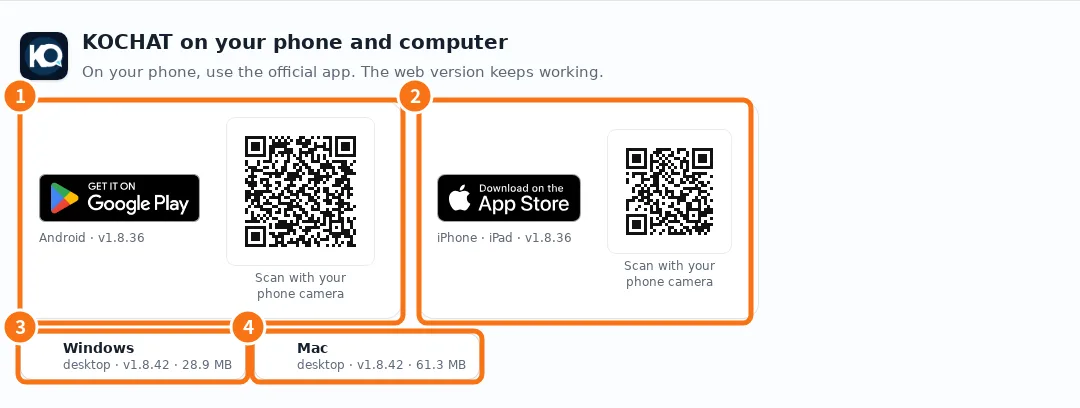
- Install KOCHAT (phone, computer and web) — Where to download the app for Android, iPhone, Windows and Mac, how to use it in the browser and what differs on each platform.
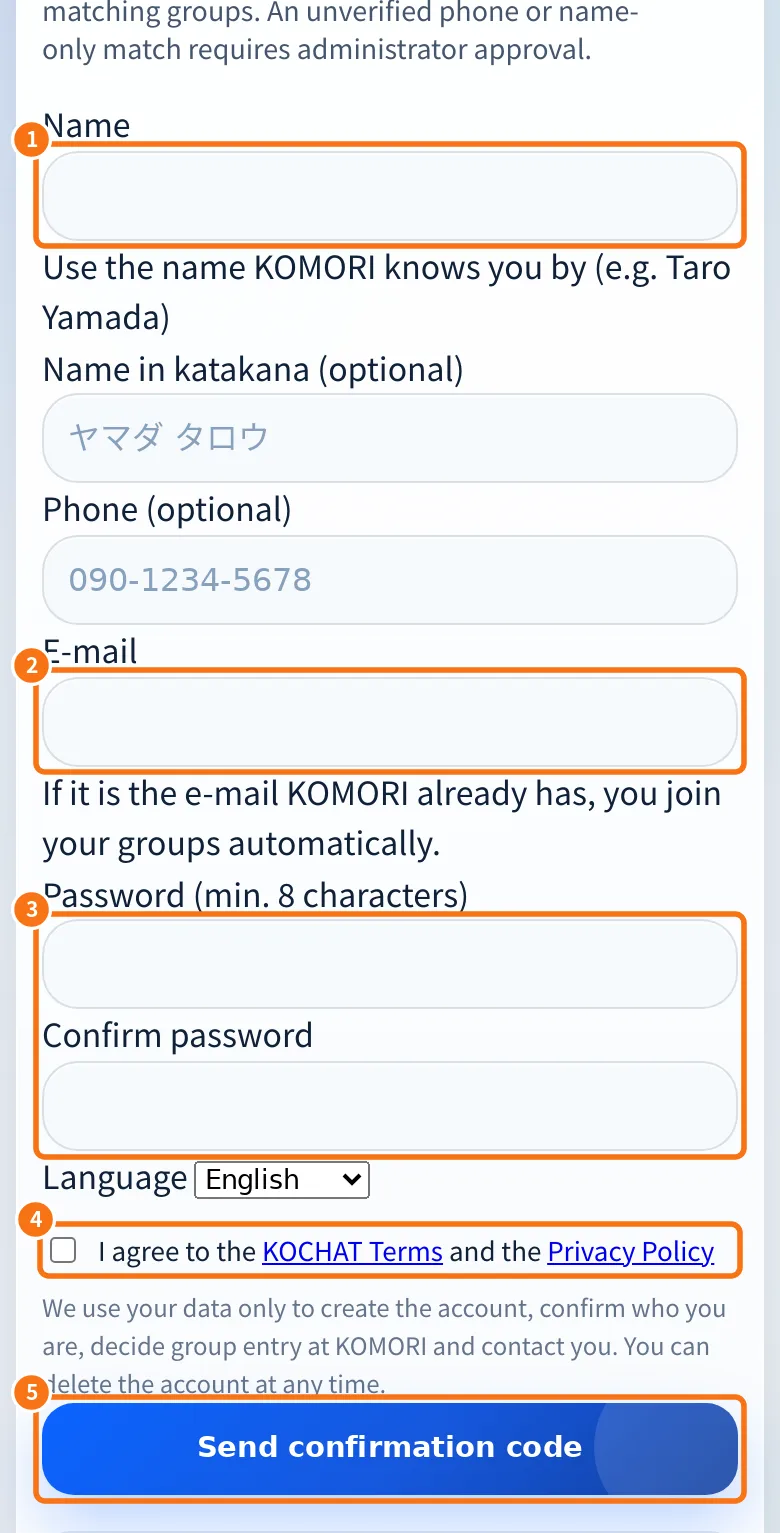
- Create a free personal account — For drivers, partners and outside people who talk with KOMORI: sign up at chat.its-komori.com/free, confirm with an emailed code and join your groups automatically.
- Chats screen: list, tabs and search — The first KOCHAT screen: recent chats, Chats/Status/Groups/People tabs, search, unread counters and the new chat button.

- Your first conversation — From the first sign-in to the first message: find a person or group, write, attach and check whether it was read.
- Writing: text, mentions, emoji, GIFs and stickers — The message box: Enter and line breaks, @ to mention, long texts, pasting screenshots and the emoji, GIF and sticker panel with search and favorites.

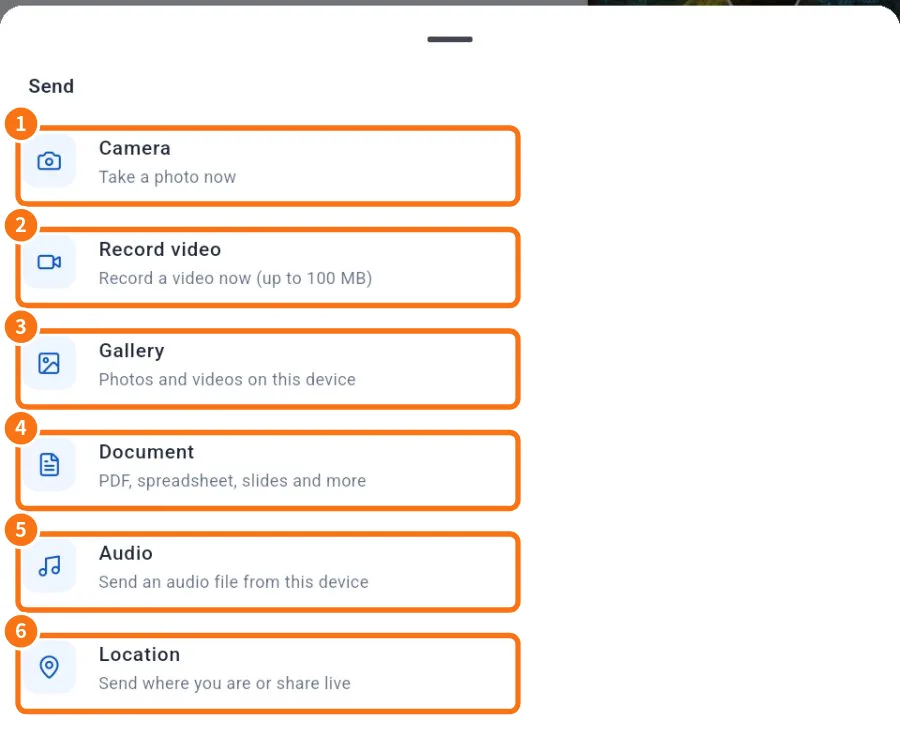
- Send photos, videos and files (preview and caption) — The paperclip opens Camera, Record video, Gallery, Document, Audio and Location. Everything goes through a preview with a caption first; videos are compressed on the device.
- Make voice and video calls — Call by voice or video from a one-to-one chat; understand Calling, Ringing, Connecting and Reconnecting; use microphone, camera, audio output and End.

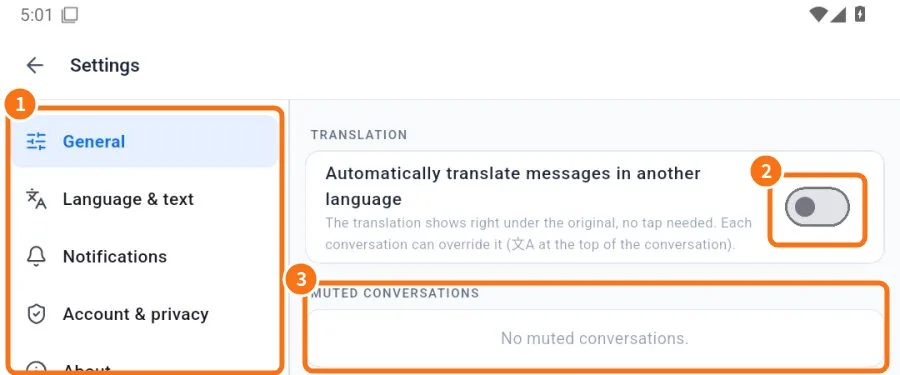
- Automatic message translation — Read Japanese, Portuguese or English messages already translated, adjust each chat with the 文A button and send your own text translated.
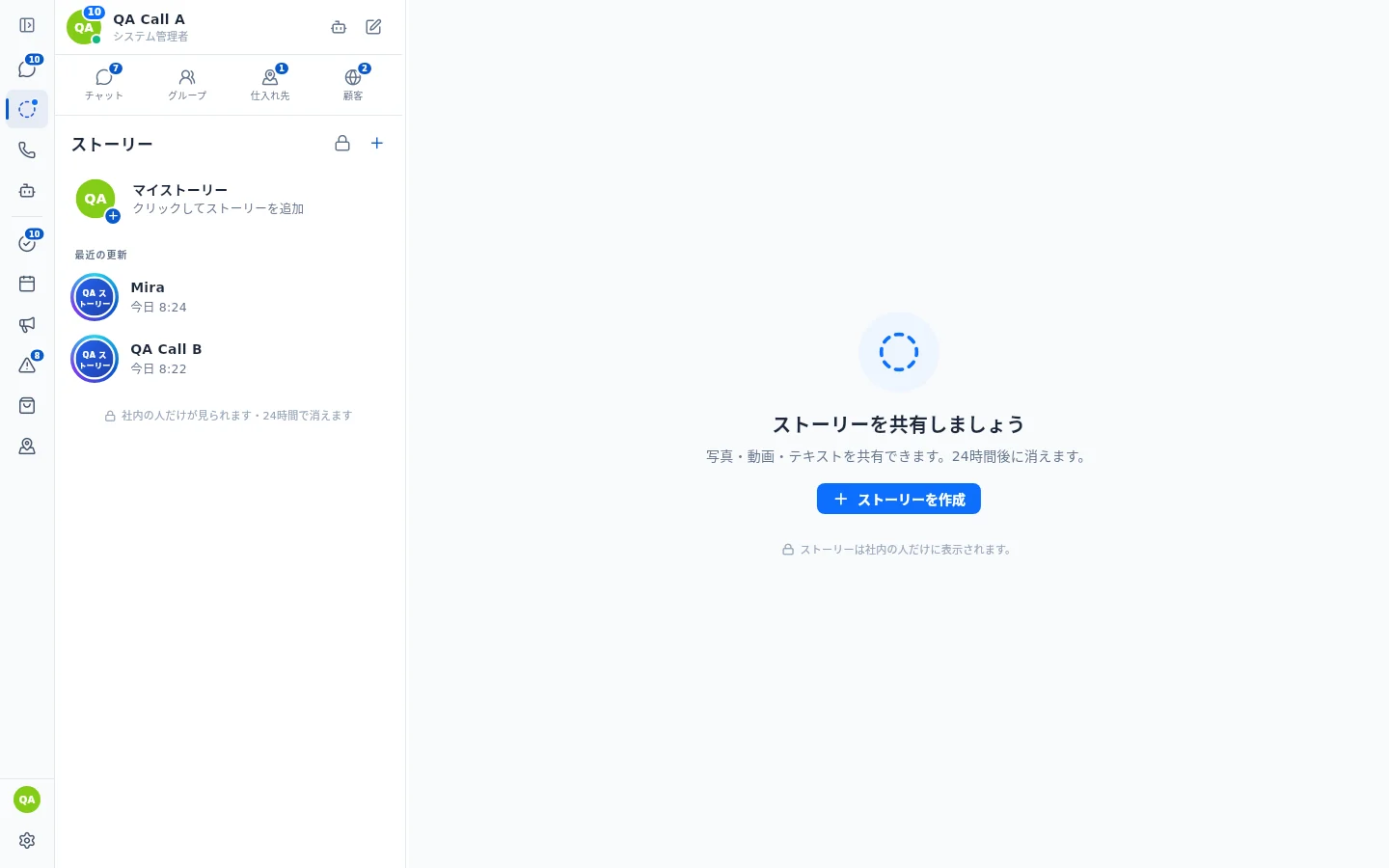
- Status tab: view and reply to updates — Team Stories: on the computer in the side bar, below Chat (blue dot = new story); on the phone in the Stories tab. The ring on a photo (colour = new, grey = seen) opens View story or View info.