KOCHAT · Bắt đầu
Path — Personal: everyday chats
The articles for people who use KOCHAT with friends, family or colleagues, in the right order.
Bài viết này chưa được dịch sang ngôn ngữ của bạn: đang hiển thị bản English.
Follow in order. Each step names the manual article that explains it in detail — search the title in the Wiki.
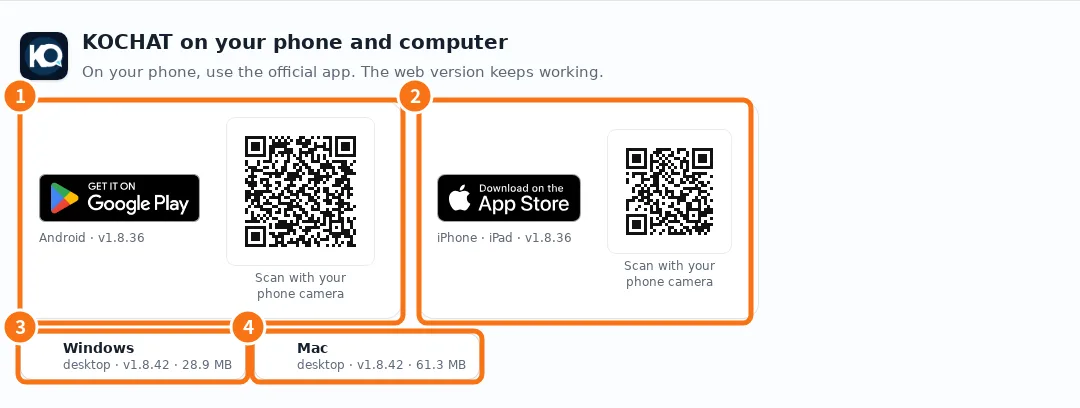
- Install KOCHAT (phone, computer and web) — Where to download the app for Android, iPhone, Windows and Mac, how to use it in the browser and what differs on each platform.
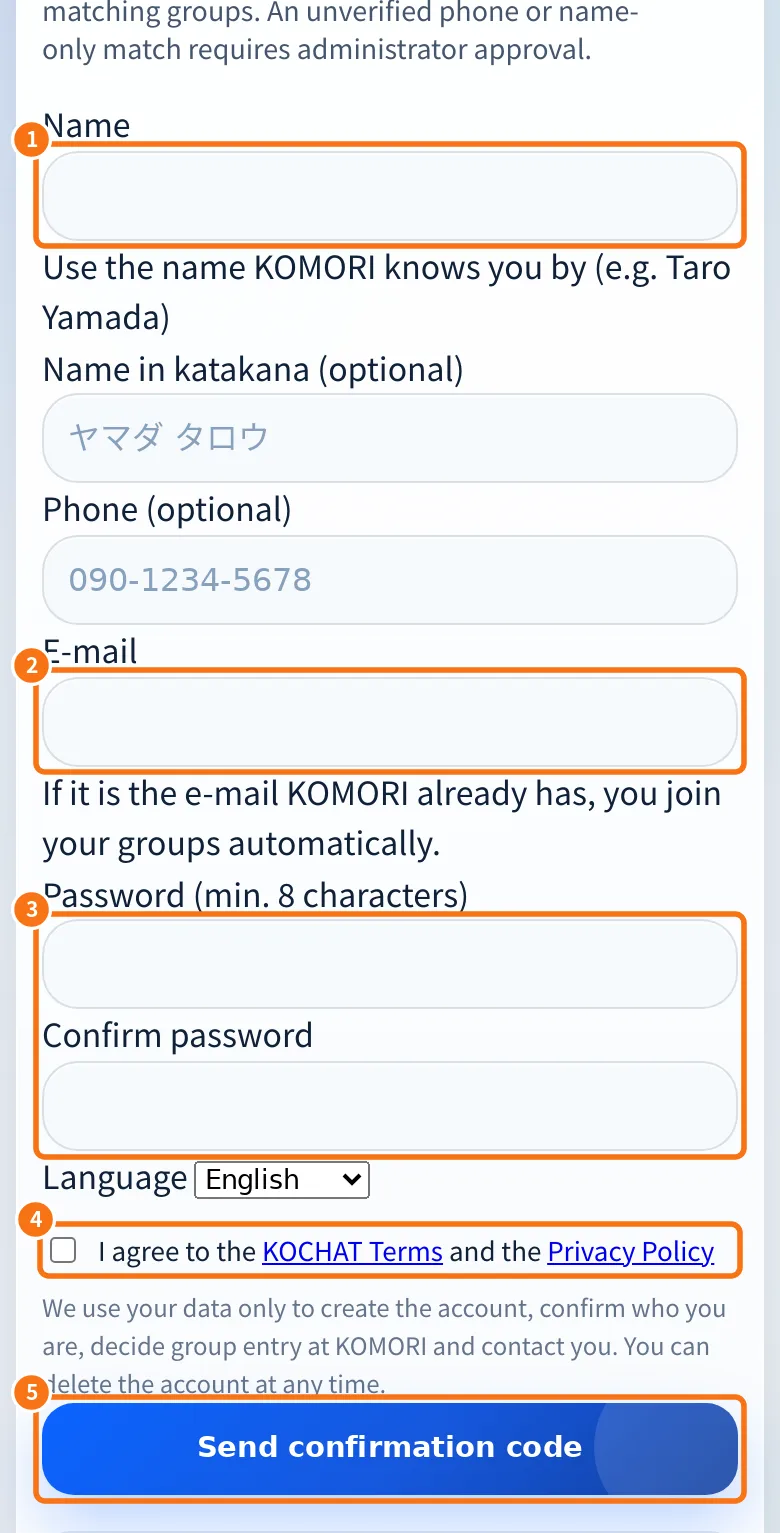
- Create a free personal account — For drivers, partners and outside people who talk with KOMORI: sign up at chat.its-komori.com/free, confirm with an emailed code and join your groups automatically.
- Chats screen: list, tabs and search — The first KOCHAT screen: recent chats, Chats/Status/Groups/People tabs, search, unread counters and the new chat button.

- Your first conversation — From the first sign-in to the first message: find a person or group, write, attach and check whether it was read.
- Writing: text, mentions, emoji, GIFs and stickers — The message box: Enter and line breaks, @ to mention, long texts, pasting screenshots and the emoji, GIF and sticker panel with search and favorites.

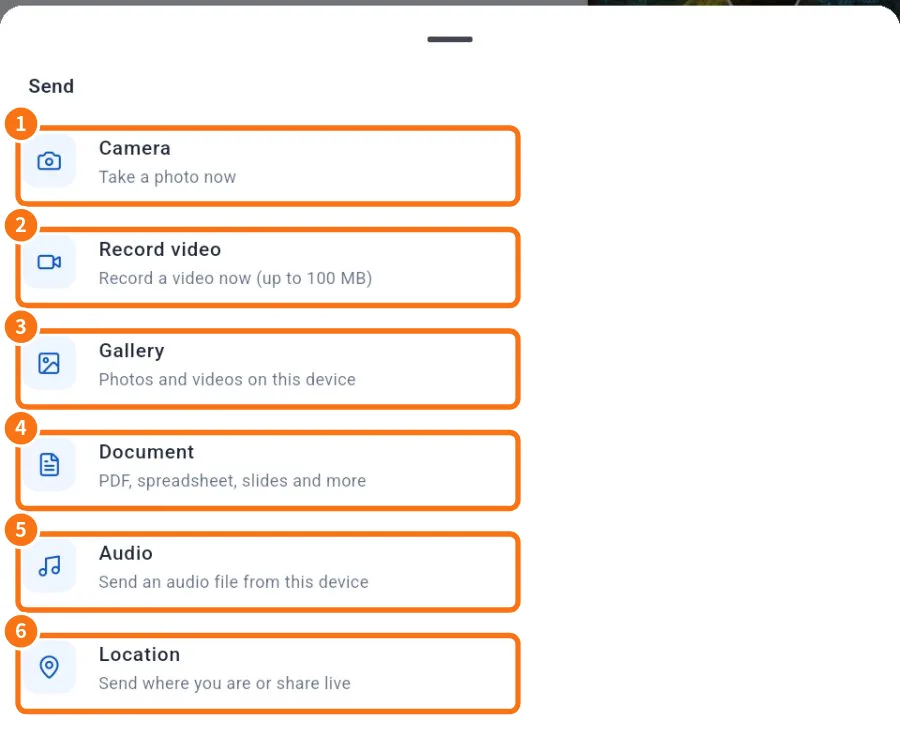
- Send photos, videos and files (preview and caption) — The paperclip opens Camera, Record video, Gallery, Document, Audio and Location. Everything goes through a preview with a caption first; videos are compressed on the device.
- Make voice and video calls — Call by voice or video from a one-to-one chat; understand Calling, Ringing, Connecting and Reconnecting; use microphone, camera, audio output and End.

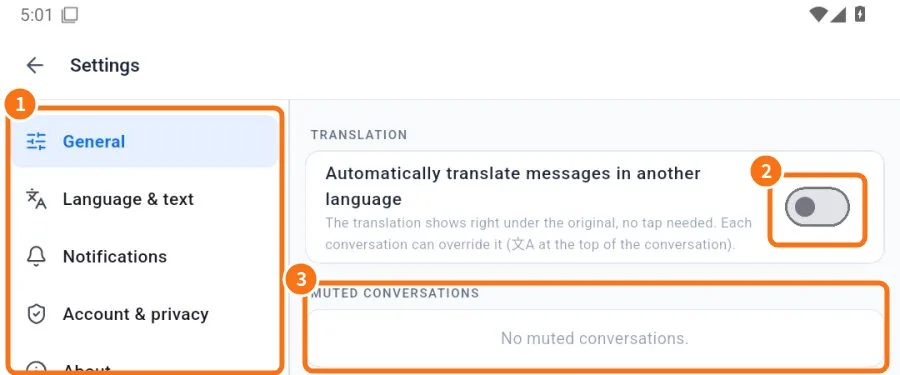
- Automatic message translation — Read Japanese, Portuguese or English messages already translated, adjust each chat with the 文A button and send your own text translated.
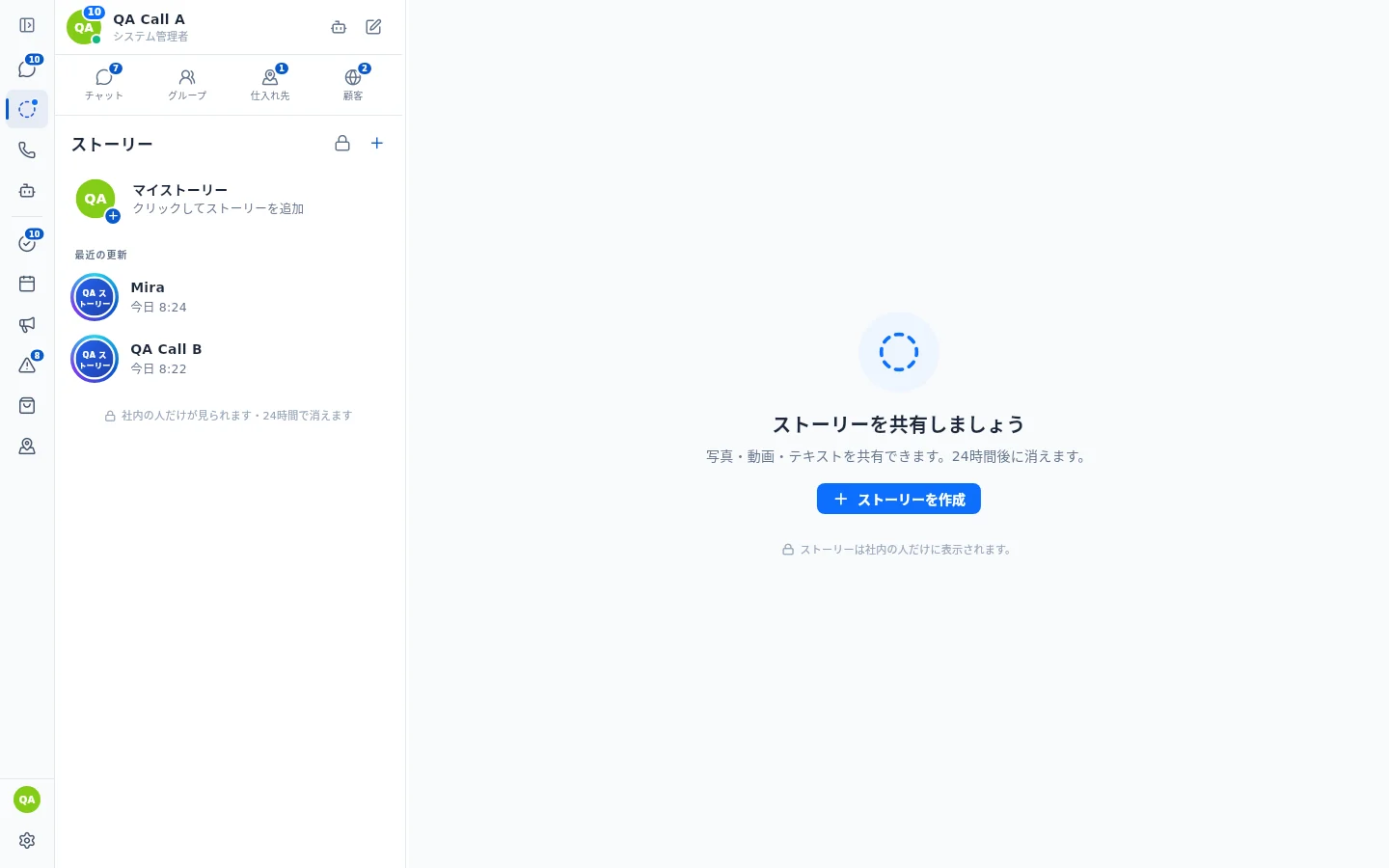
- Status tab: view and reply to updates — Team Stories: on the computer in the side bar, below Chat (blue dot = new story); on the phone in the Stories tab. The ring on a photo (colour = new, grey = seen) opens View story or View info.