











KOCHAT · Màn hình & chức năng
Status tab: view and reply to updates
The Status tab holds the team’s photo, video and text updates that disappear after 24 h. See who posted (colored ring), watch, reply in the chat and report.
Bài viết này chưa được dịch sang ngôn ngữ của bạn: đang hiển thị bản English.
Trong trang này
What it is for
Status is a quick team board: photos, short videos and colored-background texts that disappear by themselves after 24 hours. Use it for light updates (“the material arrived”, “good morning, team!”) without flooding groups.
Who uses it and where it is
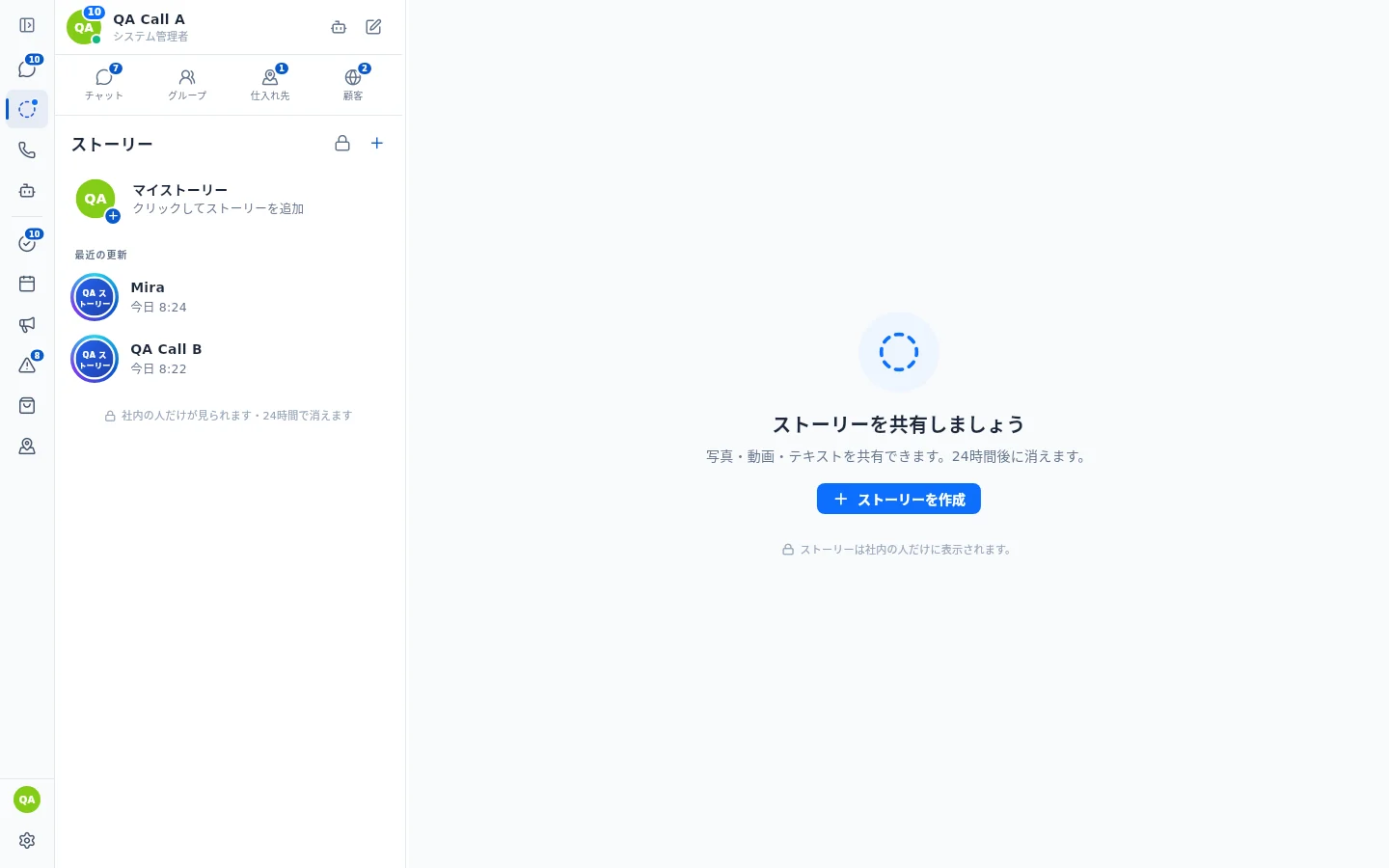
On the computer: the Stories icon in the left side bar, right below Chat. A blue dot on the icon tells you someone posted a story you have not seen yet. One click opens it, no menu.
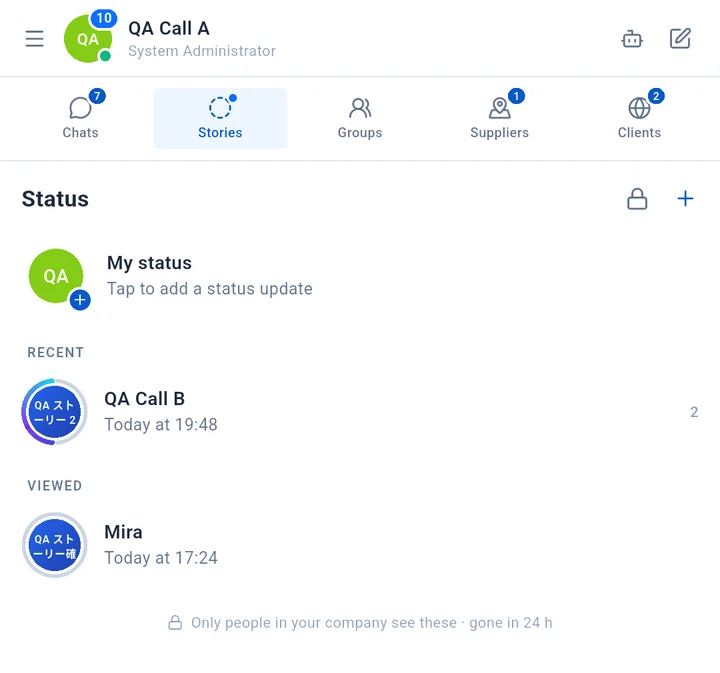
On the phone: the Stories tab, next to Chats; the same blue dot shows when there is a new story.
Only people in your company see it; external guests and portal accounts don't have Stories.
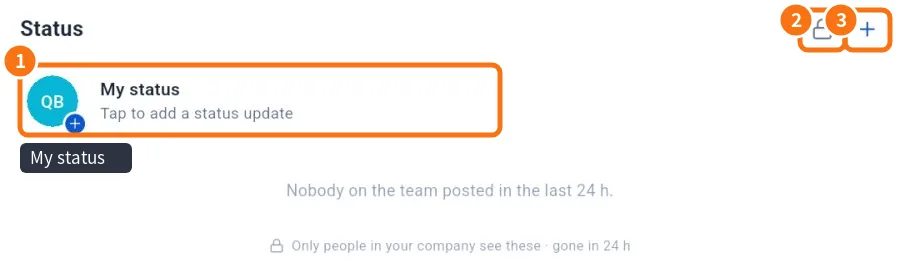
- My status: yours; tap to post or see what you posted.
- Padlock: Status privacy.
- +: New status.
Step by step: view updates
- Open Stories (computer: side bar, below Chat; phone: Stories tab).
- RECENT lists people with updates you haven't seen — their photo has a colored ring, split into segments when there are several. Under VIEWED the ring is grey.
- Tap the person. Updates advance by themselves; tap right to go forward, left to go back, hold to pause.
- To reply, type in Reply to … at the bottom. It arrives as a message in your chat with them (“Reply sent to … in the chat.”).
Ring on the photo: see the story of people you chat with
People with a story show a ring on their photo — colour = new, grey = already seen — in the chat list, at the top of the chat and on their profile.
- In the list or at the top of the chat, tap the photo with the ring.
- Choose View story (opens the story) or View info (opens the profile).
- On the profile, a tap on the photo opens the story directly.
Other options
- Report story: from the status menu, pick a reason (offensive, harassment, confidential company information, other).
- Notify me when someone posts a story: turn it on to get notifications.
- Video muted? Tap Unmute.
Common problems and what to do
- “Nobody on the team posted in the last 24 h.”: there are no new updates.
- No Status tab: your account is a guest/portal account, or the company does not use status.
- “Could not load. Check your connection.”: the internet dropped; try again.
- Video does not play: check the connection; on slow networks a blurred preview shows first.
Related questions
- Post a status: photos, videos, text and privacy
- Chats screen: list, tabs and search
Captions and viewers in version 1.8.56
Captions appear in your language. When needed, tap Translate and switch between the original and translated text. Your own posts or captions already in your language do not show an unnecessary translation button. On official company statuses, everyone can see viewer photos and the viewer count.