











KOCHAT · Bắt đầu
Install KOCHAT (phone, computer and web)
Where to download the app for Android, iPhone, Windows and Mac, how to use it in the browser and what differs on each platform.
Bài viết này chưa được dịch sang ngôn ngữ của bạn: đang hiển thị bản English.
Trong trang này
What it is for
This guide shows where to get KOCHAT on each device. Your account is the same everywhere: after installing, just sign in with your email and password.
Where to download
Open its-komori.com/kochat and scroll to KOCHAT on your phone and computer.
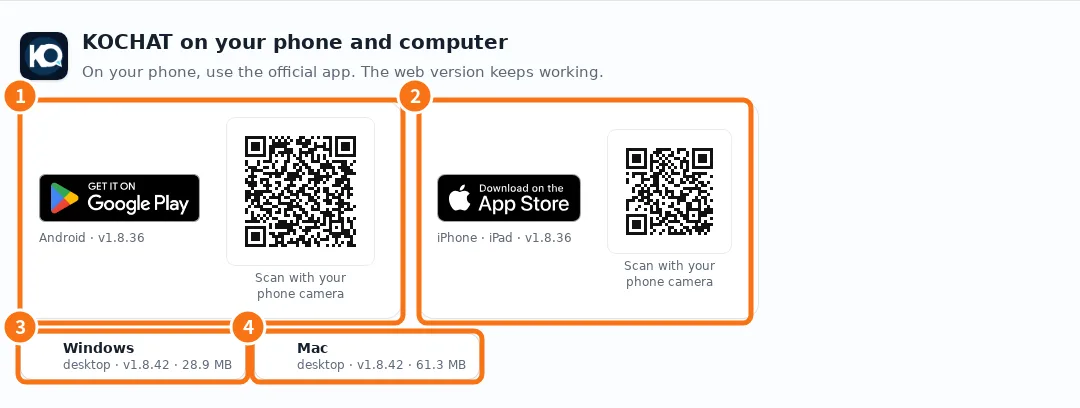
- ① Android: tap the Google Play badge (or point your phone camera at the QR code) and tap Install.
- ② iPhone / iPad: tap the App Store badge (or scan the QR code) and tap Get.
- ③ Windows: click Windows, open the downloaded installer and follow the screens. KOCHAT opens by itself at the end.
- ④ Mac: click Mac, open the downloaded file and drag KOCHAT into the Applications folder. Requires macOS 12 or newer.
If the Mac says it cannot verify the app: open the app once, then System Settings → Privacy & Security → “Open Anyway”. On macOS 14 or earlier you can also right-click the app in Finder → Open → Open. Only the first time.
Linux and browser
- Linux: there is a Linux desktop app, but it is not listed on the download page. If your company uses Linux, ask your administrator for the installer.
- Computer browser: go to chat.its-komori.com/messenger/. Nothing to install. Handy on a borrowed computer.
- Phone browser: it opens the installed app or takes you to the store. On phones, use the app.
After installing
- Open KOCHAT.
- Sign in with your email and password (see “Sign in, sign out and reset your password”).
- On phones, allow notifications when the app asks. Without this you get no message or call alerts.
- On Android, open Settings → Notifications and follow the Calls and messages while locked panel.
Differences between platforms
- iPhone: you cannot create an account inside the app. Outside people create the free account on the website and then sign in to the app.
- Android: the sign-in screen has No account? Create one.
- Computer: has window settings (start with the system, keep running in the tray) and automatic updates on Windows.
Common mistakes
- The store says the app is installed but it does not update: if you installed KOCHAT from an APK file (outside Google Play), the Play Store cannot update over it. See “Update KOCHAT and see What's new”.
- The Mac says it cannot open the app: check that macOS is 12 or newer and that the file came from the official website.
Related questions
- What KOCHAT is and where to use it
- Sign in, sign out and reset your password
- KOCHAT on the computer (Windows, Mac and Linux)
- Update KOCHAT and see What's new