











KOCHAT · Màn hình & chức năng
KOCHAT on the computer (Windows, Mac and Linux)
The desktop app: window and tray, start with the system, voice calls, paste and drag files, shortcuts and updates.
Bài viết này chưa được dịch sang ngôn ngữ của bạn: đang hiển thị bản English.
Trong trang này
What it is for
The desktop app is the same KOCHAT as on the phone, in its own window. It can notify you even with the window closed (if you want), receives voice calls and accepts pasted or dragged files.
Sidebar
The side bar on the left holds the main sections. Stories sits right below Chats. A blue dot on the Stories icon tells you when someone posted a story you have not seen yet. One click opens the story directly — no menu.
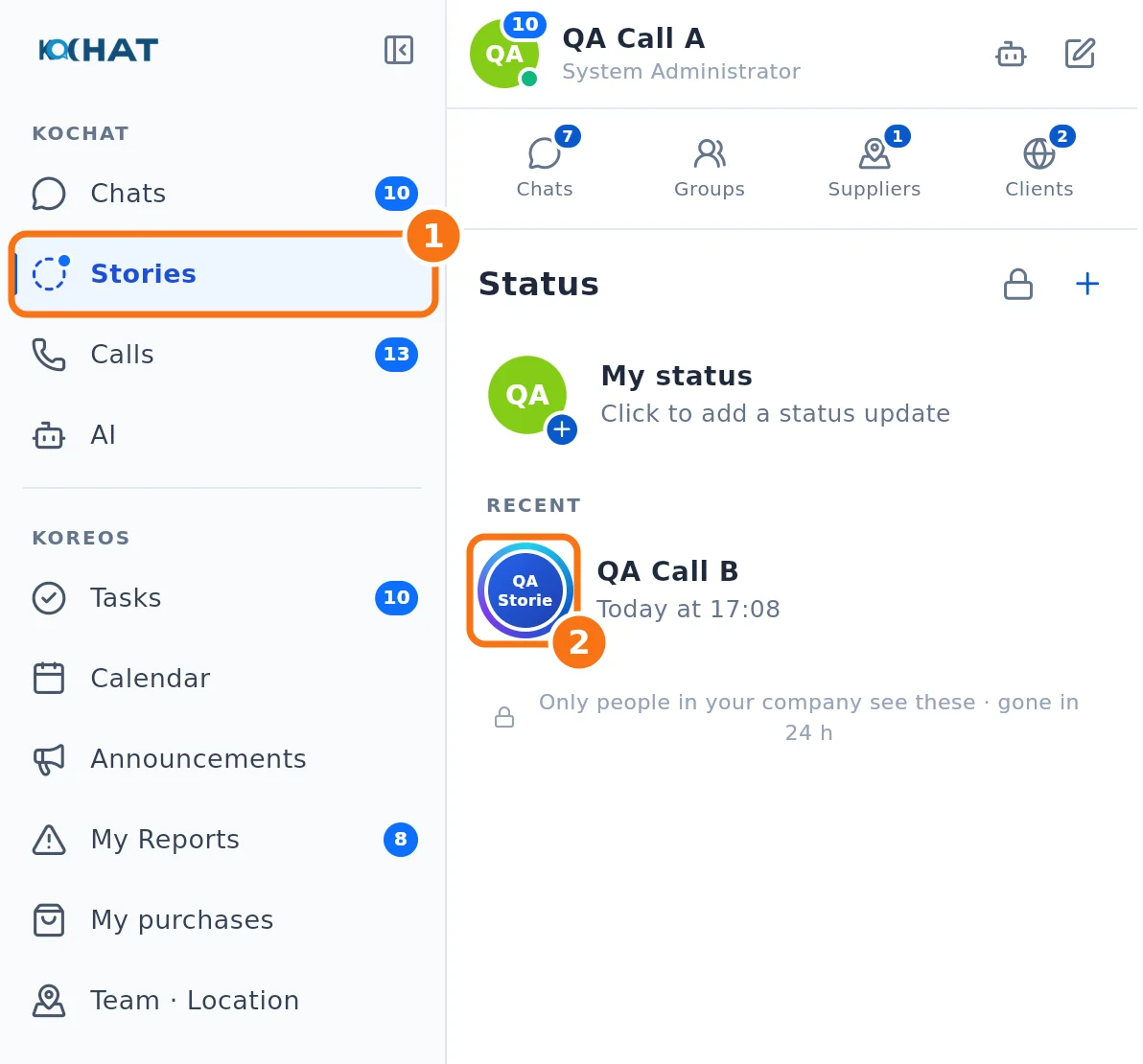
- ① Stories sits right below Chats. The blue dot on the icon means there is a new story; one click opens the list right away (the panel is titled Status).
- ② People who posted a story you have not seen yet have a colored ring. Click the person to view it.
Window settings
Open Settings → General tab → Window:
- Start with Windows (or Start with macOS / Start when signing in to Linux): KOCHAT opens when you turn on the computer.
- Start minimized in the tray: when starting with the system, it stays hidden. Opening the app icon shows the window.
- Keep KOCHAT running when the window is closed: closing only hides the window; KOCHAT stays in the tray (near the clock) or in the Mac Dock and keeps notifying you. To quit completely on a Mac, use ⌘Q. When off, closing the window quits the app and alerts stop.
- Minimize and Maximize / restore: also from the title bar. Size and position are remembered.
You can view up to 6 chats side by side. Drag a chat or a panel to build the grid your way: a preview shows where it will land, and the dividers can be dragged to resize each column.
Calls on the computer
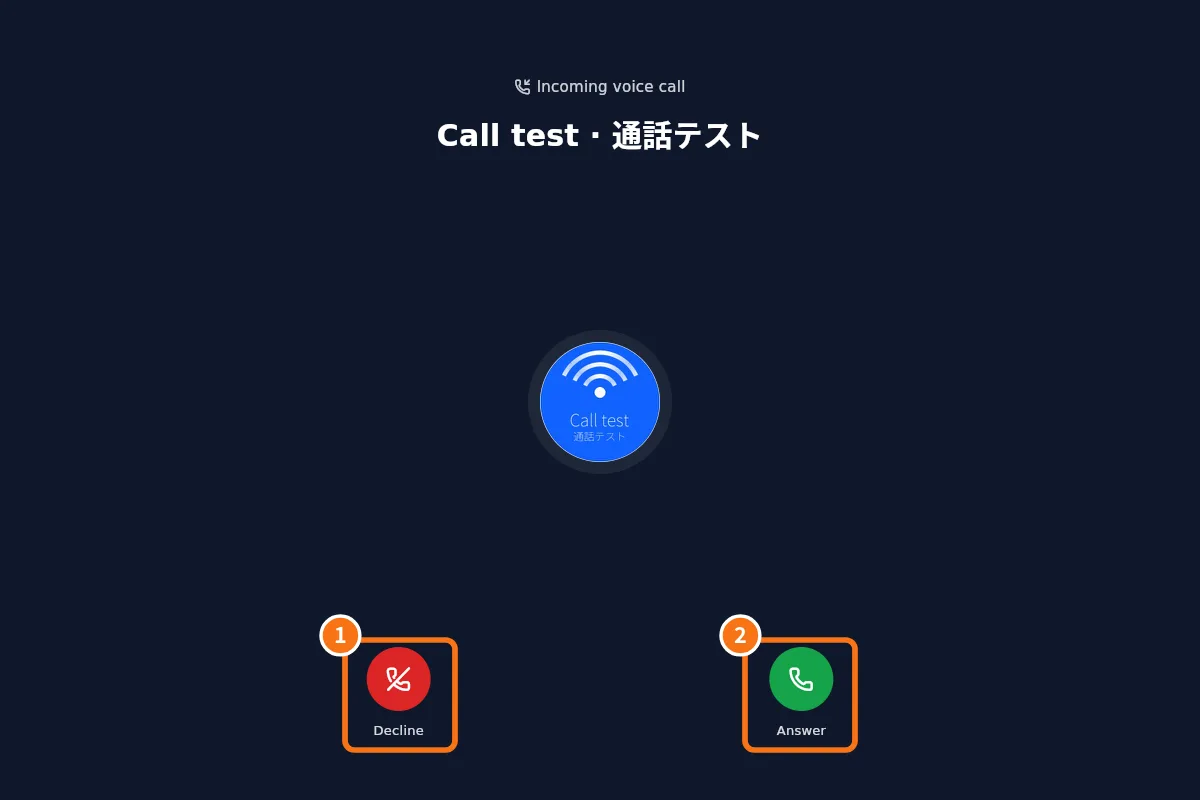
- When a voice call comes in, the call screen appears.
- ① Decline stops the ringing.
- ② Answer starts the call. If you answer on another device, the computer stops ringing.
Files, shortcuts and text
- Paste a screenshot or file into the message field (Ctrl+V / ⌘V) or drag it into the chat to open the preview; add a caption and send.
- Right-click a message for the menu (reply, copy, forward, delete…).
- Text size: Ctrl +, Ctrl −, Ctrl 0 (⌘ on Mac).
- Received attachments can be saved with Save as… or opened in a computer program.
Updates
- Windows: updates itself in the background. When KOCHAT … is ready — restart to update appears, restart the app.
- Mac downloaded from the website: shows New version … available — download; download it and replace the app.
- Mac from the App Store: updates through the App Store.
- Linux: install the new version your company provides.
- To check now: Settings → About → Check for updates.
Common mistakes
- I closed the window and stopped getting alerts: turn on Keep KOCHAT running when the window is closed.
- "Could not apply" for start with the system: check login items in the system settings.
Related questions
- Update KOCHAT and see What's new
- Use on several devices at once
- Install KOCHAT (phone, computer and web)
- Problems: attachments, translation and desktop app