











KOCHAT · Screens & features
Add a contact by ID, link or QR
Add someone outside your company by ID, by pasting an invite link, by scanning your QR or by e-mail; accept requests, change your ID and choose whether people can find you.
On this page
What it is for
Besides company colleagues, you can have personal contacts in KOCHAT: a partner, a former colleague, someone with a personal account. The Add contact screen gathers every way to connect.
Who uses it and where it is
People tab → person icon with +. Some company accounts cannot have personal contacts; then the app says “This account cannot add personal contacts.”
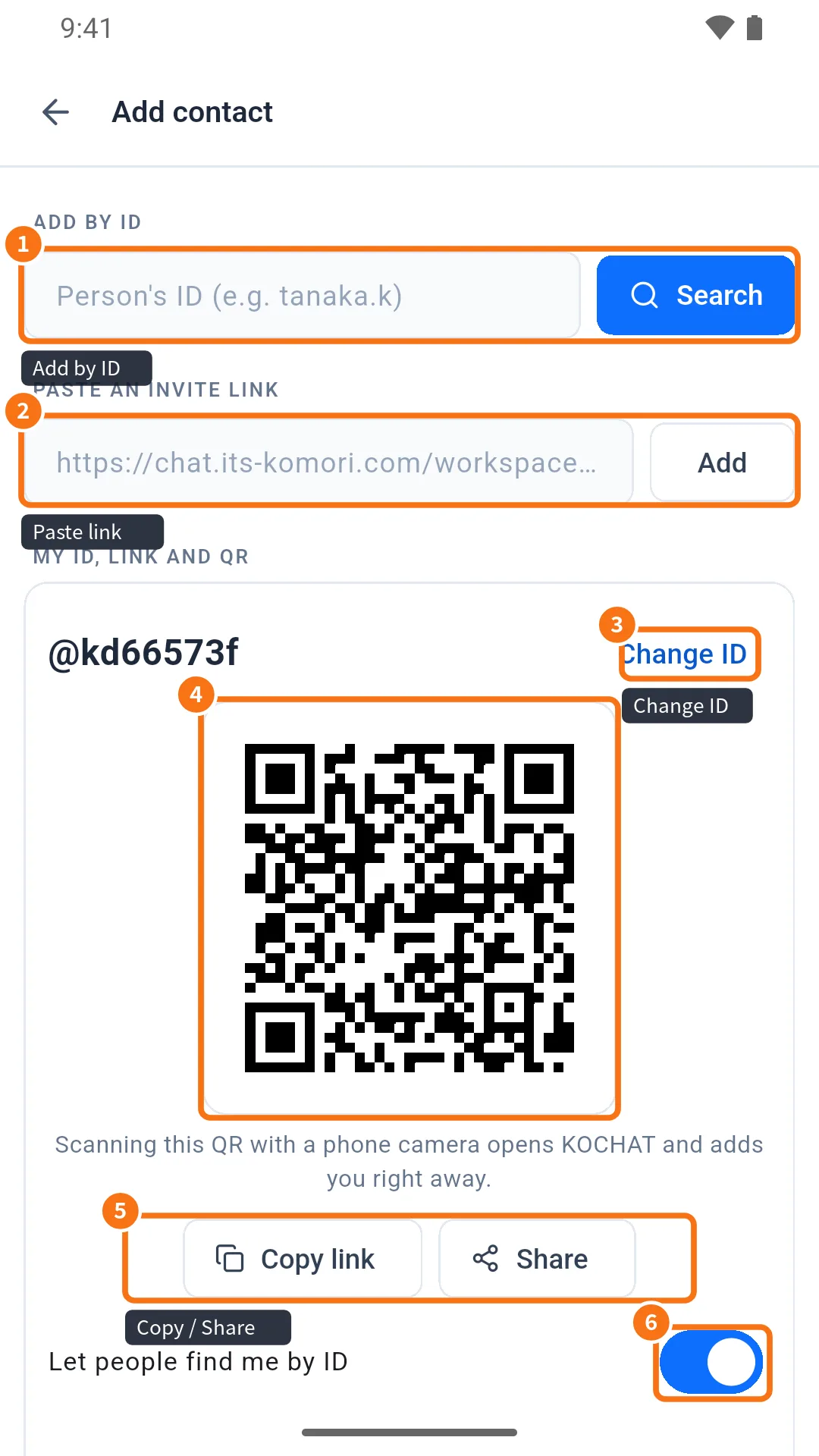
- Add by ID: type the person's ID (e.g. tanaka.k) and tap Search.
- Paste an invite link: paste the link they sent and tap Add.
- My ID and Change ID.
- QR: scanning it with a phone camera opens KOCHAT and adds you right away.
- Copy link / Share: send your link through any app.
- Let people find me by ID: turn off if you don't want to be found by ID search.
Step by step: add in person with the QR
- The other person opens Add contact and shows the QR.
- Point your phone camera at it.
- KOCHAT opens and adds the contact. The chat is available immediately.
Requests and e-mail invites
- Further down the same screen: Invite by e-mail (type the address and tap Send; you see “Invitation sent.”).
- Requests received: Accept or Decline.
- Requests sent: shows Waiting; you can Cancel.
- Blocked: people you blocked, with Unblock.
Common problems and what to do
- “This contact link is no longer valid. Ask for a new one.”: the person created another link.
- “Invalid invite link.”: check that you copied the whole address.
- “This is your own link.”: you pasted your own link.
- “Already in your contacts.”: open the chat from the People tab.
- Can't find them by ID: they may have turned off “Let people find me by ID”. Ask for the link or QR.
Related questions
- People tab: find colleagues and view profiles
- Chats screen: list, tabs and search
- Make voice and video calls