











KOCHAT · Screens & features
Receive calls (locked screen, desktop and web)
How calls arrive (full screen, notification, locked screen), Answer and Decline, several devices at once, desktop and web, and what to check when it does not ring.
On this page
What it is for
When someone calls you on KOCHAT, your device rings like a normal call — even with the app closed or the screen locked, as long as permissions are allowed.
How the call appears
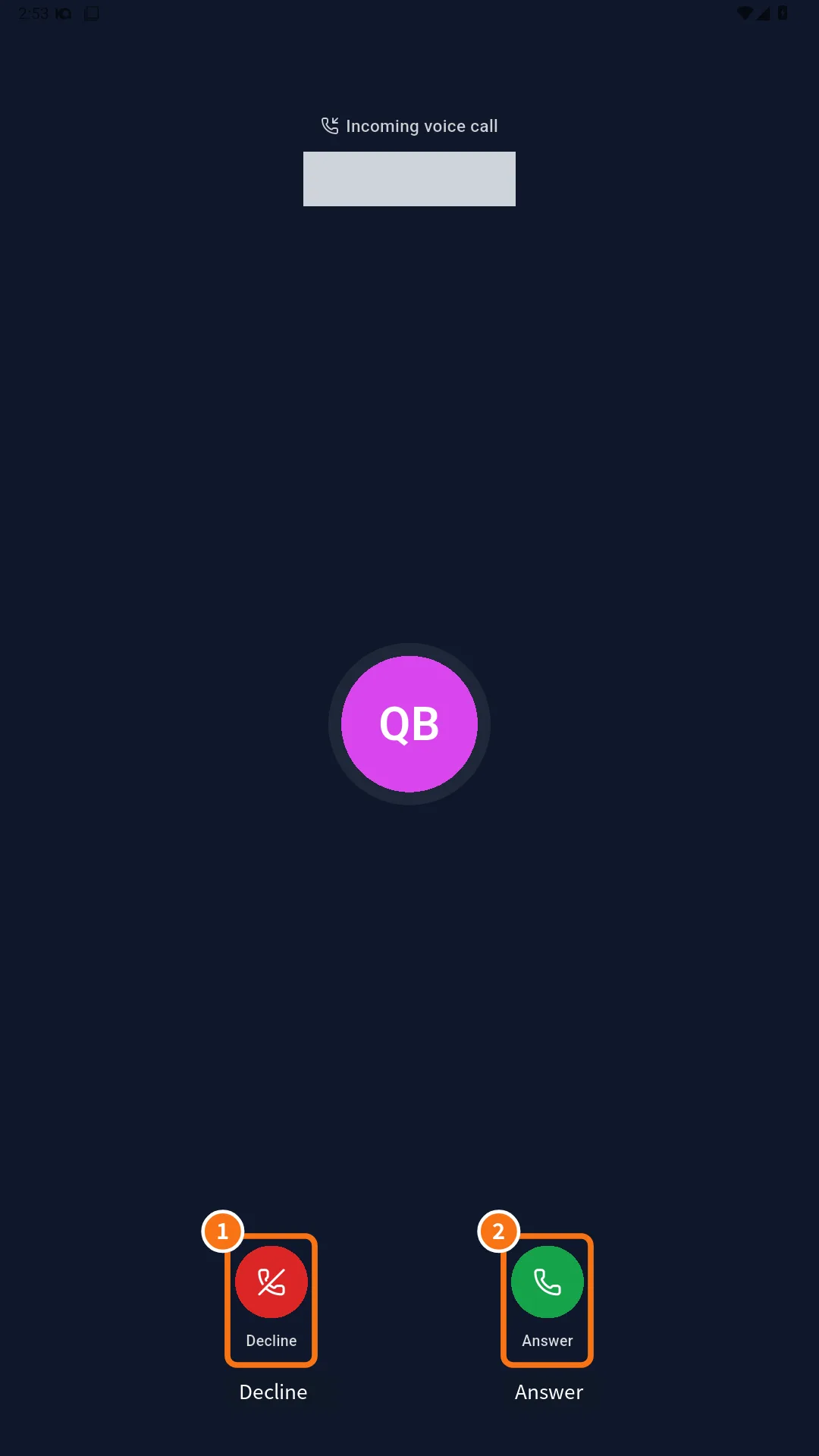
- App open: call screen with the caller's name, “Incoming voice call” or “Incoming video call”.
- App closed or screen locked (Android): full-screen call or a call notification with Decline and Answer. With a PIN, you can decline without unlocking.
- iPhone: the iPhone's own call screen.
- Computer and web: an incoming call window with Answer and Decline; the microphone opens only when you answer.
Step by step
- When it rings, tap Answer (②, green) or Decline (①, red).
- Answering connects the call and the timer starts.
- Declining shows “Call declined” to the caller.
- If you don't answer, “Missed call” stays in the chat — tap the phone at the top to call back.
Several devices
If you use KOCHAT on your phone and computer, all of them ring. Answer on one and the others stop at once. After the call, the app returns to the chat you were in.
Privacy on the lock screen
Notifications follow the device's choice to hide content on the lock screen. If your phone hides content, it only shows that there is a message or a call.
Common problems and what to do
- It didn't ring with the screen off: check the permissions above and that the device is not in Do Not Disturb. KOCHAT does not override silent mode.
- The computer rang but not the phone: open KOCHAT on the phone once so it registers again.
- I answered and it stayed on “Connecting…”: weak connection; wait, or hang up and call again.
- More on notifications: see the notifications article under Settings.
Related questions
- Make voice and video calls
- Inside a chat: header, messages and read status
- Chats screen: list, tabs and search