











KOCHAT · Screens & features
Post a status: photos, videos, text and privacy
Post photos and videos (up to 10 at once, with caption and editing) or a text with color and font; choose who sees it, check who viewed and delete before 24 h.
On this page
What it is for
Posting a status takes seconds and interrupts nobody: whoever wants to look, looks; nobody gets a message notification. Everything disappears by itself after 24 hours.
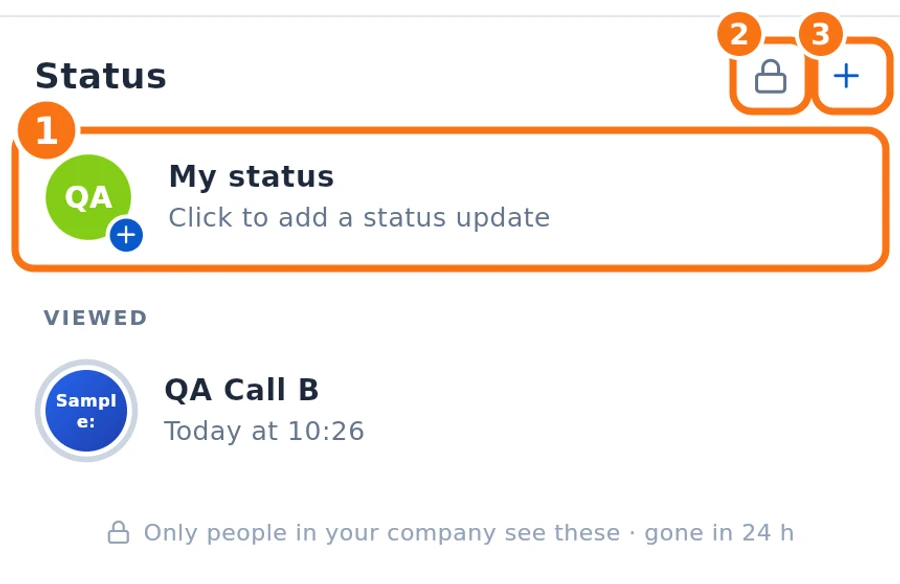
On the computer, Stories sits in the side bar, right below Chat; on the phone, in the Stories tab. + and My status are at the top of the list.
Step by step: photos and videos
- In Status, tap + (③) or My status (①).
- Choose Photos & videos and select up to 10 items.
- In the editor, use the tools if you like: Draw, Text, Emoji, Sticker, Shapes (arrow, rectangle, circle), Blur (mosaic) to hide something, Rotate & crop and Filters & auto-enhance. Undo steps back.
- Type in Add a caption…. Turn on HD quality if the photo needs more detail.
- Tap Send. You can leave: “My status” shows Sending… and then says it was shared.
Videos have a length limit (the editor shows, for example, “Video: up to 30 s”); anything longer is cut. Photos and videos are made lighter before leaving the device.
Step by step: text
- Tap + → Text.
- Write in Type a status.
- Change the Background color and Font (Standard, Classic, Bold, Light, Typewriter…).
- Tap Send.
Who sees it (privacy)
- Tap the padlock (②) → Status privacy.
- Choose My contacts (everyone in your company), My contacts except… (pick who will NOT see) or Only share with… (pick who will see).
- Tap Save. It applies to your next updates.
After posting
- Open My status to see Seen by N and the list of viewers.
- In official company statuses, the viewer list (photos and Seen by N) is visible to everyone, not only to the person who posted.
- To delete early: open the update → Delete. It disappears for everyone at once and is erased from the server.
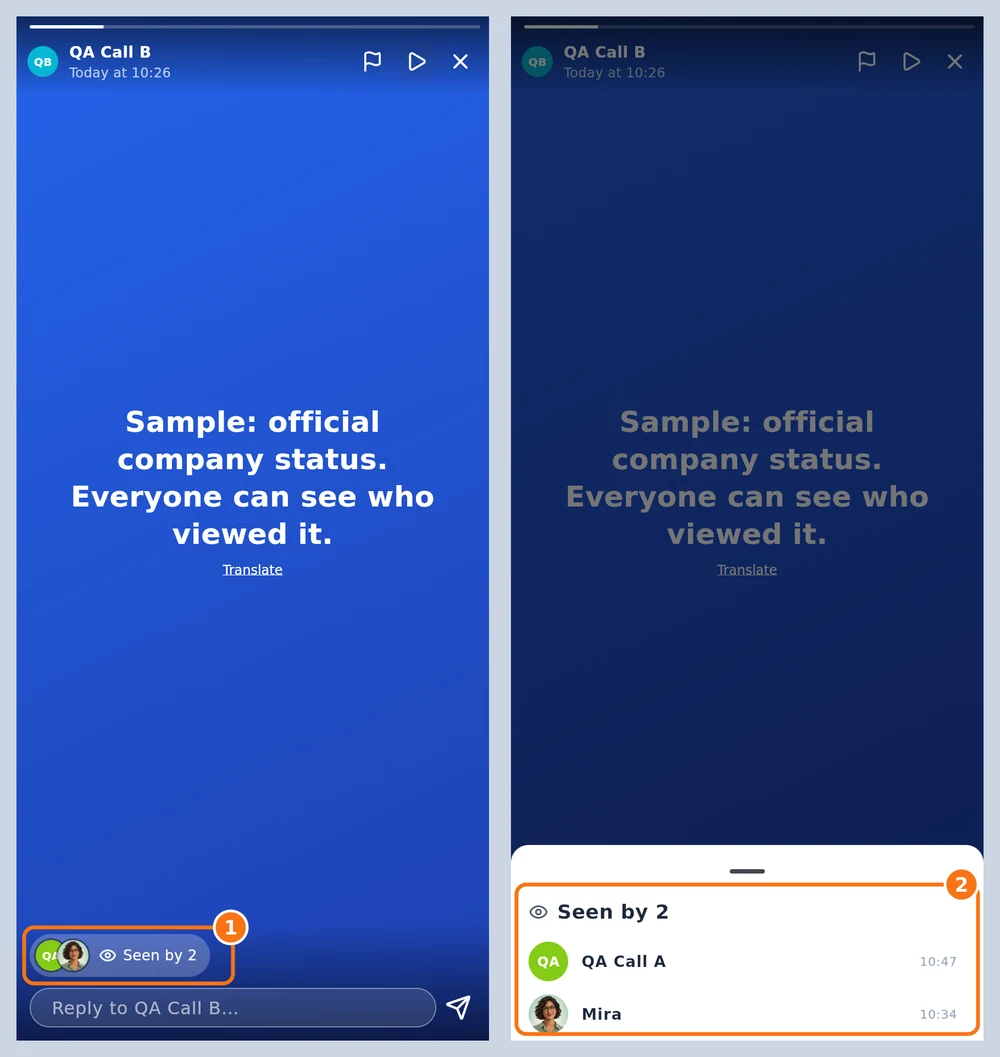
Official company status (sample status, opened by someone who did not post it). ① Viewer photos and Seen by N are shown to everyone. ② Tap there to see the list of who viewed it, with the time.
Common problems and what to do
- “Not sent · tap to see”: tap it and choose Try again or Discard.
- “This format cannot be edited here, but it can be sent as is.”: the file goes without editing.
- “Pick at least one person.”: in “Only share with…”, select someone.
- “Up to 10 at a time.”: post in two rounds.
Related questions
- Status tab: view and reply to updates
- Chats screen: list, tabs and search