











KOCHAT · Screens & features
Send photos, videos and files (preview and caption)
The paperclip opens Camera, Record video, Gallery, Document, Audio and Location. Everything goes through a preview with a caption first; videos are compressed on the device.
On this page
What it is for
With the paperclip 📎 you send photos, videos, documents (PDF, spreadsheets, slides), audio files and your location. Before anything leaves, a confirmation screen lets you check it, add a caption and decide.
The paperclip menu
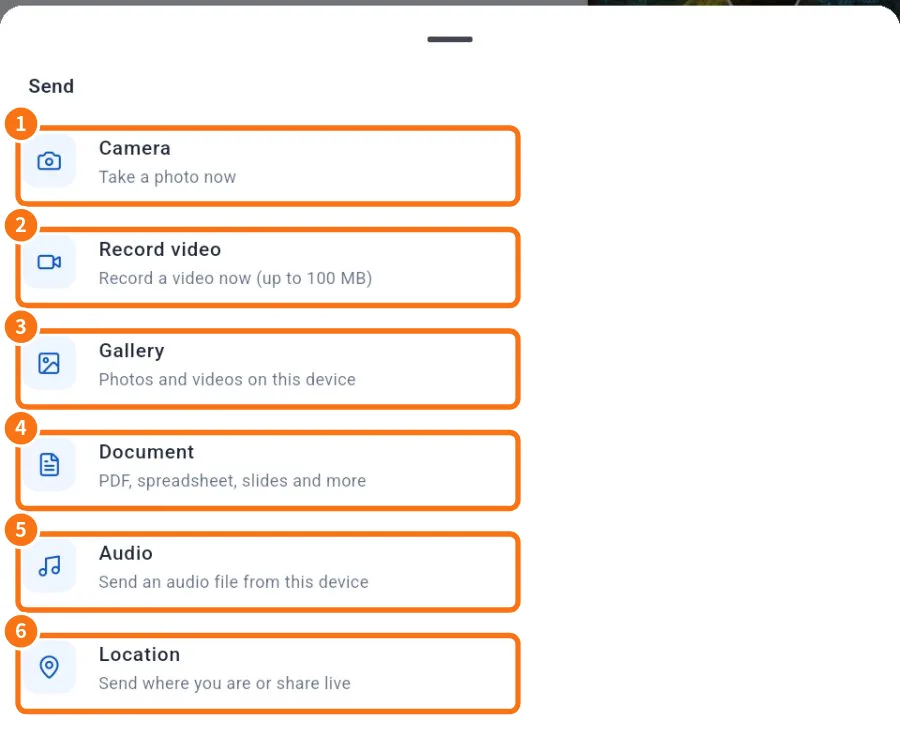
- Camera: take a photo now.
- Record video: record a video now.
- Gallery: photos and videos on the device (several at once).
- Document: PDF, spreadsheet, slides and more.
- Audio: an audio file from the device.
- Location: send where you are or share it live.
On a computer the paperclip shows Gallery, Document, Audio and Location; the camera is on the phone.
Step by step
- In the chat, tap the paperclip.
- Choose the source (for example Gallery) and select the files.
- The Send 1 item / Send N items preview opens.
- Check it: videos play with duration, images show large, PDFs open in the reader, audio in a player; other documents show name and size.
- Use + to add more or the × on a thumbnail to remove one.
- Type the caption in the box below and tap Send.
A caption on each photo, rotate and crop
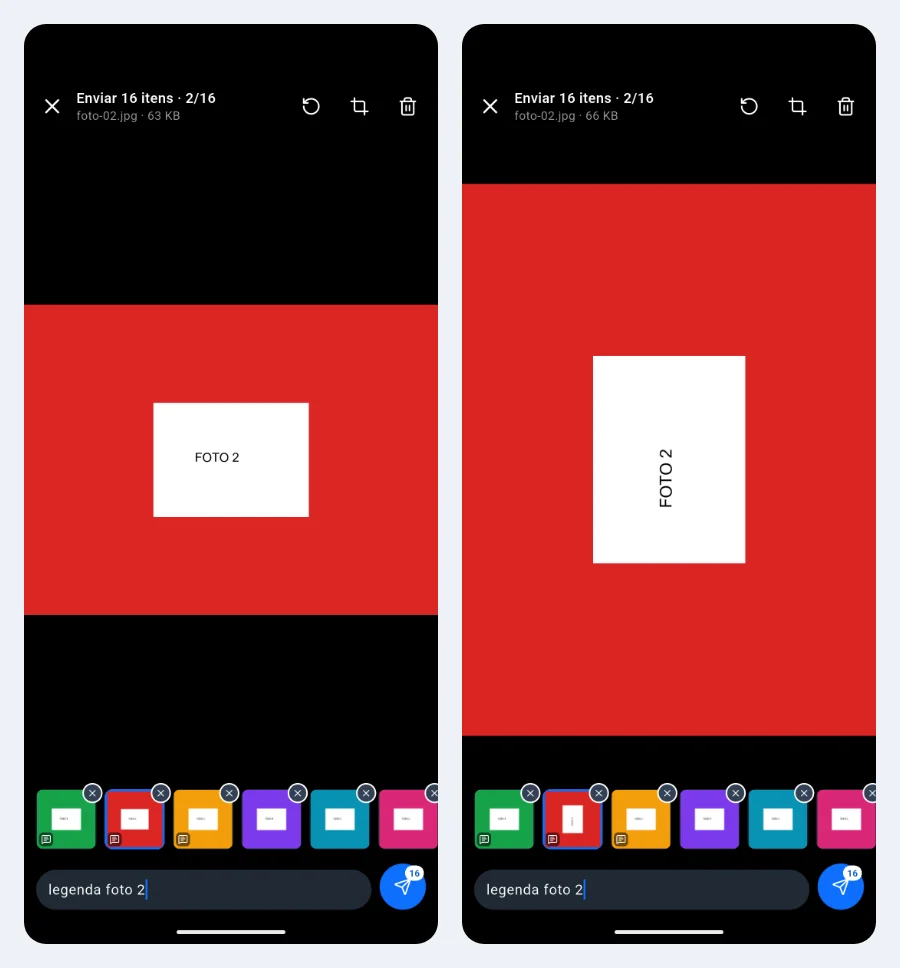
- Tap a thumbnail (or swipe the big photo) to switch items. Each photo, video or document has its own caption; thumbnails with a caption show a small bubble.
- On photos: rotate (round arrow) and crop (drag the corners and tap Done). The original photo on the phone does not change.
- The bin removes the open item; + adds more.
Sending continues in the background
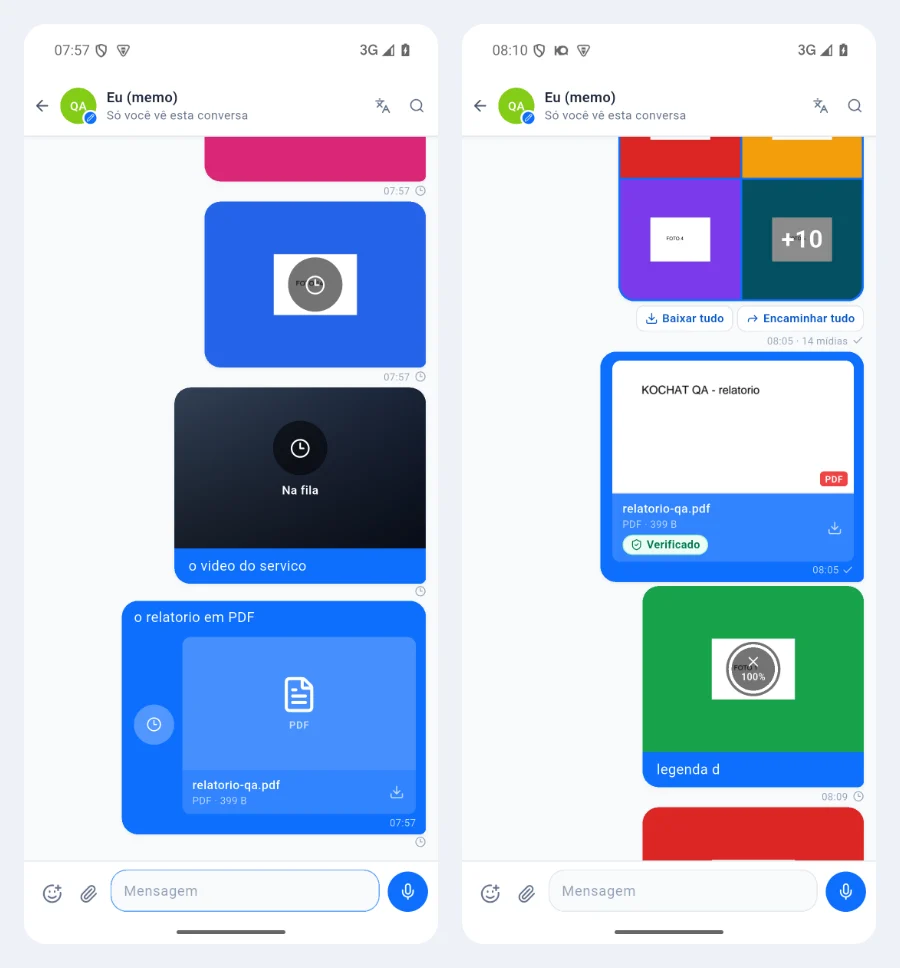
- When you tap Send the preview closes right away. Each item appears in the chat with its caption: clock = queued, ring with % = uploading, ✓ = delivered.
- You can type, send more photos, leave the chat or the app — everything goes into the queue, in order.
- Tap the clock or the ring to cancel only that item; the others keep going. An item that failed: tap to try again.
- No internet or app closed: when you come back, sending continues where it stopped, without duplicates.
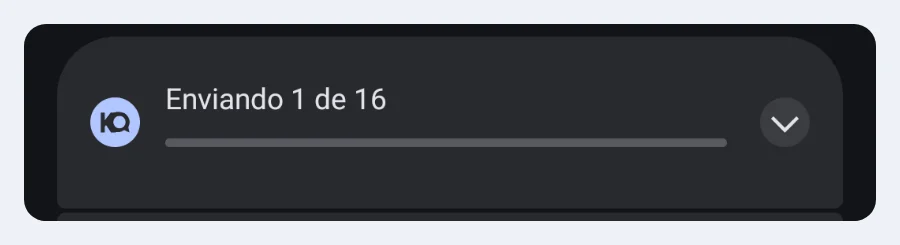
On Android a Sending 3 of 16 notification shows while it uploads. On the computer and KOCHAT web it works the same: the preview never blocks the screen and the progress is on the bubble (Portuguese screenshots).
Lighter, faster photos
JPEG photos may be compressed on your device before sending to make the files smaller. Chat previews, photo albums and the Media tab load faster. Opening a photo or downloading its file gives you the file that was actually sent, which may be the JPEG already compressed by the app. The preview does not replace that file.
Large videos
On Android and iPhone the video is compressed on the device before upload (Compressing… and a percentage). You can cancel; the original file on the device is not changed.
Send from another app
- Android: in the source app, tap Share → KOCHAT and pick the chat.
- iPhone: for documents and videos offered as files, use Open in…/Copy to KOCHAT. It depends on the source app; KOCHAT's own gallery always works.
- Computer: drag into the chat or paste with Ctrl+V / ⌘V.
Common problems and what to do
- “No camera permission”: allow the camera for KOCHAT in the phone settings.
- Upload stopped: check the connection; the app retries. If the file was deleted from the device, you see “The attachment file is no longer on the device”.
- File rejected: the server shows the size, type or safety limit. Compress it or send another format.
Related questions
- How to send several photos or a video with a caption
- Open, download and save received files
- Send your location or share it live
- Writing: text, mentions, emoji, GIFs and stickers