











KOCHAT · Screens & features
How to mute and unmute a conversation
Silence a noisy group without losing messages, and later find all muted chats to unmute them.
On this page
What it is for
Muting stops alerts from one chat or group, but you still receive the messages. It is better than turning off all notifications, because everything else keeps alerting you.
Mute
- In the chat list, tap and hold the chat (on a computer, right-click) and choose mute. Or open the chat, tap the name at the top and tap Mute.
- Done: the chat no longer rings. New messages still appear in the list with the counter.
Unmute
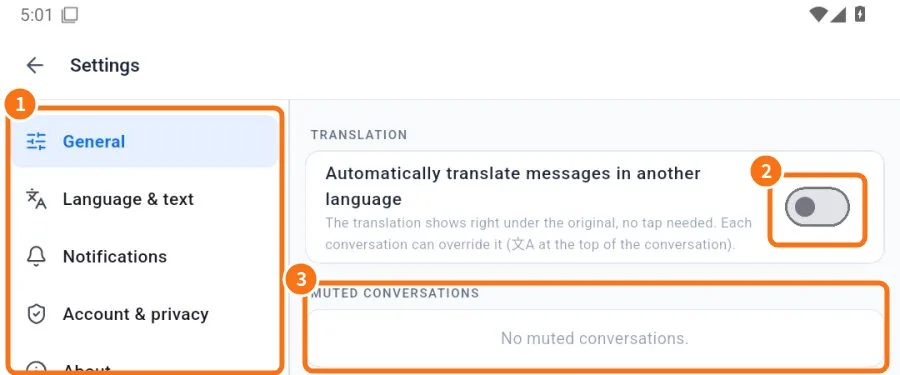
- Open Settings → General tab.
- ③ Under Muted conversations, see the list.
- Tap Unmute next to the chat.
You can also unmute inside the chat: tap the name at the top → Unmute.
What still arrives in a muted chat
- Messages arrive normally and the unread counter shows in the list.
- Calls from that person or group still ring.
- @mentions in that chat are silent too. Open the chat now and then, or unmute it.
When to use something else
- Want to leave a group for good? Use Leave group (in the group info).
- An outside person is bothering you? Block or Report.
- Want silence only at night? Use the phone’s Do Not Disturb/Focus. Calls and account security notices always ring in KOCHAT.
Common mistakes
- I muted one chat and get nothing from anyone: you may have turned off Messages in Notification types. Turn it back on.
- “No muted conversations.” but a group does not ring: check the system notifications and the phone’s messages channel.
Related questions
- Notifications: what to notify and how it sounds
- Privacy: block, report and your ID
- Use on several devices at once
- Problems: notifications, calls, audio and camera