











KMR · Pantallas y funciones
Daily reports, report forms, field reports and report management
How managers generate and check daily reports, set each project's questions, view field reports and publish reports for the client.
Este artículo aún no está traducido a su idioma: se muestra la versión en English.
En esta página
What it is for
Four Menu screens handle what the team reports: Daily reports, Daily report forms, Field reports and Report management. Daily reports also feed the payment statements.
Daily reports
- Open Menu → Daily reports. Filter by month and staff.
- Under Reports to generate, tap Generate to create the daily report of finished shifts.
- Each report shows its status: Draft, Finalized or in pay statement (already in the payment statement).
- Open it to check times, counters and answers. Deleting a daily report also removes its line from the statement.
Daily report forms
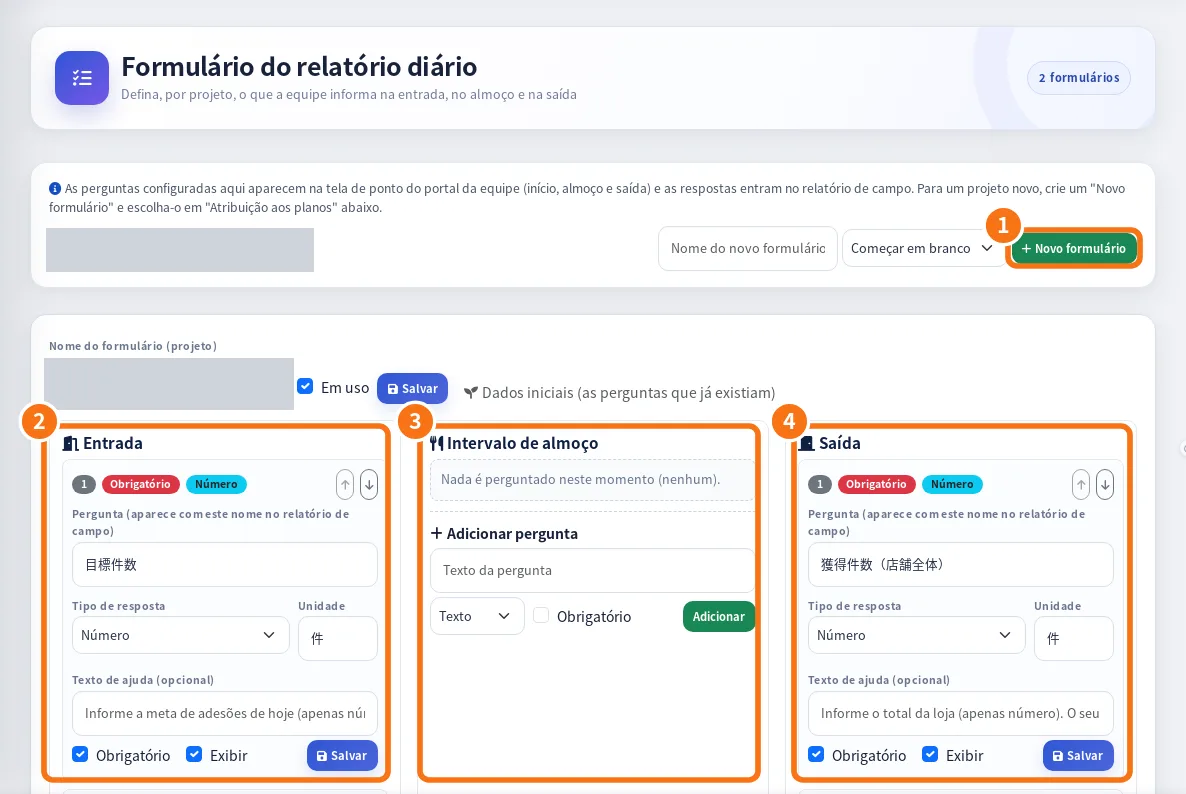
On the web panel: ① New form, ② check-in questions, ③ lunch break questions and ④ check-out questions.
- Open Menu → Daily report forms and choose the project's form.
- For each moment (check-in, lunch, check-out), see the questions. Tap Edit question to change the text, type (number, text, choice, photo) and whether it is required.
- In Application form, choose the sign-up (入会受付) options for that form: fixed ones and the project's own, or Automatic (by plan name).
- Save. The staff app starts asking the new form.
Field reports
Lists the reports sent by the team with the number of reports and photos (“N report(s) · N photo(s)”). Open one to see photos and answers.
Report management
- Open Menu → Report management. Choose Daily, Weekly or Monthly.
- Tap Generate report. To get the latest numbers, use Refresh data.
- Review and write a Comment. Then use Approve, Approve & publish or Publish.
- To take it down, Suspend; to store it, Archive.
Common mistakes
- Staff say a “required item” does not appear: the form changed. Ask them to close and reopen the screen.
- The daily report is not in the statement: generate the report, then refresh the month's statement.
- Report with old numbers: tap Refresh data before publishing.
Related questions
- Daily report (日報): questions, photos and required fields
- Attendance (勤怠), applications (入会受付) and ranking
- Manager payment statements: generate, approve and send