











KMR · Pantallas y funciones
How to record a full work day in the app
From the day before to the end of the shift: confirm, leave home, arrive, count, lunch, add sign-ups and check out.
Este artículo aún no está traducido a su idioma: se muestra la versión en English.
En esta página
Before you start
You need a confirmed shift. If you have not answered the confirmation yet, do it first in the Work tab. Allowing location helps your manager see you at the store (it is optional).
Step by step
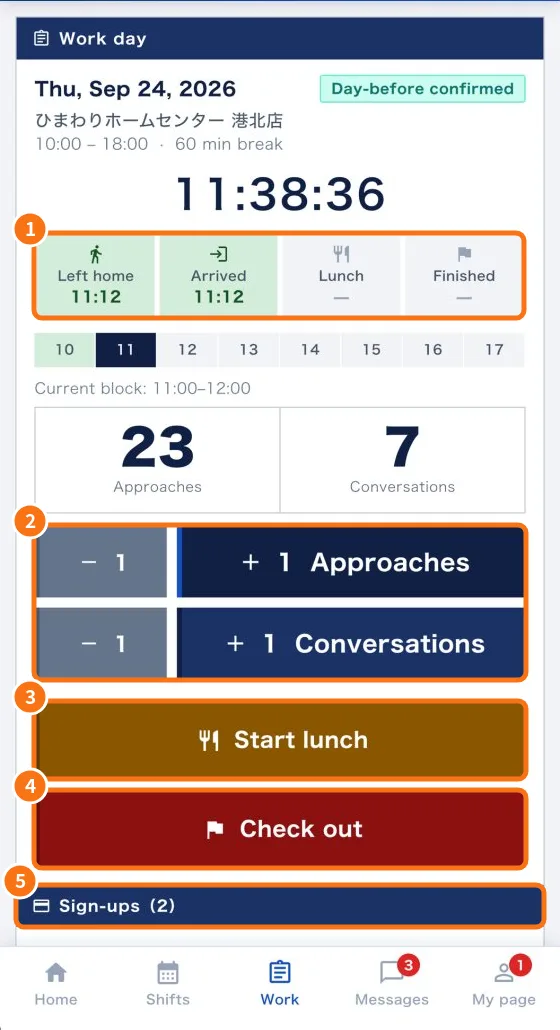
- 2 days before and the day before: when 2-day-before confirmation and then Day-before confirmation appear, tap I will attend.
- When you leave home: open the app, tap Open today's clock-in on Home and then I left home. Your manager is notified.
- At the store: tap Check in (arrived) and answer the check-in questions, if any. The timeline (①) shows the time.
- While working: for each person you approach, tap + 1 Approaches; for each conversation, + 1 Conversations (②). Mistake? − 1.
- Sign-up: in Sign-ups (⑤), tap Add sign-up, select the items and tap Save.
- Lunch: tap Start lunch (③) and answer the lunch questions, if any. When back, End lunch.
- End: tap Check out (④), fill in the exit report (fields with * are required; there may be photos) and tap Record check-out.
- You see “Thank you for today's work!”. Done.
Tips
- Tap the buttons at the right moment. The clock-in counts at the time it reaches the system.
- Check in inside or near the store, to avoid an “away from the store” alert.
- If you go past the end time, the app asks for the reason (optional).
If something goes wrong
- The button does not work: leaving home and check-in only work on the shift day.
- I forgot to check out: see “How to fix a forgotten check-out”.
- Required items missing: the app shows the item name; fill it in and send again.
Related questions
- Work tab: confirm the shift and record the day
- Daily report (日報): questions, photos and required fields
- No signal and location: how the app saves and sends records