











KMR · Pantallas y funciones
Alerts, stores, projects and training
How managers resolve alerts, register stores and projects, and handle training materials and progress.
Este artículo aún no está traducido a su idioma: se muestra la versión en English.
En esta página
What it is for
These screens keep operations in order: Alerts flag what needs attention; Stores and Projects are the records used by the schedule; Training controls the materials and who has completed them.
Alerts
- Tap the bell at the top or Menu → Alerts. The number shows Open alerts.
- Alerts come from last-minute cancellations, lateness, absence, check-in away from the store, expiring documents and more.
- Open the alert and handle it (for example, call or message). Then mark it as resolved. To clear everything, use Resolve all.
- For a last-minute cancellation, Undo cancellation puts the shift back (same process as the web).
- To record something manually, use New alert.
Stores
- Open Menu → Stores to see stores with address and linked projects.
- Tap New store to register name, address and period.
- The store position is used by the Live map to tell whether the person is at the store, near it or away.
Projects
- Open Menu → Projects (or Shifts → Projects).
- Tap New plan to create the project for a period: name, dates, Weekdays, stores and Application form.
Training
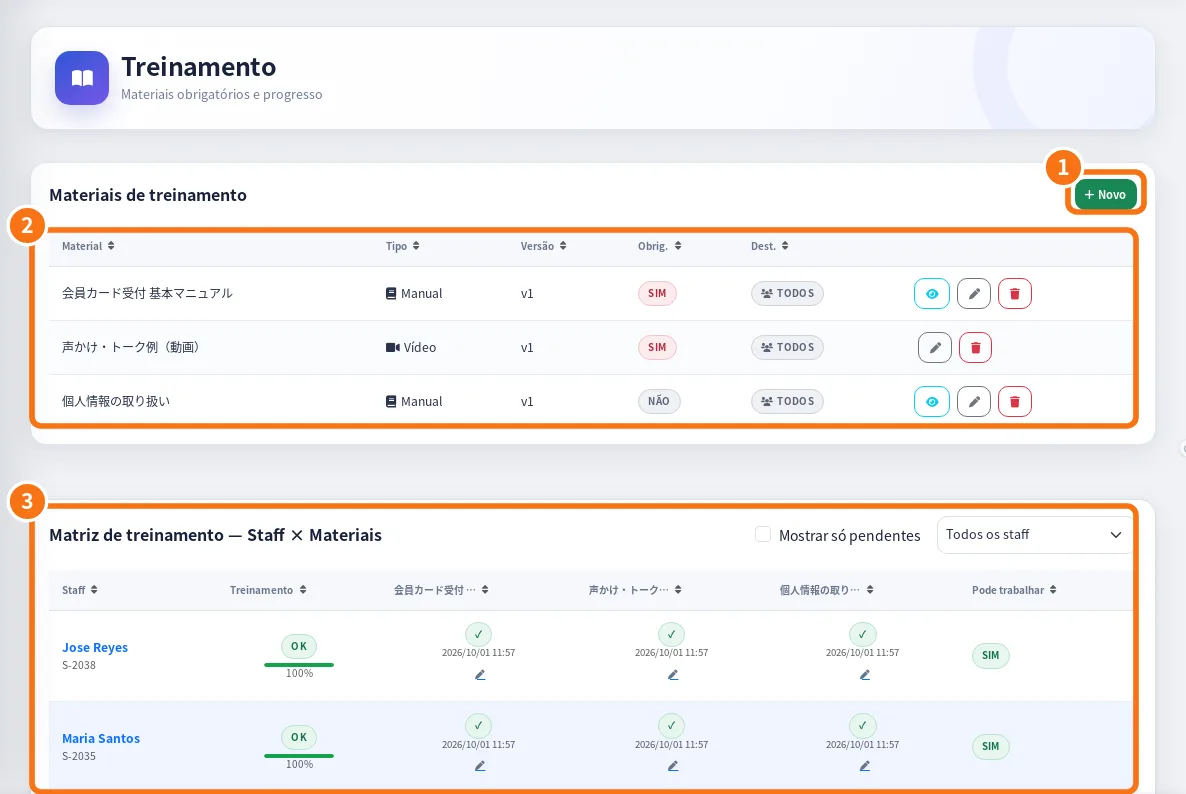
On the web panel: ① + New (material), ② the training materials list and ③ the Staff × Materials matrix.
- Open Menu → Training. See Completion by material and Progress by staff. ★ = mandatory.
- In Training materials, tap New material: choose the Type (Manual, Video or Test), upload the file (PDF or video mp4, webm, mov, avi, up to 100 MB) or give a URL, and set whether it is mandatory and visible.
- Tap a staff member to adjust progress, Test score and Attempts.
Common mistakes
- Repeated alerts: resolve the first one; if it keeps happening, use Report a problem.
- “Store position not set” on the map: register the store position.
- Training video will not upload: check the format and the 100 MB limit.
Related questions
- Today in detail and Live map
- Manual & training: mandatory materials and progress
- Manager shifts: create, change, confirm and cancel