











KMR · Pantallas y funciones
Profile & documents: personal details, photos and automatic document reading
How to fill in your details, send photos and documents with automatic reading, and what happens when a document expires.
Este artículo aún no está traducido a su idioma: se muestra la versión en English.
En esta página
What it is for
In Profile & documents you keep your work details up to date: personal details, photos and the documents your company asks for (for example 在留カード, driver's licence or the payment account). The app reads the document with the camera and fills in the fields for you to check. The company reviews and approves.
Where it is
My page → Profile & documents, or Settings → General → Profile & documents.
What is on the screen
- At the top, the purpose: your details are used only to arrange work, keep everyone safe and pay you, and only the company staff in charge can see them. Tick I agree to the purpose above to save.
- Personal details: name (kanji and katakana), birth date, phone, postal code (郵便番号) with address search, address and emergency contact.
- Photos: face and full-body photo, when your company asks.
- Documents: each document with its status: Not submitted, Under review, Approved, Sent back or Expired.
- A counter “N items left” until everything is registered.
Step by step: send a document
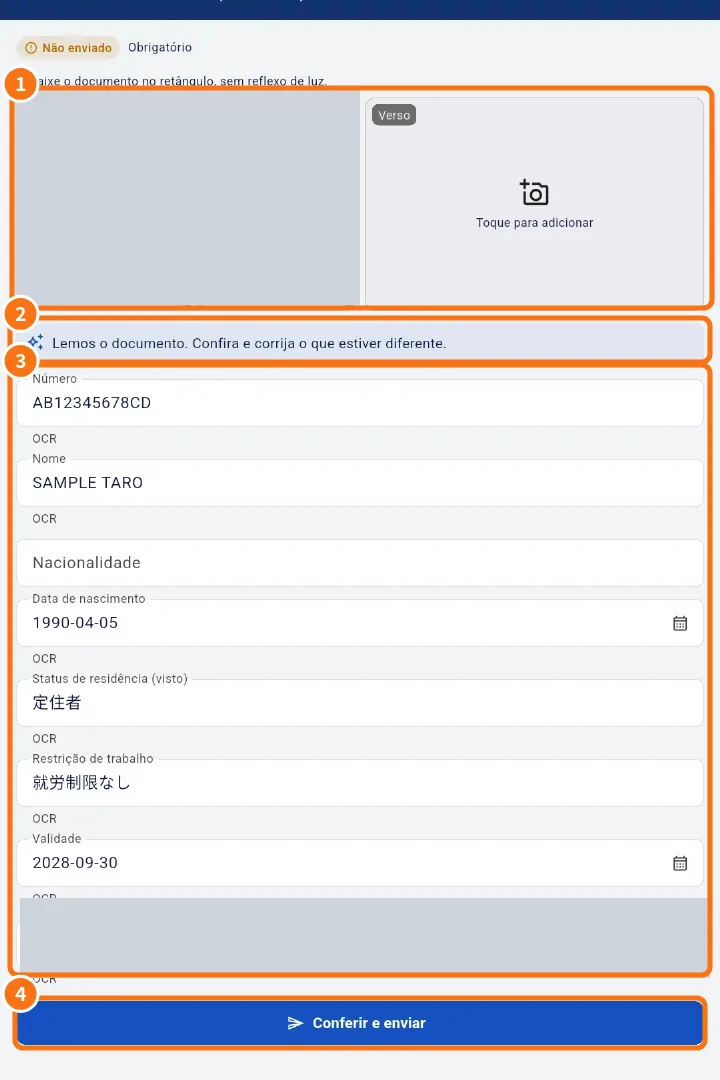
On the document screen: ① the photos (front and back), ② the reading notice, ③ the filled fields and ④ the submit button.
- Tap the document (it says tap to add).
- Tap Take photo or Choose from gallery. Fit the document in the rectangle, without light reflection.
- Tap Use this photo. The app reads the document.
- Check the filled fields (“We read the document. Check it and fix anything that is different.”). If it could not be read, fill it in by hand.
- Tap Check and submit. You see “Submitted. Your company will review it.”
Expiring documents
- When a document is about to expire (30 days) or has expired, you get a notification and your manager sees an alert.
- Tap the notice to open the Profile and send the new document.
Common mistakes
- “Please agree to the purpose before saving.”: tick the agreement at the top.
- Document “Sent back”: read the company comment, fix it and send it again.
- Fields marked as managed by the company: only the person in charge can change them. Contact them.
Related questions
- My page: your details, payments, training and settings
- Staff and staff documents: records, profile and review
- KMR frequently asked questions (staff and free account)