











KMR · Pantallas y funciones
How to build the month's schedule from the team's preferences
Manager walkthrough: open the preference request, follow answers, generate the draft, apply it and follow confirmations.
Este artículo aún no está traducido a su idioma: se muestra la versión en English.
En esta página
Before you start
- Have the period's project registered (Shifts → Projects) with stores and weekdays.
- The request goes to registered staff. Check the team is in Staff, with e-mail or mobile number.
Step by step
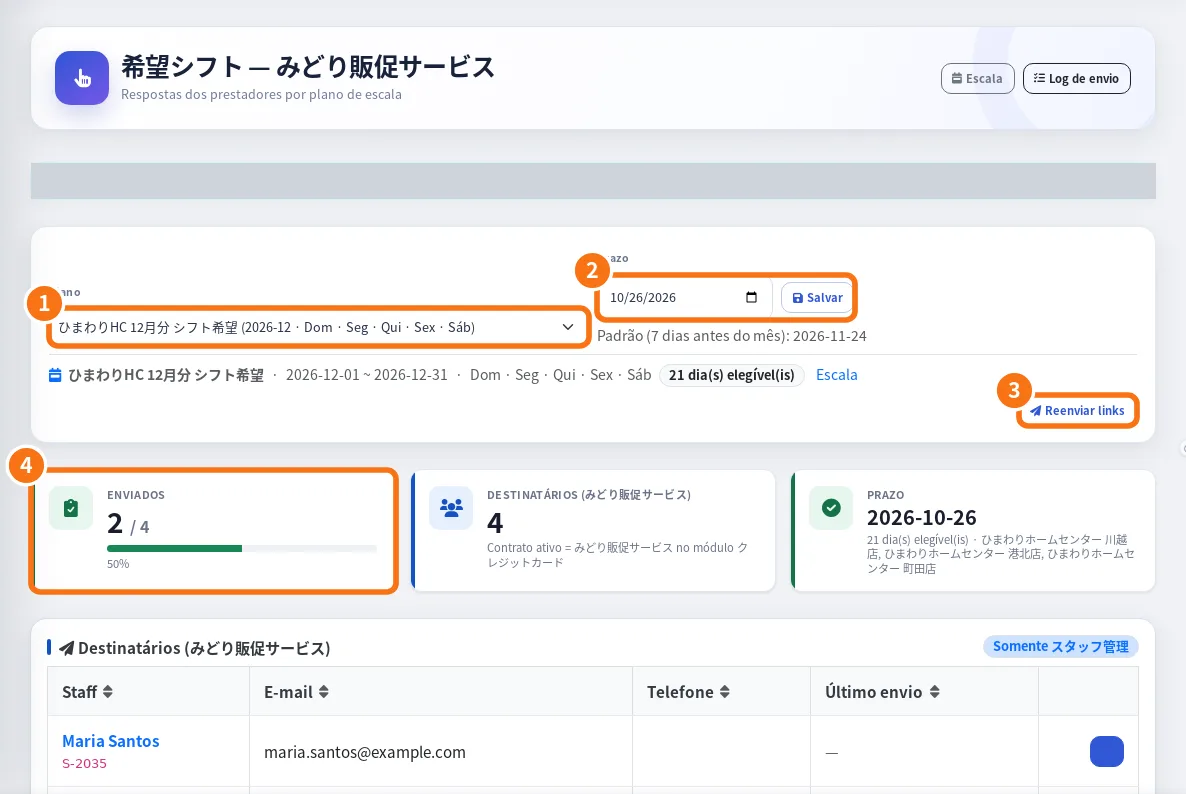
- Open the request: in Shift preferences, choose the plan (①) and set the Deadline (②). The team receives the request and answers in “Submit availability”.
- Follow up: the submitted box (④) shows how many answered. In the app, under Staff responses, tap Resend to remind those missing, or use Resend to everyone (on the web, ③).
- Adjust the deadline if needed: Change reply deadline.
- Generate the draft: tap Generate draft (or Generate from spreadsheet, if your company uses one). Check the Schedule draft.
- Apply: select the shifts and tap Apply N selected or Apply all. Confirm Apply to schedule. Each person receives the shift-confirmed notice.
- Fill gaps: in the Shifts tab, use Add shift for uncovered days.
- Follow confirmations: close to each day, check “Not confirmed (day before)” on the manager Home and use Resend confirmation reminder on the shift.
- Send the PDF: select the days and generate the Confirmed shifts PDF for the client or store.
Tips
- Set the deadline a few days before the month starts, to have time to complete the schedule.
- The preferences Calendar PDF helps you see everything at once.
Common mistakes
- Nobody answered: check that the plan was sent and the deadline has not passed.
- “N skipped” when applying: there were already shifts on those days/stores.
Related questions
- Shift preferences (希望シフト): request, follow and apply
- Manager shifts: create, change, confirm and cancel
- Submit availability (shift preferences)