











KŌLOGY · Pantallas y funciones
How to change your password, sign out and remove devices
Change the password in Profile, recover a forgotten password, see connected devices and sign out a lost phone.
Este artículo aún no está traducido a su idioma: se muestra la versión en English.
En esta página
What it is for
Your account may be open on more than one phone. Here you see how to change the password, recover a forgotten one, sign out and remove a device you no longer use — for example a lost or replaced phone.
Where it is
- Change password: More → Account → Profile → Change password.
- Devices and sign-out: Settings → Account & privacy.
- Forgotten password: sign-in screen → Forgot your password?
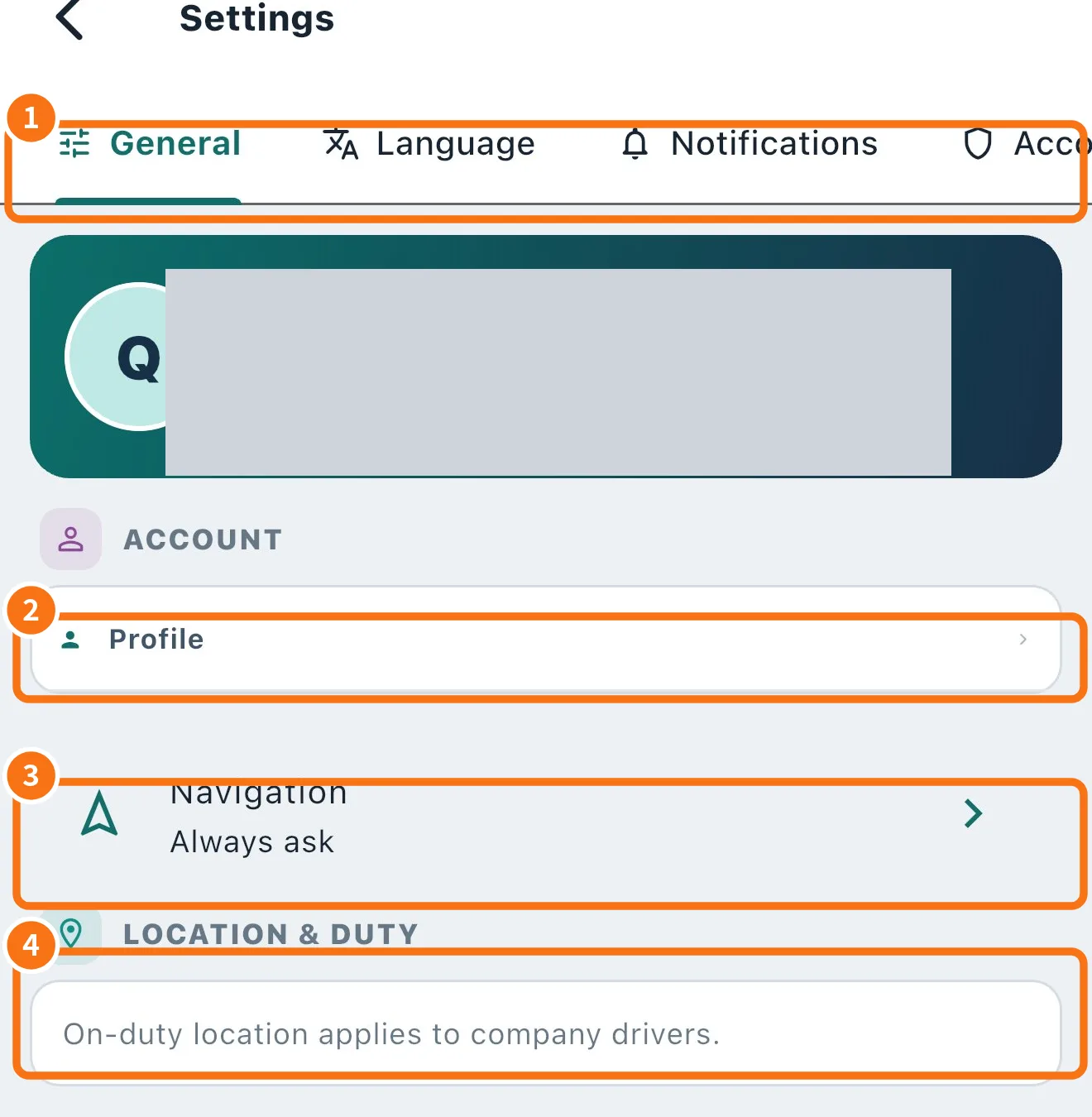
Step by step: change the password
- Open More → Account → Profile (or Settings → General → Profile ②).
- Under Change password, type the Current password.
- Type the New password (min. 8 characters) and repeat it in Confirm new password. The eye icon shows or hides what you typed.
- Tap Change password. Your other devices are signed out; this one stays signed in.
Step by step: forgotten password
- On the sign-in screen, choose I am a driver and type your e-mail or phone.
- Tap Forgot your password?. If an account exists, the reset link is sent.
- Open the link, create the new password and sign in again.
Step by step: sign out a device
- Open Settings and the Account & privacy tab (①).
- Under Connected devices, each phone appears with its name and Last used. Yours is marked This device.
- On the device you want to remove, tap Sign out.
- To sign out only this phone: Danger zone → Sign out and confirm “Sign out on this device?”.
Common mistakes
- “The new password needs at least 8 characters.”: use a longer password.
- “The confirmation does not match the new password.”: type the same in both fields.
- The reset link did not arrive: check spam and that the e-mail is the one registered; if your company manages your login, ask the office.
Related questions
- Driver profile, photo and documents
- Driver app settings
- How to delete your account