











KŌLOGY · Pantallas y funciones
Notifications and notices
Turn on notifications, read the notice box of the last 30 days and choose the categories.
Este artículo aún no está traducido a su idioma: se muestra la versión en English.
En esta página
What it is for
Notifications reach you even with the app closed: a new delivery on your route, a failed delivery, a finished route, shift and payments. Tapping a notification opens the right screen (for example the payment statement). The Notifications box keeps the notices of the last 30 days.
Where it is
- Notice box: the bell at the top.
- Preferences: Settings → Notifications.
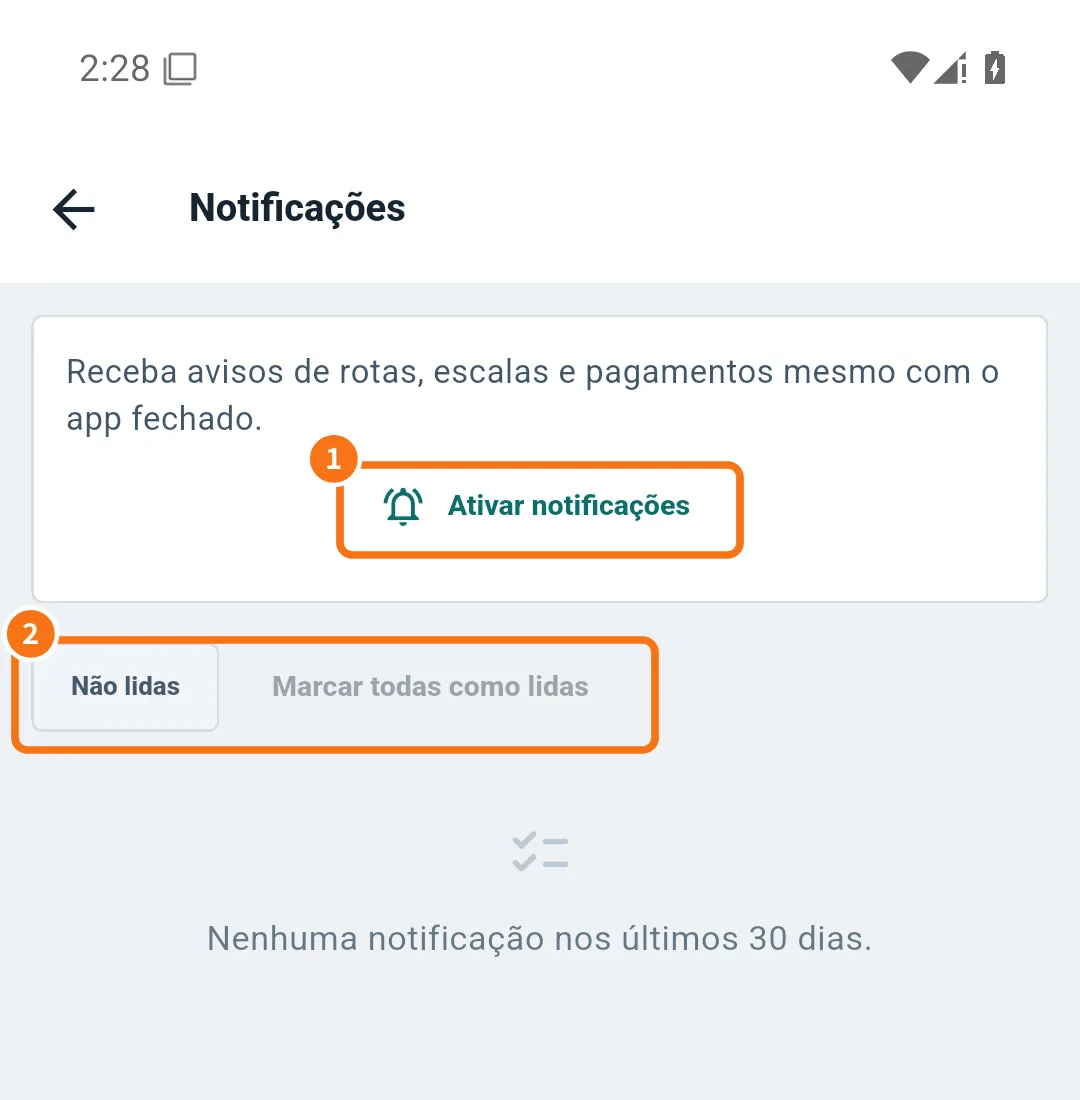
The screenshot is in Portuguese.
Step by step: turn them on
- The first time, the app asks Turn on notifications?. Tap Turn on.
- If you tapped Not now, open the bell and tap Enable notifications (①). If the phone already blocked them, tap Open settings and allow KŌLOGY notifications.
- When everything is fine you see “Notifications allowed on this device”.
Step by step: read the notices
- Tap the bell.
- Use the Unread filter (②) to see only new ones, or Mark all as read.
- Tap a notice to open the related screen. At the end of the list, Load more.
When they arrive
Notices are sent from 8:00 to 18:00 Japan time, except urgent ones. In Settings → Notifications you choose the categories. Notices about the day's work — route, shift and payment — are operational and keep coming.
Common mistakes
- “Could not connect to the notification service”: check the internet and try again.
- I get nothing: check that KŌLOGY notifications are allowed on the phone and “do not disturb” is off.
- “No notifications in the last 30 days”: there were no notices in that period.
Related questions
- Reports, dispatch messages and support
- Payments: review and approve the statement
- Driver app settings