











KŌLOGY · Pantallas y funciones
Pickup bases and saved destinations
Register the bases where you collect loads and reuse addresses your company already knows when you register deliveries.
Este artículo aún no está traducido a su idioma: se muestra la versión en English.
En esta página
What it is for
Pickup bases are the places where you collect the boxes (warehouse, depot, office). They appear on the map and in the Pickup at field of the delivery form. Saved destinations are addresses the company already knows, with a corrected entrance and delivery guidance — pick one and the form is filled in.
Where it is
- Bases: in the delivery form (OCR tab), the Pickup bases button; or on the map, Map tools → Pickup bases.
- Saved destinations: in the delivery form, Use saved destination.
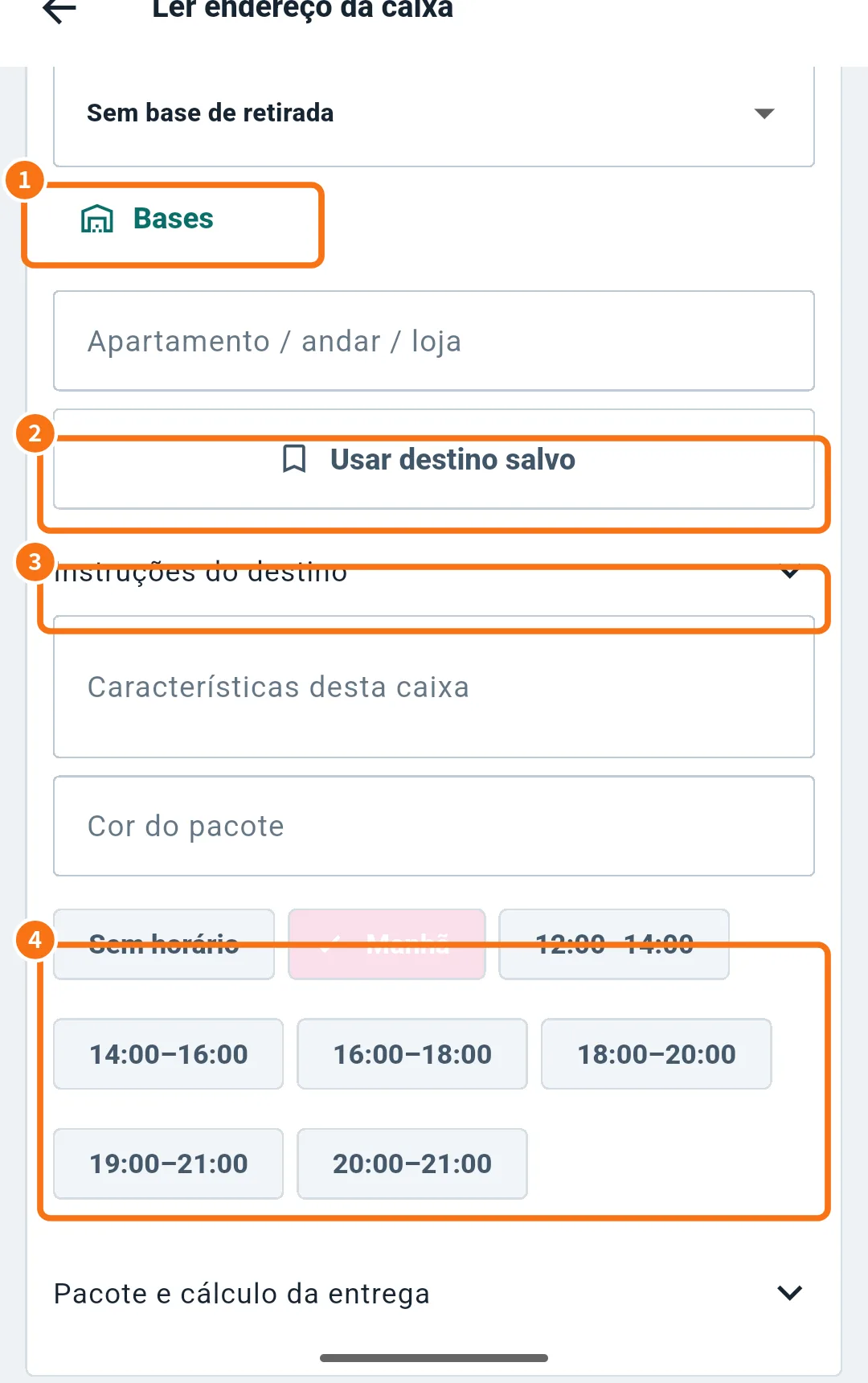
In the screenshot (Portuguese): ① Pickup bases, ② Use saved destination, ③ Destination guidance, ④ time windows.
Step by step: add a base
- Open Pickup bases (①). The list appears.
- Tap to add. In New pickup base, fill in Base name, Type (Warehouse, Depot, Office or Other) and Address (required).
- Optionally: Color (#RRGGBB), Opening hours, Weight capacity (kg), Volume capacity (m³), Package capacity, Restrictions, Notes, Sort order and Visible on map.
- Tap Save. To change or remove, use Edit or Delete in the list. Bases marked Company base are managed by the office.
Step by step: use a saved destination
- In the delivery form, tap Use saved destination (②).
- In Company saved destinations, search with at least two characters: address, building, unit or shop.
- Tap the destination. Address, postal code, building, guidance and the entrance point are filled in.
Where saved destinations come from
They appear after someone saves destination guidance (③ — Building / visual reference and Guidance for future deliveries) or corrects a pin. They are stored with the complete address and shared only inside your company.
Common mistakes
- “Enter a name and address.”: both are required for a base.
- The destination list is empty: nobody has saved guidance or corrected pins yet. Search with two or more characters.
- “No pickup base” in the form: choose a base in Pickup at or add one.
Related questions
- Scan a label (OCR) and register a delivery
- Correct the address pin
- Routes and deliveries on the map