











KŌLOGY · Pantallas y funciones
How to import spreadsheets, scan labels and plan in batch
Bring in many deliveries at once (XLSX/CSV or label photos), validate addresses and let the system build the routes.
Este artículo aún no está traducido a su idioma: se muestra la versión en English.
En esta página
What it is for
When the day has dozens of deliveries, entering them one by one is slow. The route tools import the whole list, check the addresses and suggest routes.
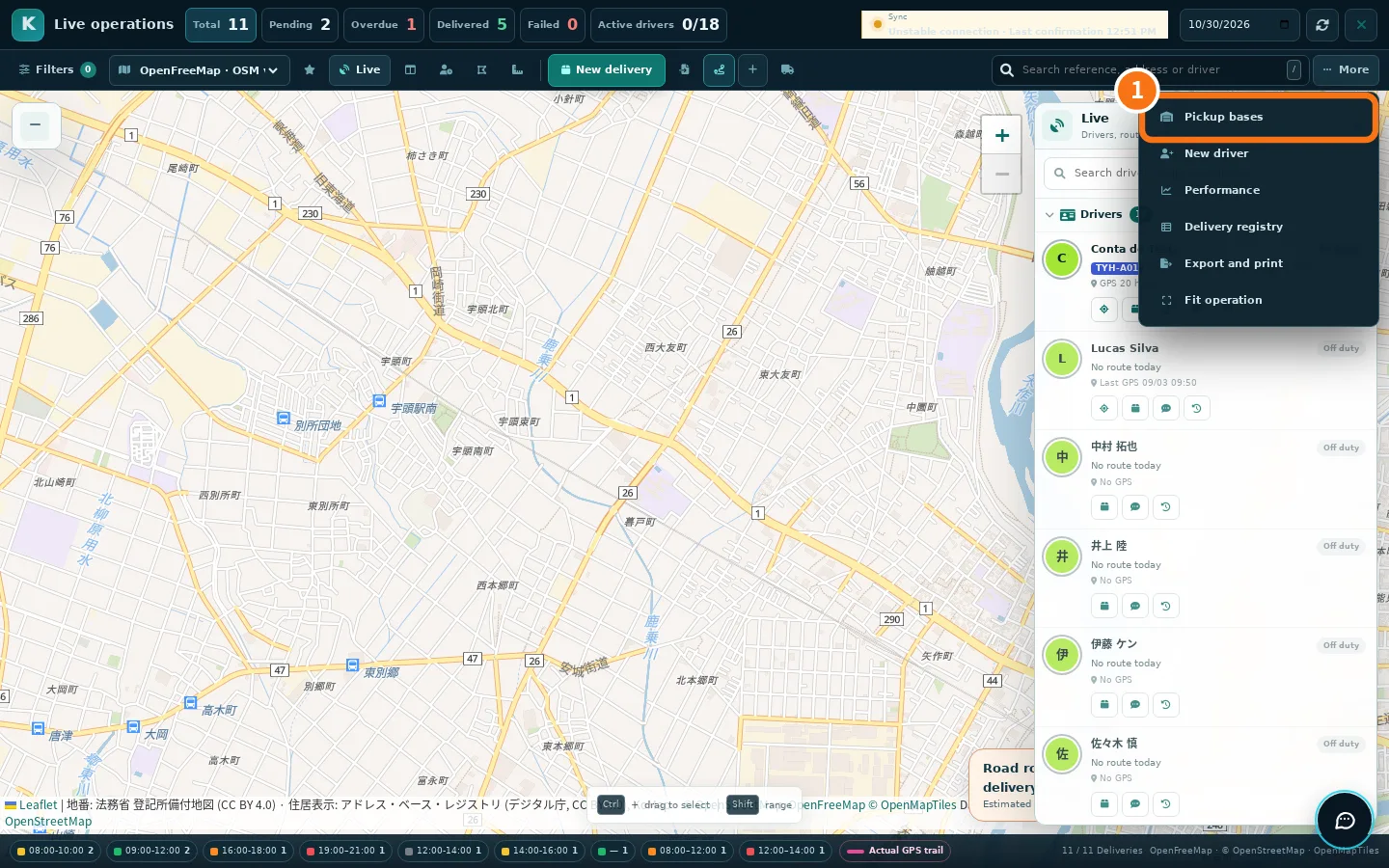
Where: web, in the route centre (Main → Staffs), the buttons next to New delivery and the More menu; app, Staffs → Routes & deliveries → Desk tools (Route tools).
Import a spreadsheet
- Open Import deliveries and tap Choose file (XLSX or CSV, up to 2 MB, with a header in the first row).
- Tap Validate addresses. If the postal code does not match the address, Postal codes differ appears: use Use official code to fix it.
- Import. Rows that did not go in stay under Not imported, with the reason.
Scan several labels
In New delivery, choose OCR · multiple labels and photograph the boxes (camera or gallery). Each label becomes a delivery in the batch. Check and validate the batch before importing.
Batch route planning
- Open Batch route planning.
- Choose how to name routes: Alphabet A–Z, AA, AB, AC…, A1, A2, A3… or Custom names. Tick Respect areas to follow each driver's areas.
- Tap Generate preview, check it and tap Apply plan.
- Open the routes and publish.
Bases and areas
- Pickup bases (More menu): New base with name, postal code, opening hours and package capacity. The base becomes the departure point of routes.
- Operating areas: New area by prefecture and municipality, with priority, or draw on the map; Suggest areas proposes a split.
Export
In Delivery registry filter by status, driver, area, coordinates and proof, save favourite views and use Export CSV or Export XLSX. Export and print produces the route list on paper.
Common errors
- «File exceeds 2 MB.» Split the spreadsheet in two.
- «Invalid spreadsheet» / «Empty file or missing header». Check that row 1 has the column titles.
Related questions
- How to create a route and add deliveries
- Route centre and deliveries