











KŌLOGY · Pantallas y funciones
Routes and deliveries on the map
The route map: search a stop, see what is left, open each delivery and use the actions for each address.
Este artículo aún no está traducido a su idioma: se muestra la versión en English.
En esta página
What it is for
The middle tab, DRIVER, opens the full-screen map with today's stops, numbered in order. From here you search an address, see how many deliveries are left, open each stop and reach the delivery, navigation and address-fix actions.
Where it is
Bottom bar → DRIVER (or More → Operations → Routes; on Home, See all). To leave the map, tap the back arrow at the top. In the browser, the same screen is the portal's Routes tab.
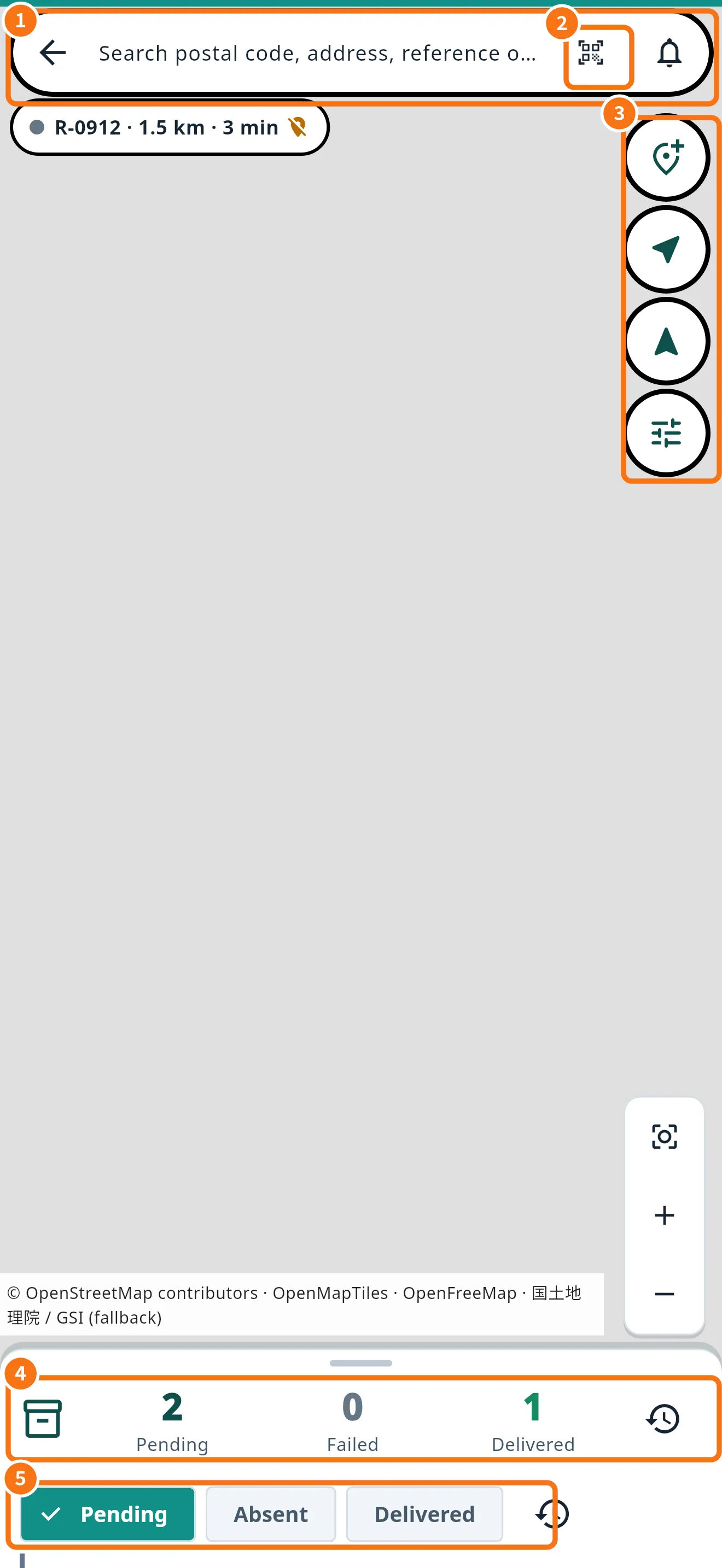
What is on the screen
- Search (①): “Search postal code, address, reference or parcel”. Type part of the address, the postal code or the tracking number. Below, the route chip shows code, km and minutes.
- Scan label code (②): reads the label's barcode/QR to search by tracking number.
- Map buttons (③): add a delivery, go to the next delivery, follow your position and Map tools.
- Counters (④): Pending, Failed and Delivered; the clock opens History.
- Filters (⑤): Pending, Absent, Delivered. Drag the bottom sheet up to see the list.
Step by step: open a stop
- Tap the numbered pin on the map or the stop in the list.
- The stop sheet shows address, tracking number and time window, and the actions: Arrived / Delivered / Failed — opens the delivery record (see “How to record a delivery”). Navigate — opens your chosen navigator. Parcel and Parcel details — type, weight, size, window. Edit address and Delete delivery — only on deliveries your company allows (for example ones you created). Reopen completed delivery — puts a delivery marked by mistake back in the queue. Redelivery — for a delivery that failed. Correct pin — adjusts the entrance on the map. Location note — Place name and Tip for the next driver.
Common mistakes
- “No route published for today”: dispatch has not published it yet. Add deliveries from the OCR tab if your company allows.
- “Address without coordinates yet”: the address did not become a map point. Open the stop and use Correct pin.
- “This delivery was completed or changed”: someone changed the stop. Return to the route to refresh.
Related questions
- How to record a delivery (delivered, absent, failed)
- Route order: optimize and reorder
- Navigate to the delivery