











KŌLOGY · Pantallas y funciones
Company overview (dashboard)
The manager's first screen: today's numbers, drivers on the map and the list of what needs your action.
Este artículo aún no está traducido a su idioma: se muestra la versión en English.
En esta página
What it is for
Overview shows your company's operation today in one place. It refreshes by itself every minute and each item takes you straight to the screen where you solve it.
Where: web Main → Overview; app, first tab of the bottom bar.
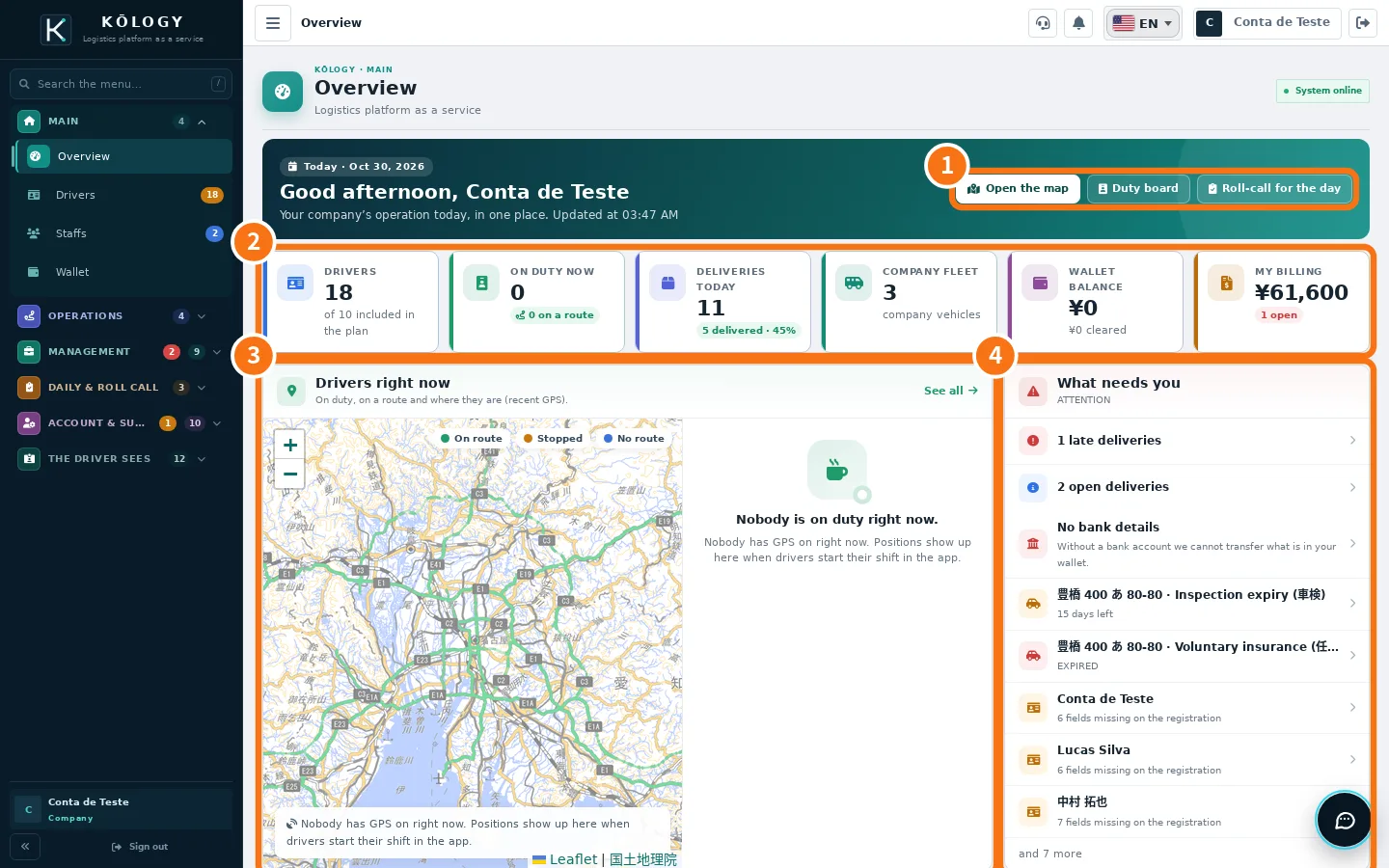
What is on the screen
- ① Shortcuts: Open the map (route centre), Duty board (who is working now) and Roll-call for the day.
- ② Today's cards: Drivers (and how many the plan includes), On duty now, Deliveries today (delivered and %), Company fleet, Wallet balance and My billing. Tap a card to open its screen.
- ③ Drivers right now: map with who is on duty. Green ring = on route, orange = stopped, blue = no route. Positions only show when the driver starts duty in the app.
- ④ What needs you: late or open deliveries, vehicles with 車検 (shaken) or insurance expiring, drivers with incomplete records, missing bank details and other notices.
Further down are Deliveries today with the last-7-days chart, Seats used (plan seats) and coloured Shortcuts.
In the app
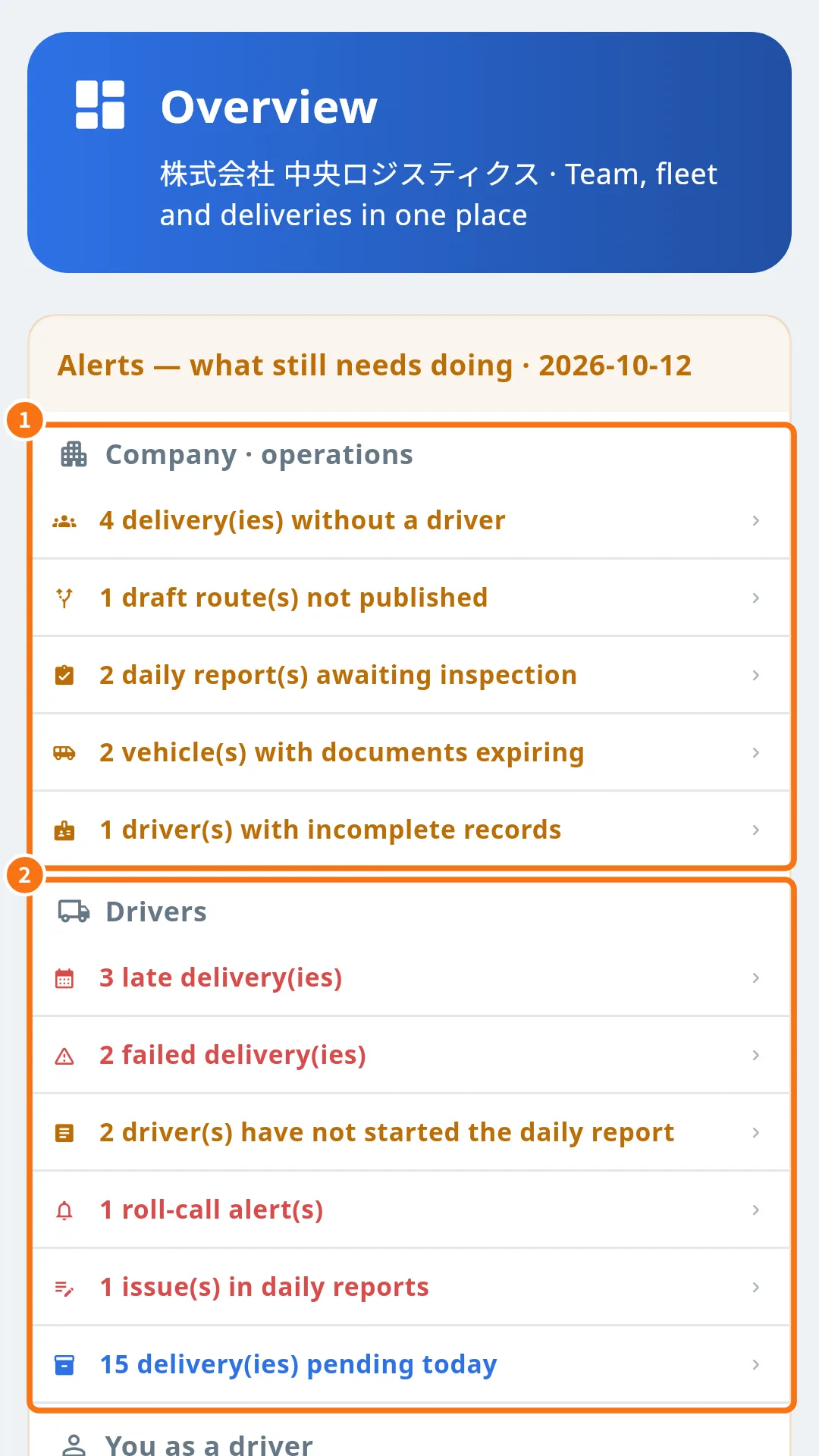
The app shows the same numbers at the top. Under Alerts — what still needs doing the list is split into ① Company · operations (deliveries without a driver, draft routes, daily reports awaiting inspection, documents expiring, incomplete records) and ② Drivers (late, failed, daily reports not started, roll-call alerts, issues). Below come daily reports, roll calls, packages, km and the ranking by driver, compared with yesterday and 7 days ago. Fields not filled in yet show «—».
Step by step: starting the day
- Open Overview and read the action list from top to bottom.
- Tap the red notices first (late, failed, roll-call alerts).
- Tap Duty board to see who has started.
- Tap Roll-call for the day to check who has not done the roll call yet.
Common mistakes
- The map is empty. Nobody is on duty with GPS on. That is normal outside working hours.
- «This summary could not be loaded.» Tap Retry. The other screens keep working.
Related questions
- Live team and drivers on duty
- Route centre and deliveries
- Roll call, daily operations and daily reports