











KŌLOGY · 界面与功能
How to change your password, sign out and remove devices
Change the password in Profile, recover a forgotten password, see connected devices and sign out a lost phone.
此文章暂无您的语言版本,以English显示。
本页目录
What it is for
Your account may be open on more than one phone. Here you see how to change the password, recover a forgotten one, sign out and remove a device you no longer use — for example a lost or replaced phone.
Where it is
- Change password: More → Account → Profile → Change password.
- Devices and sign-out: Settings → Account & privacy.
- Forgotten password: sign-in screen → Forgot your password?
Step by step: change the password
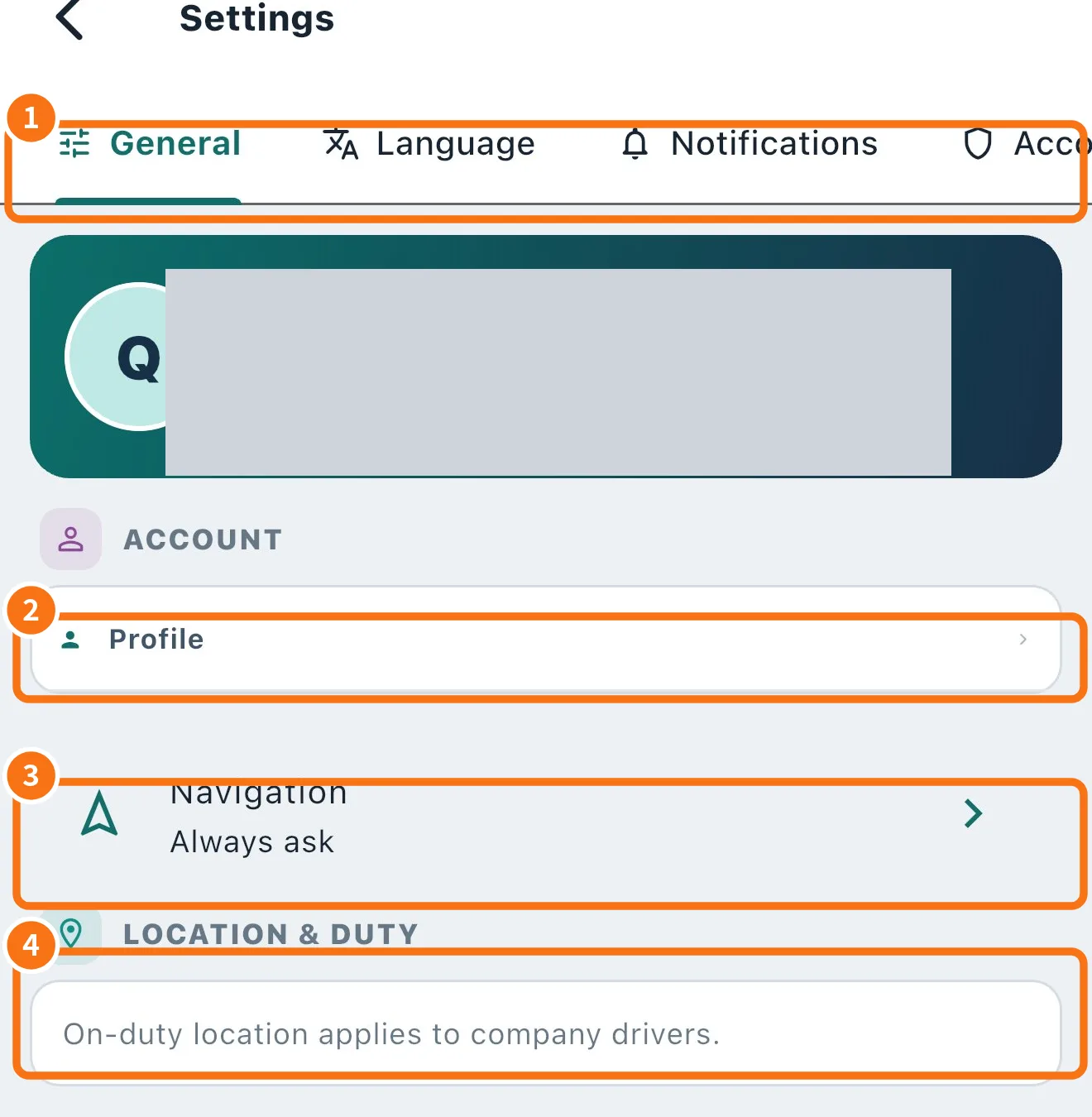
- Open More → Account → Profile (or Settings → General → Profile ②).
- Under Change password, type the Current password.
- Type the New password (min. 8 characters) and repeat it in Confirm new password. The eye icon shows or hides what you typed.
- Tap Change password. Your other devices are signed out; this one stays signed in.
Step by step: forgotten password
- On the sign-in screen, choose I am a driver and type your e-mail or phone.
- Tap Forgot your password?. If an account exists, the reset link is sent.
- Open the link, create the new password and sign in again.
Step by step: sign out a device
- Open Settings and the Account & privacy tab (①).
- Under Connected devices, each phone appears with its name and Last used. Yours is marked This device.
- On the device you want to remove, tap Sign out.
- To sign out only this phone: Danger zone → Sign out and confirm “Sign out on this device?”.
Common mistakes
- “The new password needs at least 8 characters.”: use a longer password.
- “The confirmation does not match the new password.”: type the same in both fields.
- The reset link did not arrive: check spam and that the e-mail is the one registered; if your company manages your login, ask the office.
Related questions
- Driver profile, photo and documents
- Driver app settings
- How to delete your account