











KŌLOGY · 界面与功能
Company drivers
The driver list: status, plan seats, profile, sign-in access, enabled features and documents.
此文章暂无您的语言版本,以English显示。
本页目录
What it is for
In Drivers the company sees all its drivers, creates new ones, looks after each sign-in and checks documents. Every driver has their own account and signs in to the app with the ID, email or mobile number.
Where: web Main → Drivers; app, the Drivers tab.
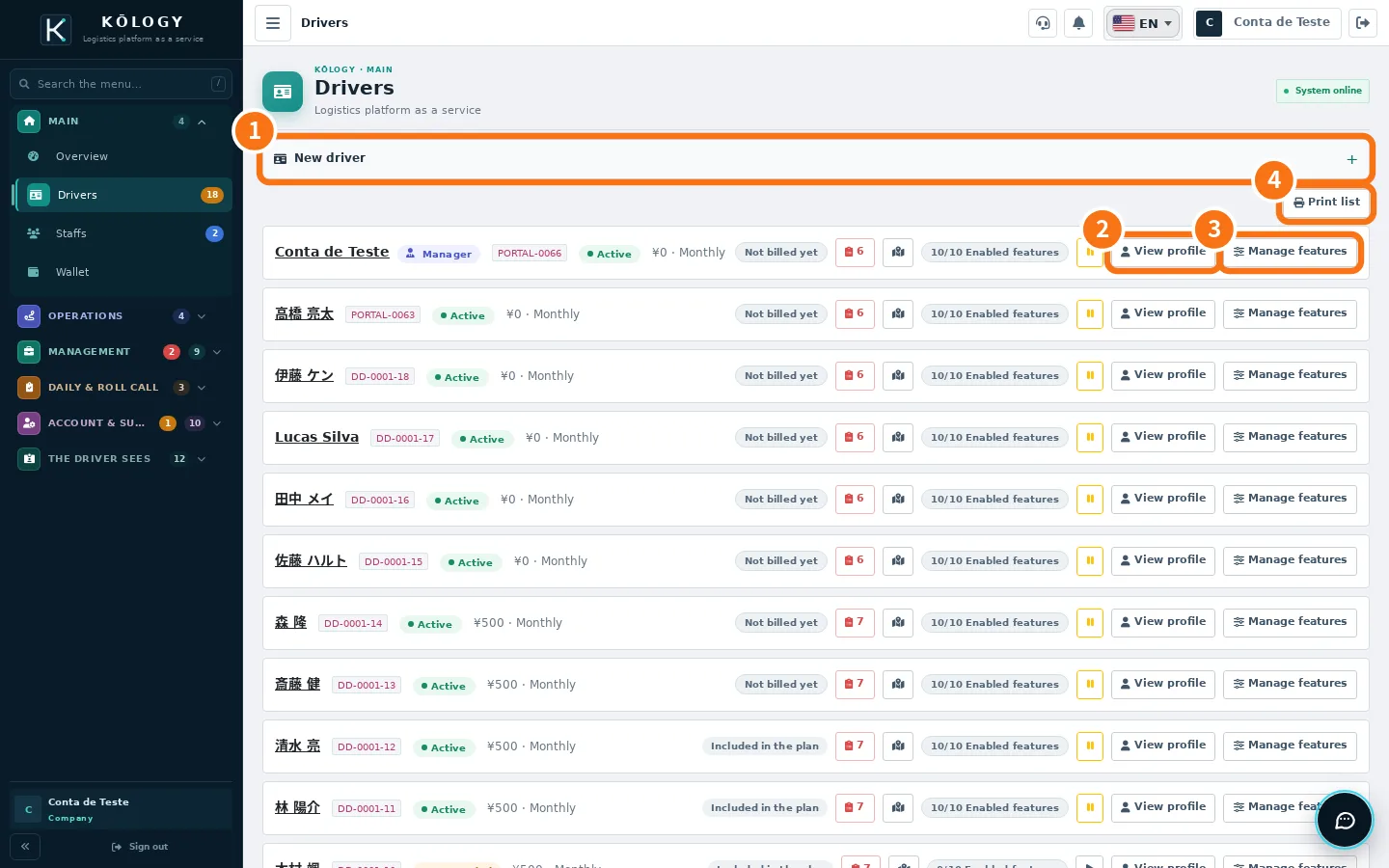
What is on the screen
- ① New driver: creates the driver with sign-in and password (see «Add a driver with sign-in and password»).
- ② View profile: the full record — data, documents, access and history. On the web, clicking the row also opens it.
- ③ Manage features: turns app features on or off for that driver. «Included in the plan» = no extra cost; «Add-on» = paid separately.
- ④ Print list.
Each row shows the driver code, the status (Active, Suspended, Cancelled), the monthly fee when the driver pays their own subscription, how many record fields are missing and «Enabled features».
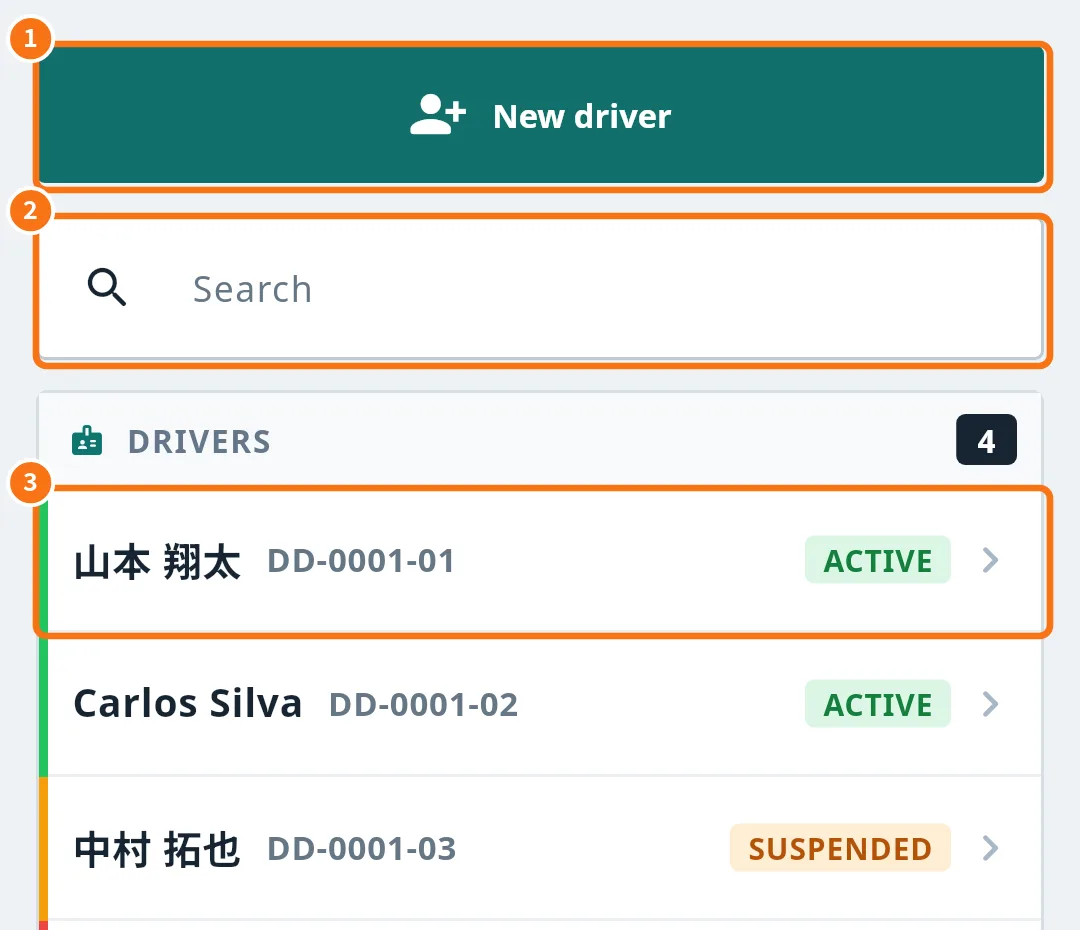
A driver's sign-in access
In the profile, Sign-in access shows the login, the ID, the last sign-in, the last app use and when the password changed. For security the password is never shown.
- Generate new password: creates a new password and shows it only once so you can hand it over. The driver's app asks to sign in again.
- Send password reset link: the driver sets their own password through the link.
- Send sign-in link: sends the sign-in link by email or SMS (the password never goes in the message).
Driver documents
The driver completes the profile in the app (address from the postal code, face photo, driving licence read by the camera). In More → Account & support → Driver documents you see who still has to send, what is under review and what expires soon, and you approve or send back. See «Review and approve driver documents».
Common mistakes
- «Not set — the driver cannot sign in yet» Use Generate new password or Send sign-in link.
- A block notice with «Only Komori can unblock.» The platform blocked the access. Contact support through Issue reports.
Related questions
- Add a driver with sign-in and password
- Invite drivers by email
- Review and approve driver documents