











KŌLOGY · 入门
Roles and team access
Who is administrator, manager and driver, how to give access to another office member, the manager's driver mode and how to work for another company.
此文章暂无您的语言版本,以English显示。
本页目录
What it is for
In KŌLOGY each person signs in with their own login. The role decides what they see: office staff see the company management; a driver sees only their own day. Nobody has to share a password.
The roles
- Company administrator: the account holder. Handles plan, billing, contracts and who has access. Only this account can ask for the company to be deleted (see «Delete the company account»).
- Manager: another office member with access to management, added in Team & access.
- Driver: has their own account and is managed in Drivers, not in Team & access.
Give access to another office member
Where: web Account & support → Team & access; app More → Account & support → Team & access.
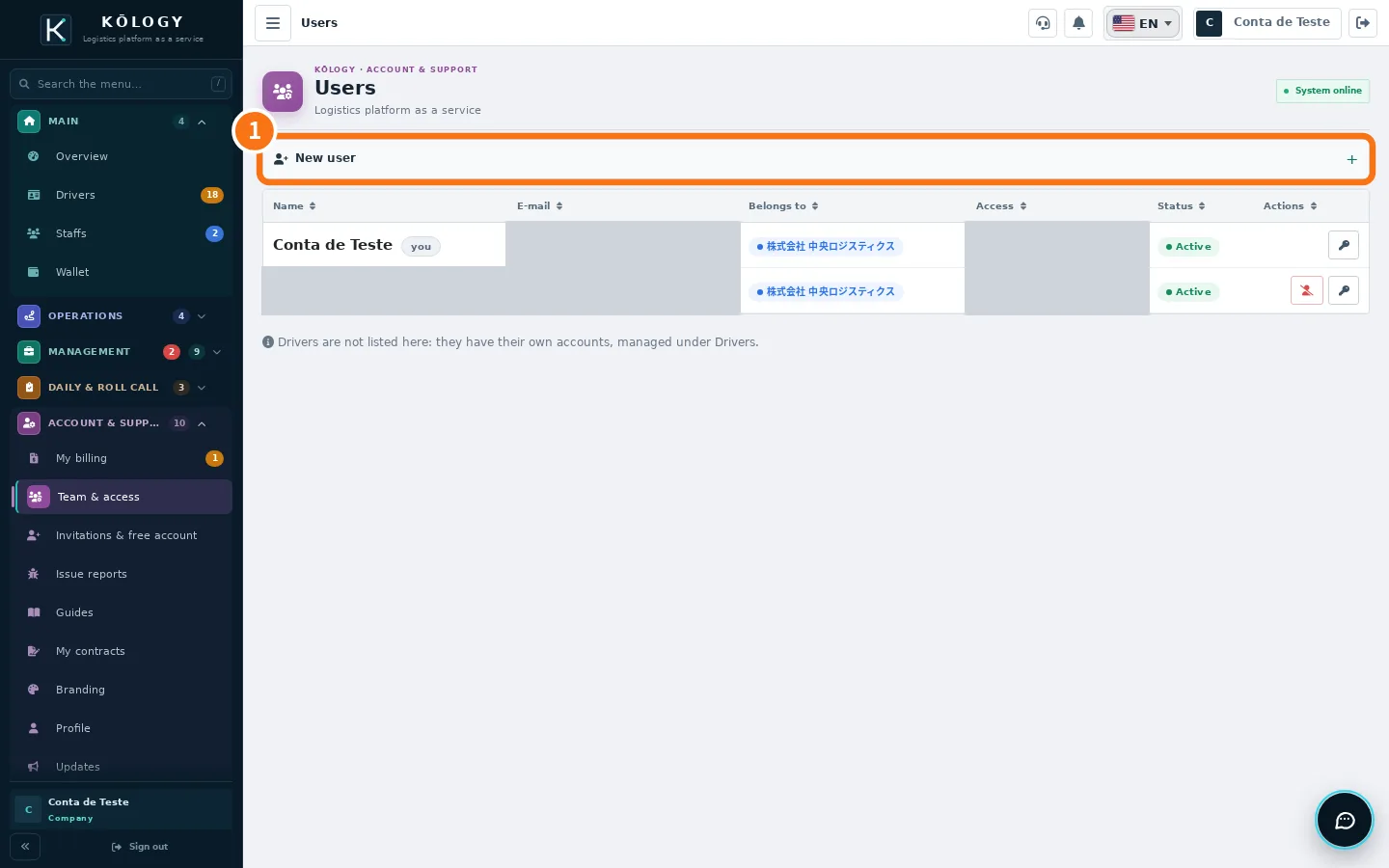
- Click ① New user.
- Enter name and email and choose the access.
- Save. The list shows each user's name, email, company, access and status.
The manager can also drive (driver mode)
In small companies the manager also delivers. No second login is needed:
- App: in Staffs, use the STAFFS | DRIVE switch at the top, or tap Work as a driver on the «You as a driver» card of the Overview. Web: in Staffs, click the driver-mode button («Do your own deliveries as a driver»).
- The first time, your driver profile is created on the spot.
- To go back, tap Back to STAFFS on the purple bar in the app (on the web, use the purple «back to management» button).
The manager's driver profile takes one seat of the plan, like any driver.
Work as a driver for another company
One account can manage its own company and also be an invited driver of another. In Invitations & free account, type the code from the email and tap Join the company. Then, under Companies you work for, tap Work as a driver. To stop, use Leave the company: what you recorded for it stays with it.
Common mistakes
- The driver is not in Team & access. That is correct: drivers live in Drivers.
- I cannot enter driver mode. The plan has no free seats. Suspend a driver or change the plan.
Related questions
- Add a driver with sign-in and password
- Invite drivers by email
- KŌLOGY plans and limits