











KMR · Screens & features
Staff and staff documents: records, profile and review
How to register and edit staff, see the profile with performance and training, give portal access and review documents.
On this page
What it is for
Menu → Staff holds the team records: details, contract, hourly rate, transport, bank, portal access and training override. In Menu → Staff documents you review and approve the documents each person sent through the app.
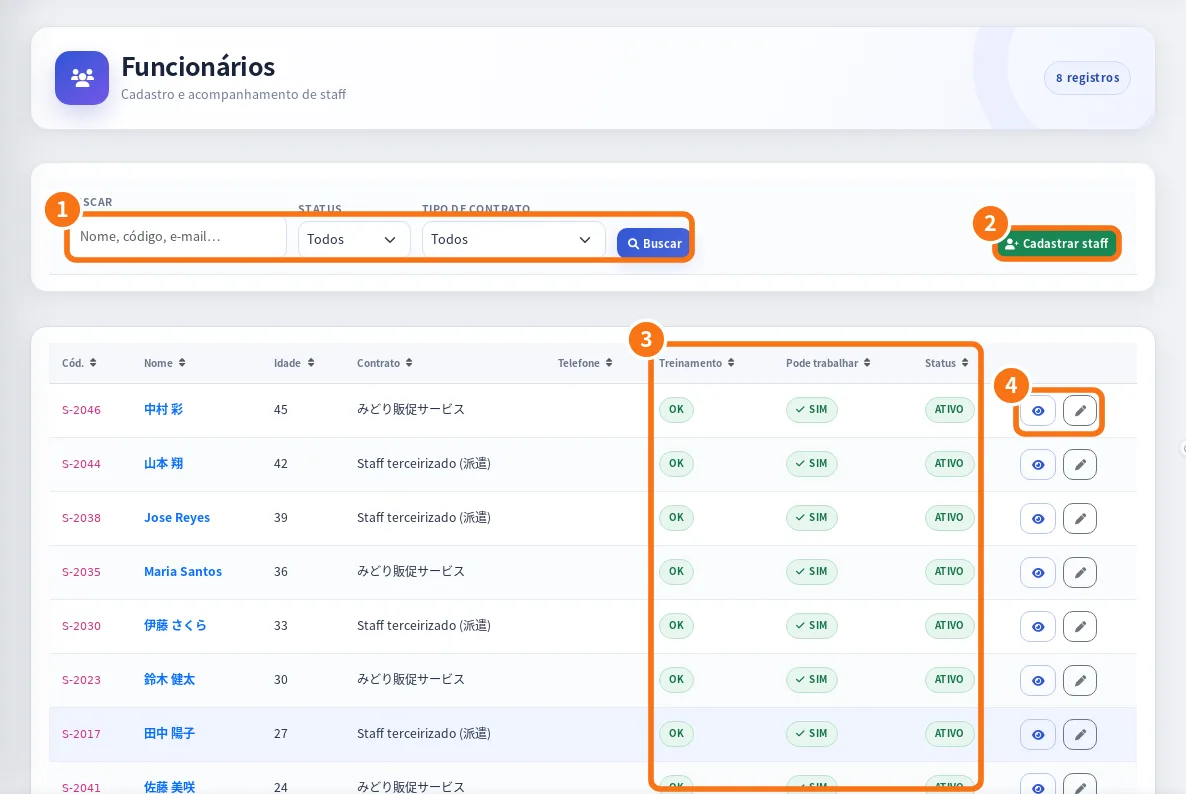
On the web panel: ① search and filters (status and contract type), ② register staff, ③ the Training, Can work and Status columns, ④ view and edit.
List and profile
- Open Menu → Staff. Search in Search name, code, e-mail or phone and filter by status (Active/Inactive) and contract.
- Tap a person to open Staff details: contacts, contract, Performance (days and hours worked, approaches, conversations, applications), Recent shifts, Mandatory training progress and whether the Portal password is Set or Not set.
- From the profile: Message, Add shift and Edit staff.
Register or edit
- Tap New staff (or Edit staff).
- Fill in name, e-mail, phone, postal code and address, Contract type, Hourly rate and Transport.
- In Bank & address: bank, branch, account type and number, and account holder (for the payment statement).
- In Portal access: Send password setup e-mail, Send password setup SMS, Send password link or Set password.
- In Training override: Automatic (by progress), Allow as trained or Block work.
- Tap Save.
Staff documents
- Open Menu → Staff documents. The top shows how many are to review and how many are expiring.
- Open the person and the document. Check the uploaded images and the read fields.
- Tap Approve, or Send back with the reason. The person sees the comment in the app.
Delete
- Delete staff: the staff member is hidden; shifts, reports and payments stay in the history.
- Delete staff and all records: erases everything for that person, permanently. To confirm, you must type the staff code.
Common mistakes
- The person cannot sign in: check whether the portal password is “Not set” and send the password link.
- “Training pending” shows: check progress or use Allow as trained, when appropriate.
Related questions
- How to bring a new person into the team
- Accounts, free-account invitations and worker mode
- Profile & documents: personal details, photos and automatic document reading