











KMR · Screens & features
Management panel in the browser
The manager web panel: side menu, search, dashboard with monthly goal, filters and the shift, staff, payment and map screens.
On this page
What it is for
The management panel is KMR for the computer. It has everything managers do in the app, on a big screen: month dashboard, schedule by store, staff records, shift preferences, business communications, payment statements, ranking, alerts and live map. The data is the same as in the app.
How to sign in
- Open kmr.its-komori.com (or your company's environment address) in a browser.
- Sign in with your manager e-mail and password. The manager app uses the same account.
What is on the screen
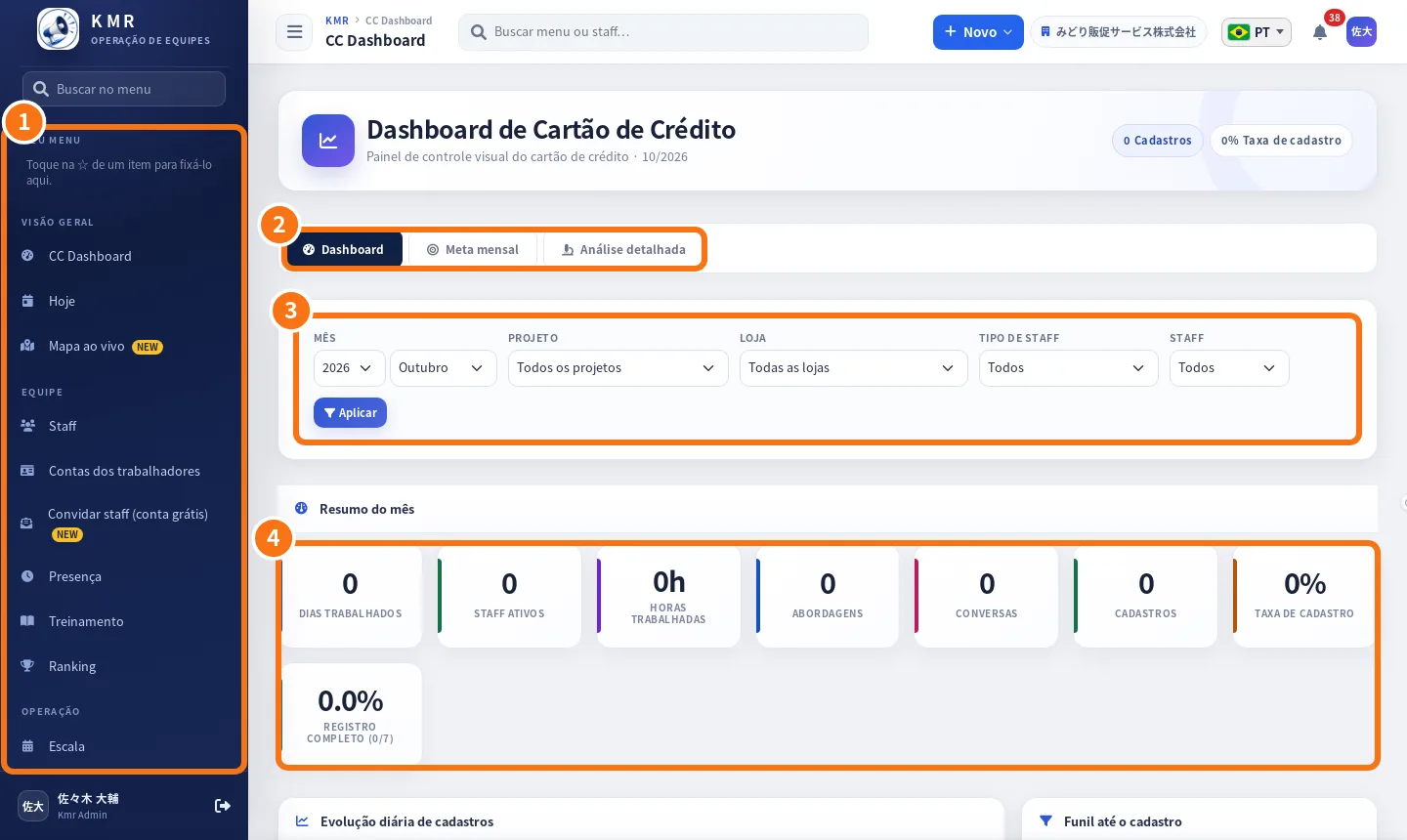
- ① The side menu, in groups: Overview (CC Dashboard, Today, Live map), Team (Staff, Worker accounts, Invite staff (free account), Attendance, Training, Ranking) and Operations (Schedule, Shift preferences, Locations, Applications, Daily Report, Daily report form, Report Mgmt., Payment Stmt., Business comms, Alerts). In My menu, tap the ☆ of an item to pin it.
- ② The dashboard tabs: Dashboard, Monthly goal and Detailed analysis.
- ③ The filters: month, project, store, staff type and staff, with Apply.
- ④ The Monthly summary: days and hours worked, active staff, approaches, conversations, registrations and rate.
- At the top: search, the + New button, the company, language, notifications and your account.
Live map on the web
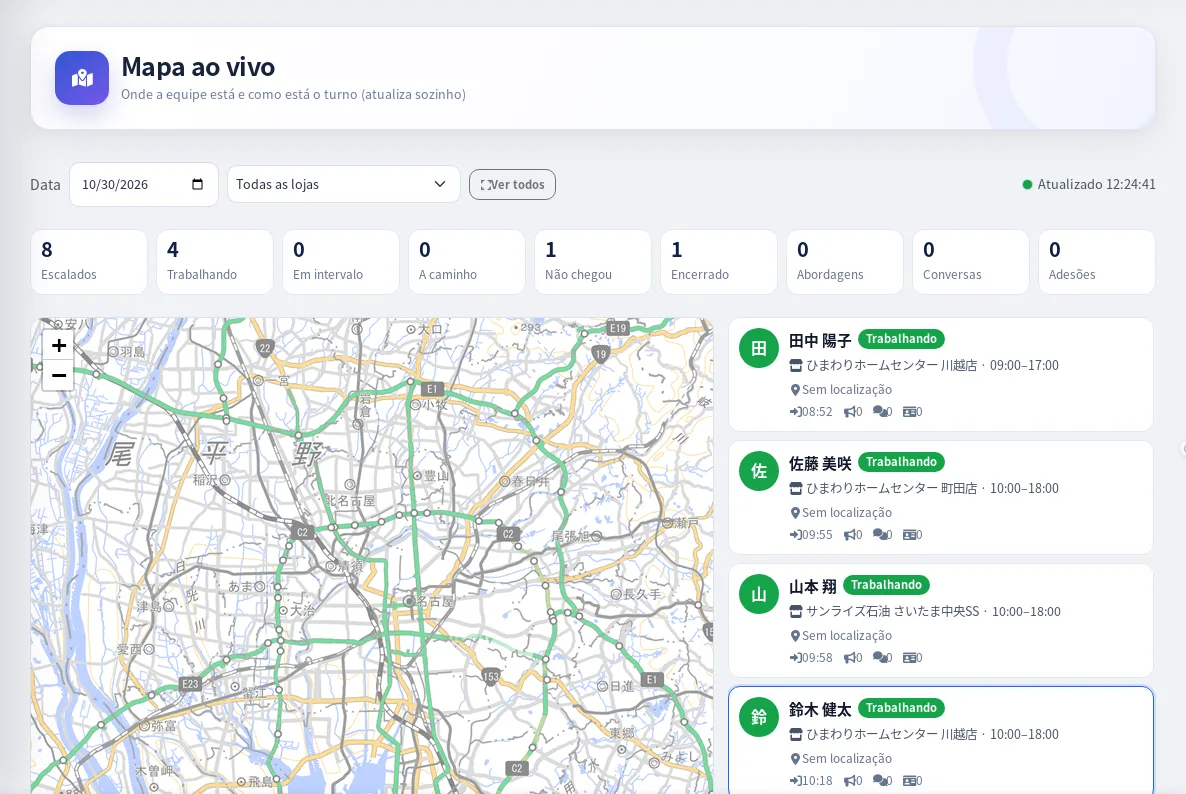
The same map as the app, with date, store, counters and the team list beside it. It updates by itself.
Step by step to start the month
- In Dashboard → Monthly goal, set the month's goal.
- In Shift preferences, send the request to the team and follow the answers.
- In Schedule, apply the draft or create shifts with New schedule.
- At the end of the month, in Payment Stmt., generate and send the statements.
Common mistakes
- A menu item is missing: your permission does not include that screen.
- A banner suggests downloading the app: it is just an invitation to install the official app; close it with the X.
Related questions
- Managers on the phone: tabs, Home and Menu
- Monthly dashboard: results, goals and charts
- Plans and limits: company plan and free account