











KMR · Screens & features
Shift preferences (希望シフト): request, follow and apply
How managers follow the team's answers, generate a schedule draft and apply it to the schedule, notifying each person.
On this page
What it is for
With Shift preferences you ask the team which days and stores each person can work, follow who has answered, generate a schedule draft and apply it to the schedule in one go. Each shift created notifies the person.
Where it is
- App: Shifts → Shift preferences or Menu → Shift preferences.
- Web: the Shift preferences menu.
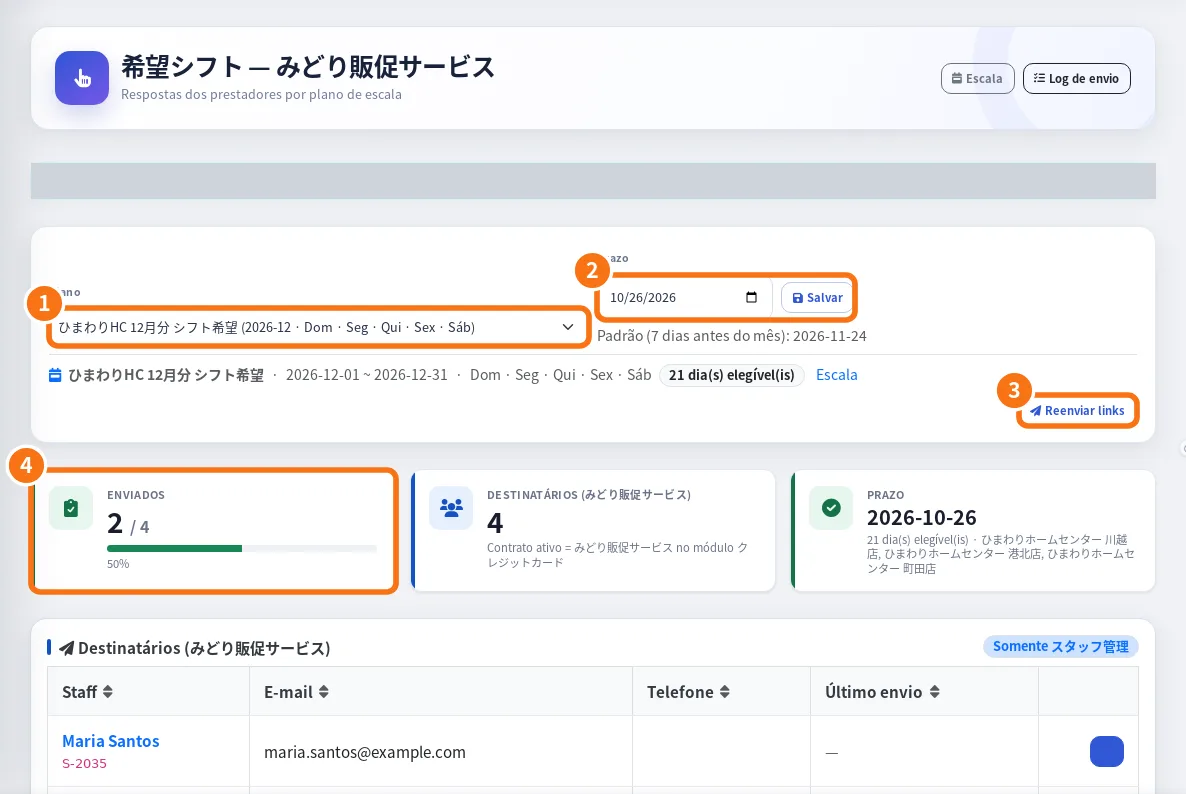
On the web panel: ① the plan (project and period), ② the Deadline with Save, ③ resend links and ④ how many have submitted.
Step by step in the app
- Open Shift preferences and tap the project. You see “Submitted N/N” and the Deadline.
- In Staff responses, see who answered (○ N day(s)) and who is Not submitted. Tap Resend to remind one person.
- The screen menu (⋮) has: Calendar PDF, Change reply deadline, Resend to everyone, Generate draft and Generate from spreadsheet (Spreadsheet URL and Sheet tab).
- Tap Generate draft: the draft is made from the answers (it replaces the current draft).
- In Schedule draft, check the shifts. Select some and tap Apply N selected, or tap Apply all.
- Confirm Apply to schedule: “Create N shift(s) and notify each staff member?”. The result shows “N created, N skipped”.
Common mistakes
- “No active projects”: create or activate a project in Shifts → Projects.
- “No draft yet”: use Generate draft or Generate from spreadsheet.
- Someone did not get the request: requests only go to registered staff. Check the record and use Resend.
- Many “skipped”: there were already shifts on those days/stores.
Related questions
- How to build the month's schedule from the team's preferences
- Manager shifts: create, change, confirm and cancel
- Submit availability (shift preferences)