











KMR · Screens & features
Manager shifts: create, change, confirm and cancel
How managers create shifts, change date or store, resend reminders, mark as confirmed, cancel and make the confirmed-shifts PDF.
On this page
What it is for
The manager's Shifts tab is the company shift calendar. Here you create shifts, follow the team's confirmations and handle changes. Each saved shift sends the person the shift-confirmed notice.
What is on the screen
- The month calendar and, below, the shifts of the selected day with their status (awaiting confirmation, attendance confirmed, 2-day confirmation, day-before, on duty, done, cancelled, absent).
- Buttons at the top: Add shift, Shift preferences, Projects, Day note and the Confirmed shifts PDF icon.
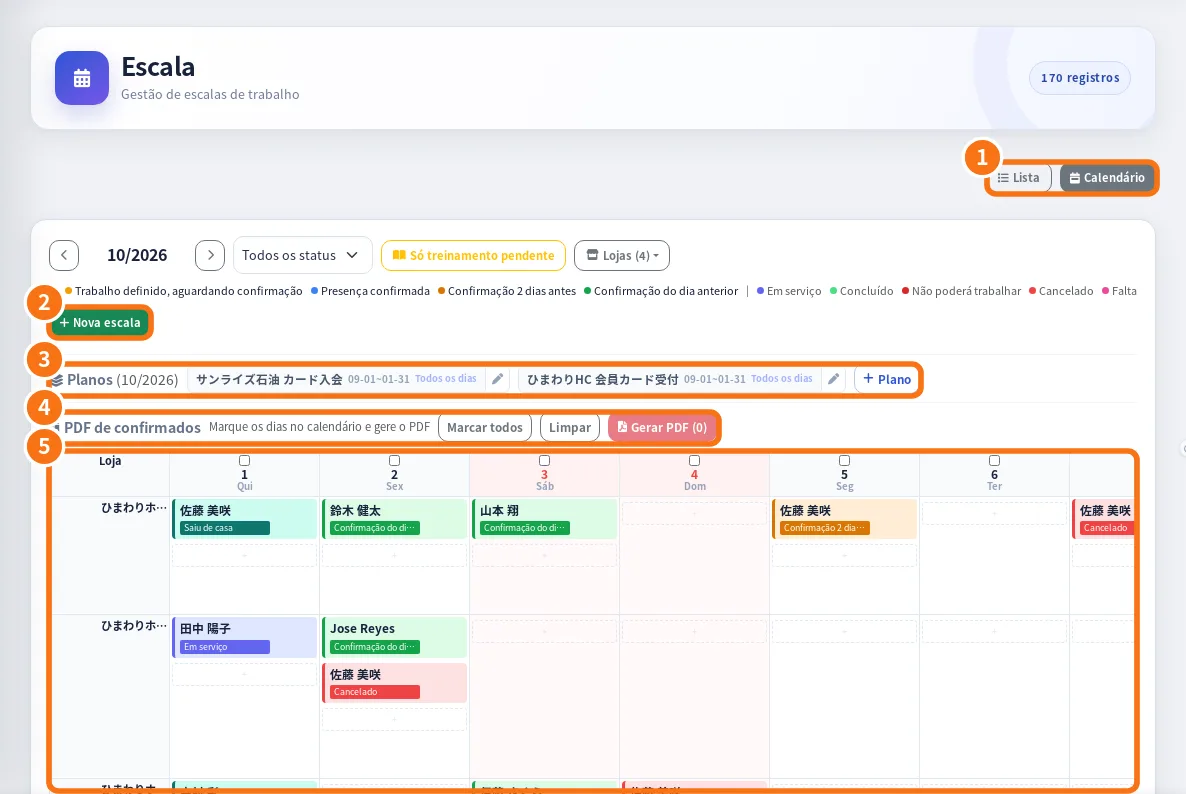
On the web panel the idea is the same: ① List or Calendar, ② New schedule, ③ the month's plans (projects), ④ confirmed PDF and ⑤ the calendar by store.
Step by step: create a shift
- Tap Add shift.
- Fill in Date, Store, Staff, Start, End and Break (min). If you like, Notes.
- Tap Save. When you save, the staff member receives the shift-confirmed notice (e-mail/SMS) and answers in the app.
Step by step: act on a shift
- Tap the shift to open Shift details: Departed, Check-in and Check-out times, lateness and service.
- Edit shift or Change date/store to adjust it.
- Resend confirmation reminder when the person has not answered yet.
- Mark as confirmed when the person confirmed in another way.
- Cancel this shift: the staff member gets a notice in Messages and an alert is recorded.
- Delete removes the shift (only use it for shifts created by mistake).
Confirmed shifts PDF
Select the days on the calendar and tap the PDF icon. The PDF of who confirmed attendance opens inside the app, ready to send to the client or the store.
Common mistakes
- “No shifts on this day”: check the selected month and store.
- The person says they did not get the notice: use Resend reminder and check the e-mail/phone in the staff record.
- Shift shows “Training pending”: the person has mandatory training open.
Related questions
- Shift preferences (希望シフト): request, follow and apply
- How to build the month's schedule from the team's preferences
- Shifts tab: your shift calendar
- Alerts, stores, projects and training