











KMR · Screens & features
Work tab: confirm the shift and record the day
Answer shift confirmations, record leaving home, arrival, lunch and check-out, count approaches and conversations, and add sign-ups.
On this page
What it is for
The Work tab (日報 in Japanese) is where you answer shift confirmations and record each moment of the work day. Your manager sees the records right away.
1. Shift confirmations
When the company assigns you a shift, the Shift assigned by your company card appears under Shift confirmations.
- Check the date, store and hours.
- Tap I'll work and confirm. You see “Attendance confirmed.”
- If you cannot, tap I can't, choose the Reason you can't work, add a Note (optional) and tap Send. Your manager is notified.
Closer to the day two more confirmations appear: 2-day-before confirmation (button I will attend (2-day confirmation)) and Day-before confirmation (button I will attend (day-before confirmation)). If something comes up, use I can no longer go: this alerts your manager as a last-minute cancellation (urgent).
2. Work day
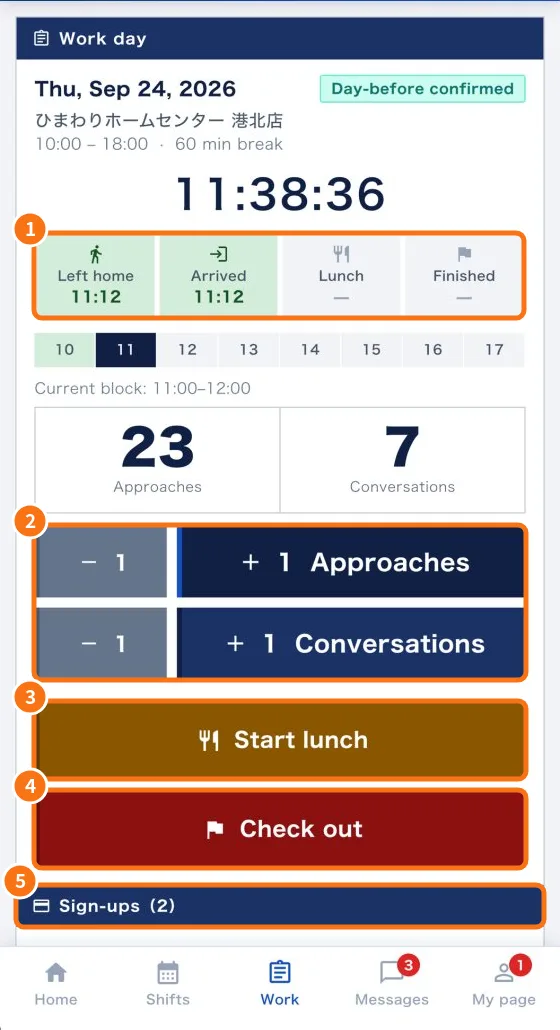
- When you leave home, tap I left home. It records your departure and notifies your manager.
- At the store, tap Check in (arrived). The timeline (①) shows Left home, Arrived, Lunch and Finished with times.
- While working, tap + 1 Approaches and + 1 Conversations (②). − 1 fixes an extra tap. The hour strip above shows the Current block.
- At break time tap Start lunch (③), then End lunch. Meanwhile you see “On lunch (since…). Expected end…”.
- At the end, tap Check out (④) and answer the exit report. You see “Thank you for today's work!”.
3. Sign-ups
- In the Sign-ups section (⑤), tap Add sign-up.
- Check the Time, select the Items (select all that apply) and tap Save.
- To fix a mistake, tap the record and use Delete sign-up.
Common mistakes
- “Departure and check-in are only available on the work day.”: these buttons only work on the shift day.
- “This shift is not confirmed yet.”: answer the confirmation first.
- “No work today”: pick a day in Shifts to open it here.
Related questions
- Daily report (日報): questions, photos and required fields
- No signal and location: how the app saves and sends records
- How to record a full work day in the app
- How to tell your company you cannot work a shift