











KMR · Màn hình & chức năng
Staff and staff documents: records, profile and review
How to register and edit staff, see the profile with performance and training, give portal access and review documents.
Bài viết này chưa được dịch sang ngôn ngữ của bạn: đang hiển thị bản English.
Trong trang này
What it is for
Menu → Staff holds the team records: details, contract, hourly rate, transport, bank, portal access and training override. In Menu → Staff documents you review and approve the documents each person sent through the app.
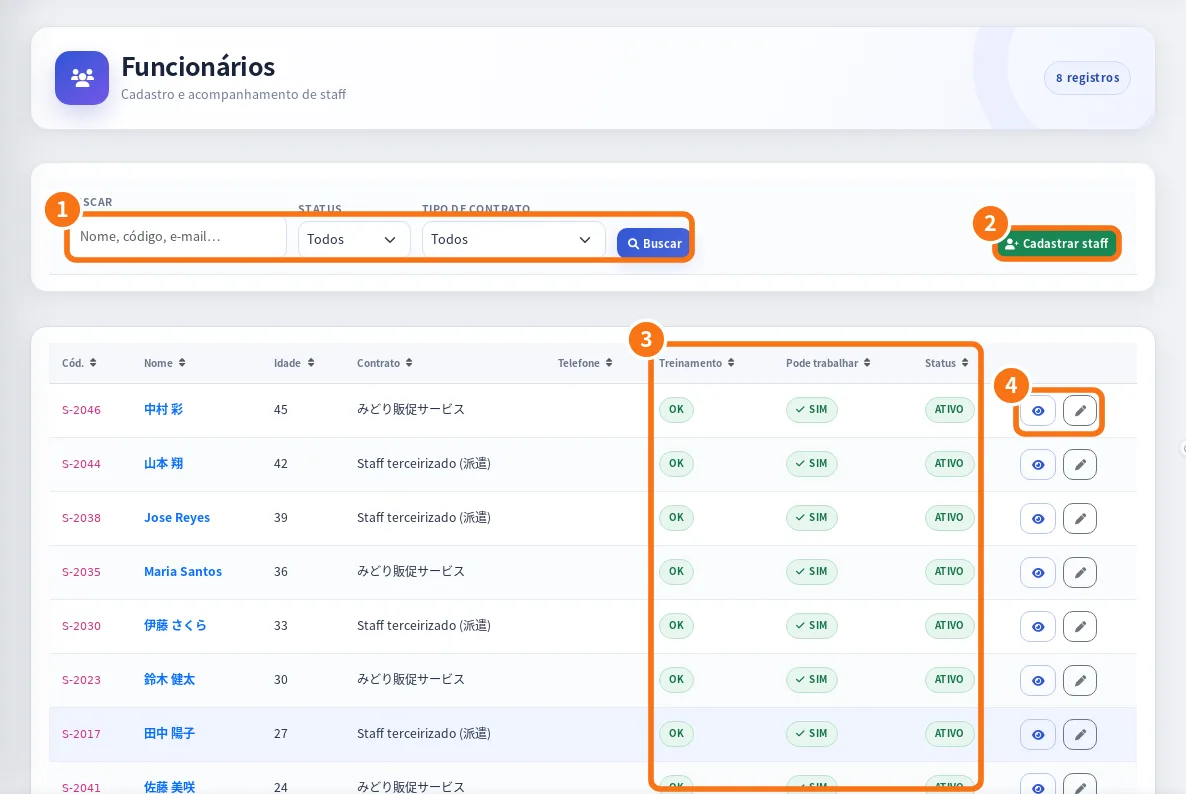
On the web panel: ① search and filters (status and contract type), ② register staff, ③ the Training, Can work and Status columns, ④ view and edit.
List and profile
- Open Menu → Staff. Search in Search name, code, e-mail or phone and filter by status (Active/Inactive) and contract.
- Tap a person to open Staff details: contacts, contract, Performance (days and hours worked, approaches, conversations, applications), Recent shifts, Mandatory training progress and whether the Portal password is Set or Not set.
- From the profile: Message, Add shift and Edit staff.
Register or edit
- Tap New staff (or Edit staff).
- Fill in name, e-mail, phone, postal code and address, Contract type, Hourly rate and Transport.
- In Bank & address: bank, branch, account type and number, and account holder (for the payment statement).
- In Portal access: Send password setup e-mail, Send password setup SMS, Send password link or Set password.
- In Training override: Automatic (by progress), Allow as trained or Block work.
- Tap Save.
Staff documents
- Open Menu → Staff documents. The top shows how many are to review and how many are expiring.
- Open the person and the document. Check the uploaded images and the read fields.
- Tap Approve, or Send back with the reason. The person sees the comment in the app.
Delete
- Delete staff: the staff member is hidden; shifts, reports and payments stay in the history.
- Delete staff and all records: erases everything for that person, permanently. To confirm, you must type the staff code.
Common mistakes
- The person cannot sign in: check whether the portal password is “Not set” and send the password link.
- “Training pending” shows: check progress or use Allow as trained, when appropriate.
Related questions
- How to bring a new person into the team
- Accounts, free-account invitations and worker mode
- Profile & documents: personal details, photos and automatic document reading