











KMR · Màn hình & chức năng
Shifts tab: your shift calendar
See the days you work on a calendar, with store, hours and estimated pay.
Bài viết này chưa được dịch sang ngôn ngữ của bạn: đang hiển thị bản English.
Trong trang này
What it is for
The Shifts tab shows your confirmed shifts on a calendar. Tap a day to see the store, the hours and, when your company shows it, the estimated pay for that day.
What is on the screen
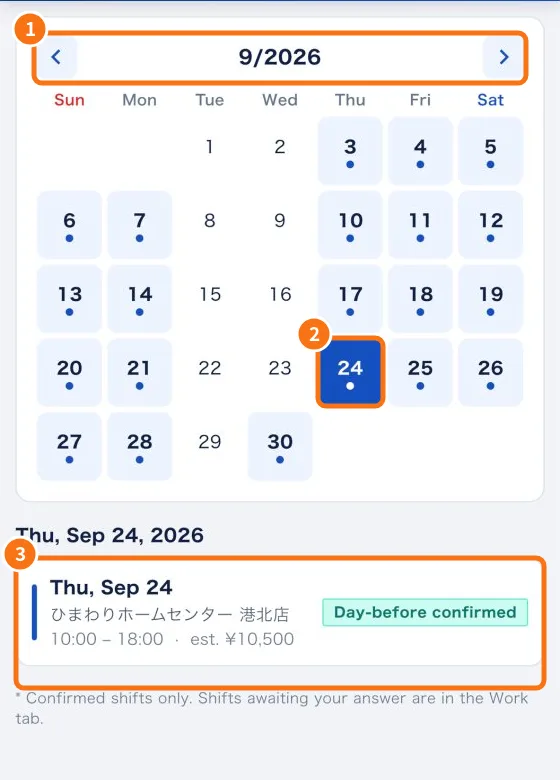
- ① The month, with arrows to go to the previous or next month.
- ② Days with a shift are highlighted with a dot. The selected day is blue.
- ③ Below the calendar, the day detail: date, store, hours, estimated pay and the confirmation status (for example “Day-before confirmed”).
- At the bottom: “* Confirmed shifts only. Shifts awaiting your answer are in the Work tab.”
Step by step
- Tap the Shifts tab.
- Use the arrows (①) to change month.
- Tap a marked day (②) to see the detail (③).
- To record the day, tap the shift: the app opens the Work tab on that shift.
- Days without a shift show “No confirmed shift on this day.”
Where shifts come from
- Your manager creates shifts in the company schedule. You receive the shift notice and answer in the Work tab.
- If your company asks for your preferred days before building the schedule, use Submit availability (see the availability article).
- When the manager changes the date or store, the calendar updates by itself.
Also on Home
The My schedule section on the Home tab lists your next confirmed shifts. See all opens this tab.
Common mistakes
- The shift does not appear: it is not confirmed yet. Check the Work tab under “Shift confirmations”.
- A shift disappeared: your manager may have cancelled or changed it. In that case a notice arrives in the Messages tab.
Related questions
- Submit availability (shift preferences)
- Work tab: confirm the shift and record the day
- How to tell your company you cannot work a shift
- Home screen (staff)