











KMR · Bắt đầu
Getting started with KMR
What KMR is, who uses it, how to install, sign in and do the first task of the day.
Bài viết này chưa được dịch sang ngôn ngữ của bạn: đang hiển thị bản English.
Trong trang này
What it is for
KMR is the work app for field teams (for example in-store promotion and card sign-up staff) and their managers. Staff see their shifts, clock in and fill in the daily report (日報), read company news and check payment statements. Managers follow the day live, build the schedule, message the team and close the month's payments.
Who uses it and where
- Staff (field): use the app on a phone (Android or iPhone). The account is created by the company.
- Manager: uses the same app (the “Manager” profile) or the panel in a browser.
- People without a company: can create a free account and keep their own work records.
You can also use it in a browser at kmr.its-komori.com or at the address your company sent you.
Step by step: install and sign in
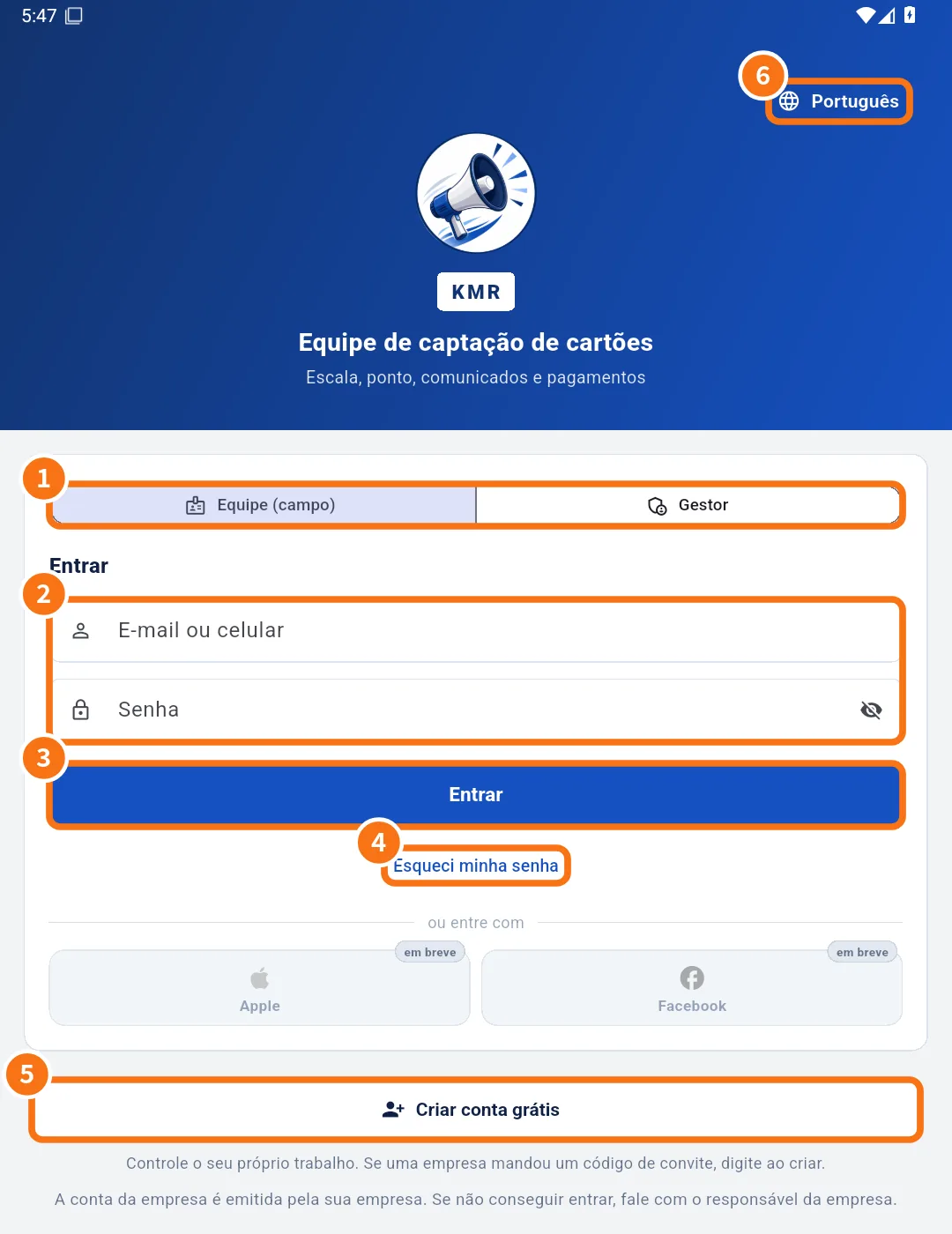
- Install the KMR app from the App Store (iPhone) or Google Play (Android).
- Open the app. If you like, change the language with the globe at the top (⑥).
- Choose the profile: Staff (field) or Manager (①).
- Enter your e-mail or mobile number and password (②) and tap Sign in (③).
- If the same e-mail or phone is registered with more than one company, you see Choose your company. Tap the right company.
- No company? Tap Create a free account (⑤).
First task: open today's work
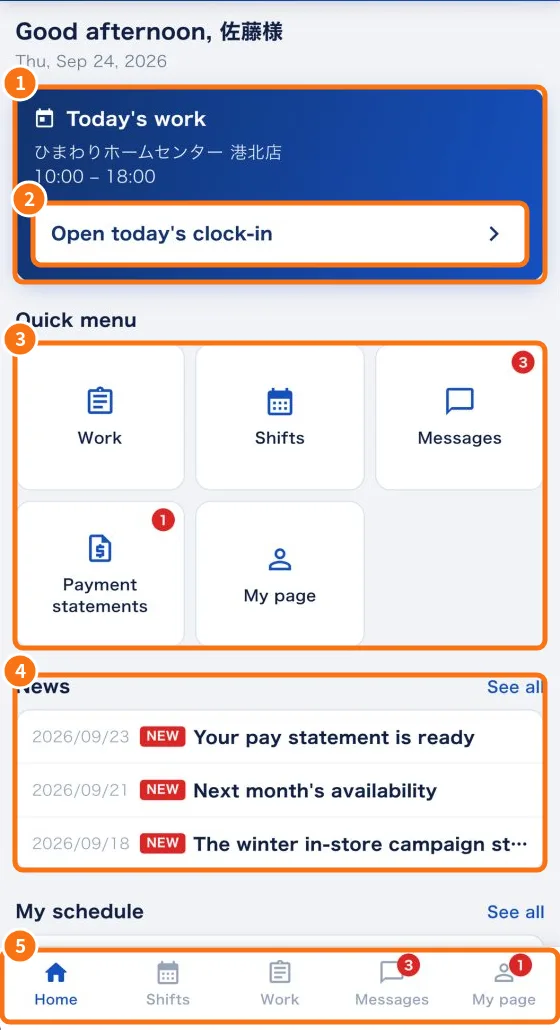
- On the Home tab, check the Today's work card (①) with the store and the hours.
- Tap Open today's clock-in (②). The Work tab opens on today's shift.
- If you see the red Please answer the shift confirmation box, answer it first in the Work tab.
- Use the Quick menu (③) to jump to Work, Shifts, Messages, Payment statements or My page, and read the News (④). The five tabs are at the bottom (⑤).
Common mistakes
- “I can't sign in”: check that you chose the right profile (Staff or Manager). Company accounts are issued by the company; if yours has not been created yet, contact the person in charge.
- “Today's work does not show”: the shift is not confirmed yet. Check the Work tab, under “Shift confirmations”.
Related questions
- Sign in, choose your company and reset your password
- Roles in KMR: staff, manager, administrator and free account
- Create a free account (no company)
- Work tab: confirm the shift and record the day
- Managers on the phone: tabs, Home and Menu