











KMR · Màn hình & chức năng
How to change your password and app language
Change the staff password inside the app, pick one of 7 languages, and what is different for managers.
Bài viết này chưa được dịch sang ngôn ngữ của bạn: đang hiển thị bản English.
Trong trang này
Change your password (staff)
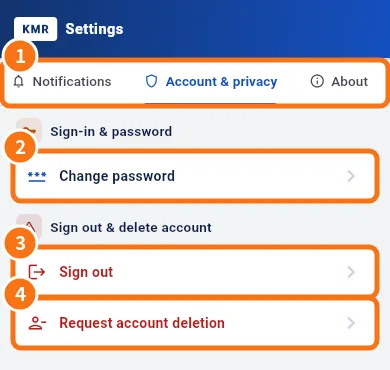
- Open My page → Settings.
- Tap the Account & privacy tab (①).
- Under Sign-in & password, tap Change password (②).
- Enter the Current password, the New password (6 characters or more) and Confirm new password.
- Tap Change password. You see “Password changed.”
After the change, other devices are signed out; this one stays signed in.
Change the language
- Open Settings → Language (or tap Language on My page; on the sign-in screen, use the globe).
- Choose: 日本語, Português, English, Tagalog, 简体中文, Tiếng Việt, Español or Same as device.
- The app switches right away. Server texts (for example daily report labels) follow the chosen language.
For managers
- Manager passwords are changed on the web panel (profile). Settings in the app shows this note.
- Language works the same as for staff.
Forgot your current password?
- Sign out (Settings → Account & privacy → Sign out, ③).
- On the sign-in screen, tap Forgot your password? and follow the link you receive.
Safety tips
- Use a password only you know, and not the same as other services.
- Lost your phone? Sign in on another device and change the password: the lost device is signed out.
- Do not share your password with colleagues. Each person has their own account and records.
Common mistakes
- “The passwords do not match.”: type the same new password in both fields.
- “The password must be at least 6 characters.”: use a longer password.
- Company news stays in another language: texts written by your company show as they were written.
Related questions
- Settings: general, language, notifications, account and about
- Sign in, choose your company and reset your password
- Common KMR problems and what to do