











KMR · Màn hình & chức năng
Home screen (staff)
Your day at a glance: today's work, things to answer, quick menu, news and your schedule.
Bài viết này chưa được dịch sang ngôn ngữ của bạn: đang hiển thị bản English.
Trong trang này
What it is for
The Home tab is the first screen after signing in. It brings together what matters today: today's shift, what is waiting for your answer, new company news and your next confirmed shifts.
What is on the screen
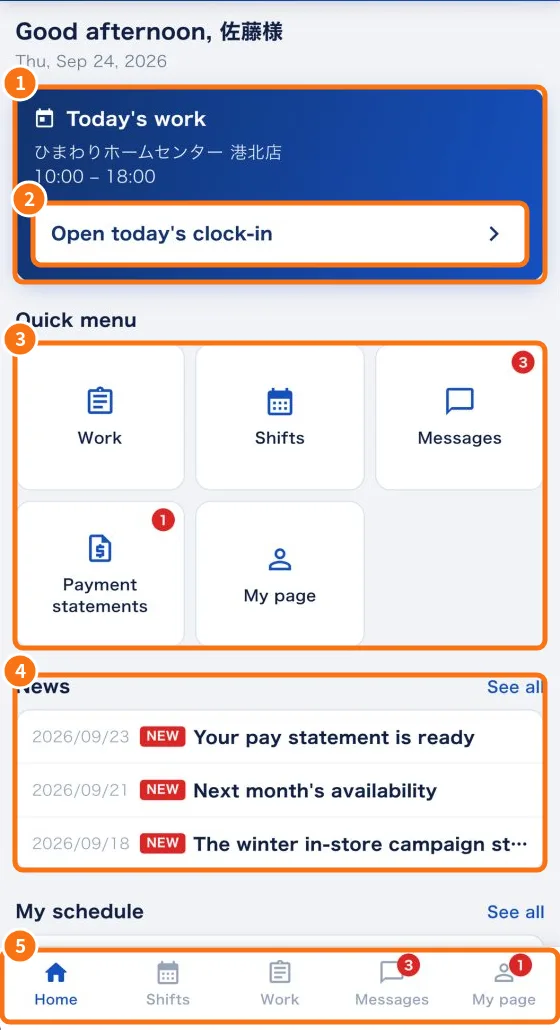
- At the top: a greeting with your name and the date. If mandatory training is pending you see “{n} mandatory training item(s) pending.”
- In red, when needed: Please answer the shift confirmation — “{n} item(s) pending. Answer in the Work tab.”
- ① Today's work: the store and hours of today's confirmed shift.
- ② Open today's clock-in (or See my shifts if there is no shift today).
- ③ Quick menu: Work, Shifts, Messages and My page. You also see Submit availability (when your company asks for it), Manual & training (when training is pending) and Payment statements (when a statement is waiting for you).
- ④ News: the latest notices. See all opens the Messages tab.
- My schedule (further down): your next confirmed shifts, with hours and estimated pay when the company shows it.
- ⑤ The five tabs: Home, Shifts, Work, Messages and My page. Red numbers show what is pending.
Your day, step by step
- Open the app and check for the red confirmation box. If it is there, tap the Work tab and answer.
- Check the store and hours in Today's work.
- Tap Open today's clock-in to record leaving home, arriving and the rest of the day.
- Read new news. If one asks for confirmation, open it in Messages and tap I have read this.
Top icons
- Bell: takes you straight to the tab with something pending (Work, Messages or My page).
- Headset: opens in-app support.
For free accounts
Home shows the Free account (personal) card with the My work and Company invitations buttons.
Common mistakes
- “No confirmed shift today.”: the shift may be waiting for your answer in the Work tab.
- News does not update: pull the screen down to reload.
Related questions
- Work tab: confirm the shift and record the day
- Shifts tab: your shift calendar
- Messages tab: news, questions and cancellation requests
- In-app support, Report a problem, Wiki and What's new