KMR · Getting started
Path — Staff: your workday
The articles for who works in the store or in the field, in the right order.
Follow in order. Each step names the manual article that explains it in detail — search the title in the Wiki.
- Getting started with KMR — What KMR is, who uses it, how to install, sign in and do the first task of the day.
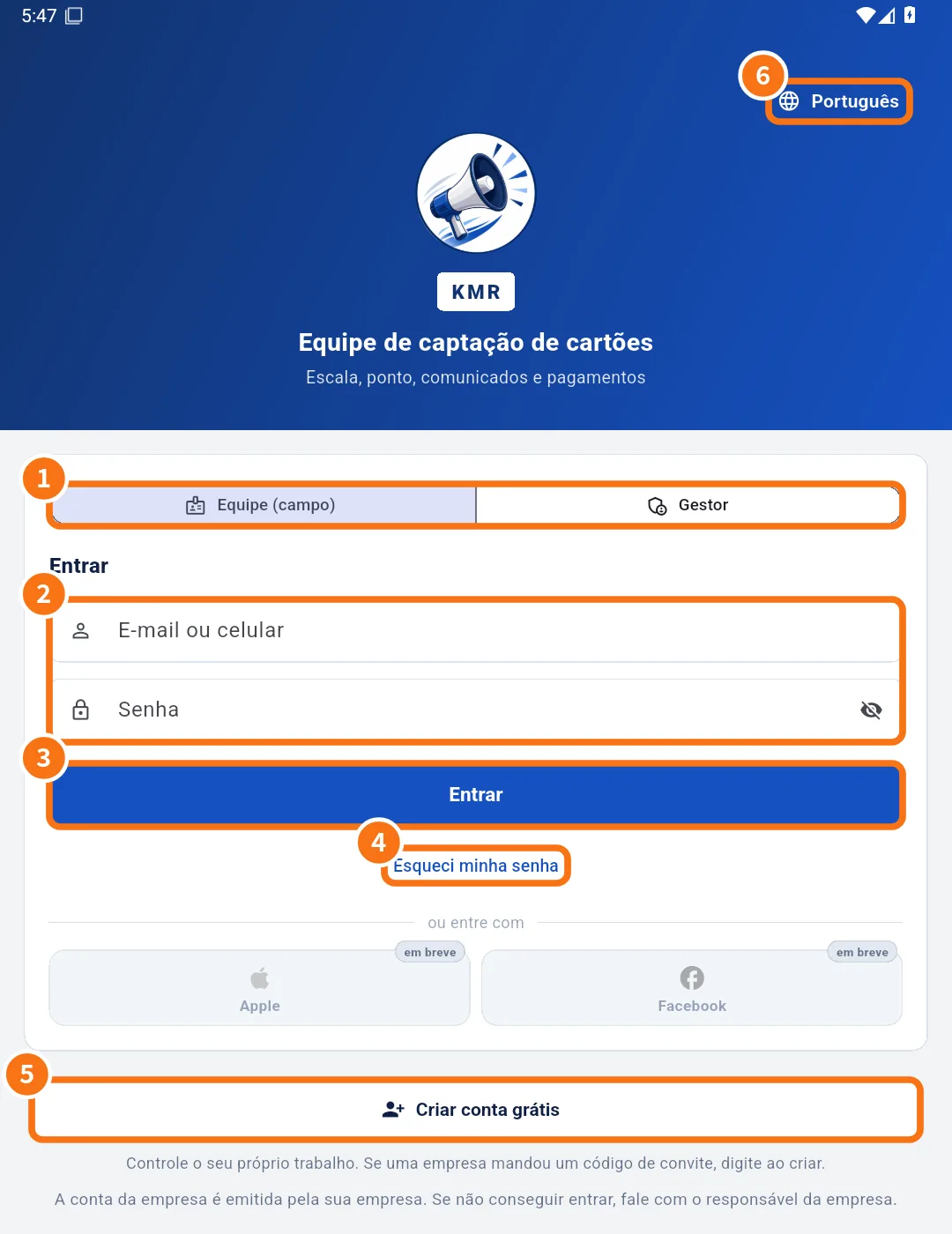
- Sign in, choose your company and reset your password — How to sign in as staff or manager, what to do when your e-mail is in several companies, and how to reset your password.
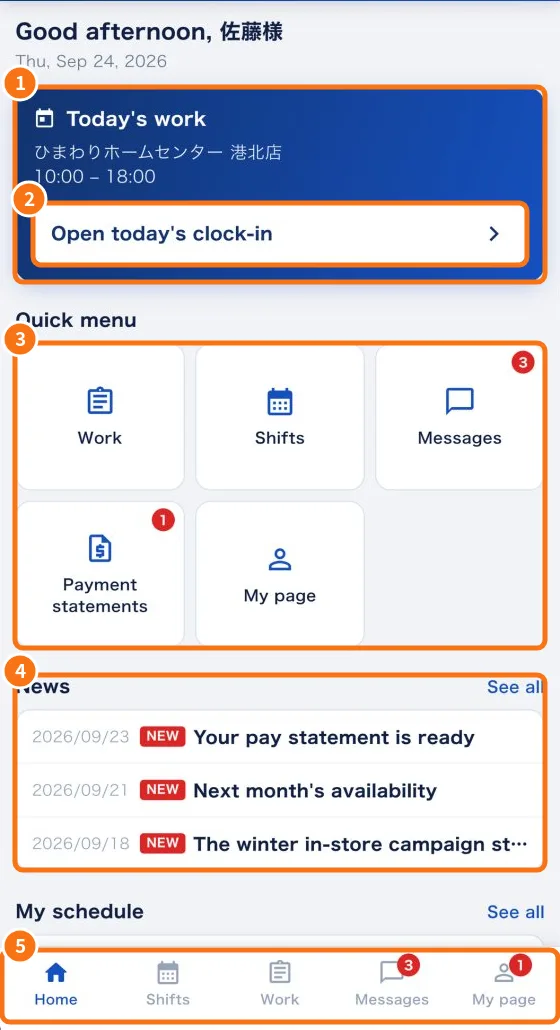
- Home screen (staff) — Your day at a glance: today's work, things to answer, quick menu, news and your schedule.
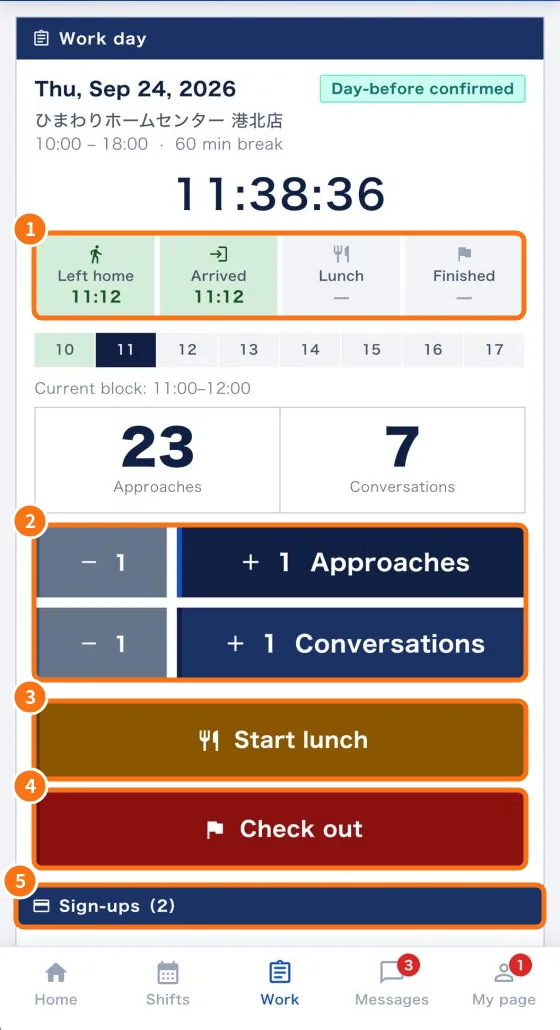
- Work tab: confirm the shift and record the day — Answer shift confirmations, record leaving home, arrival, lunch and check-out, count approaches and conversations, and add sign-ups.
- Daily report (日報): questions, photos and required fields — What the app asks at check-in, lunch and check-out, how to attach photos and how to fix “required items missing”.
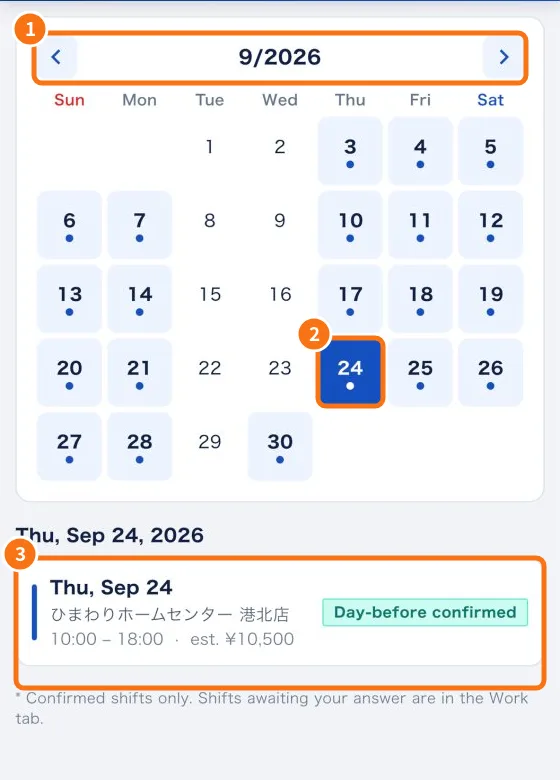
- Shifts tab: your shift calendar — See the days you work on a calendar, with store, hours and estimated pay.
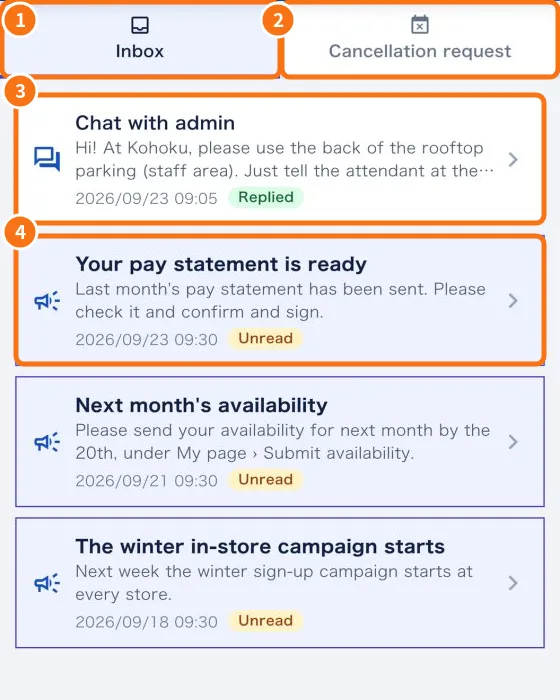
- Messages tab: news, questions and cancellation requests — Read company news, acknowledge it, ask the administrator, attach files and request to cancel a shift.
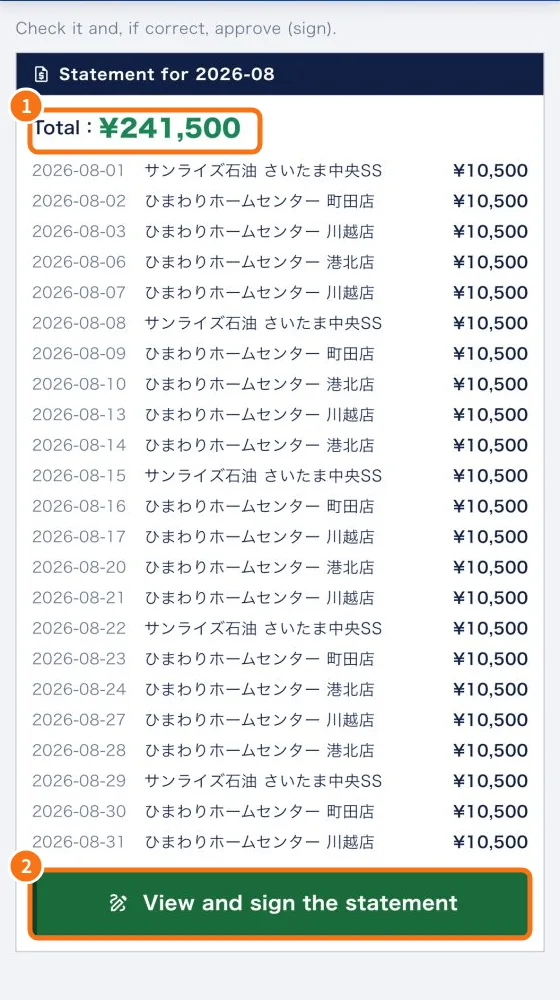
- Check and sign your payment statement — How to check the month's statement, approve it with a digital signature or request a revision, and see the invoice after signing.