











KOCHAT · 界面与功能
Writing: text, mentions, emoji, GIFs and stickers
The message box: Enter and line breaks, @ to mention, long texts, pasting screenshots and the emoji, GIF and sticker panel with search and favorites.
此文章暂无您的语言版本,以English显示。
本页目录
What it is for
The Message (@ to mention) box sits at the bottom of every chat. Besides text, it calls people by name, pastes images and opens the emoji, GIF and sticker panel.

Step by step: send a text
- Tap box ⑤ and type.
- Once there is text, microphone ⑥ turns into the Send button (paper plane). Tap it.
- On a computer and on the web, Enter sends and Shift+Enter adds a new line.
Mention someone (@)
- In a group, type @.
- Only the people in this conversation appear. Keep typing to filter.
- Below the people, a separate section lists the available agents.
- Tap the name (on a computer, use ↑ ↓ and Enter). The name is highlighted in the message; tap the mention to open that person's profile. The mentioned person is notified.
- Names with a space (e.g. @斎藤 あゆみ) are also colored and open the profile when tapped.
- An authorized employee can call an agent from that section to follow their request in the same conversation.
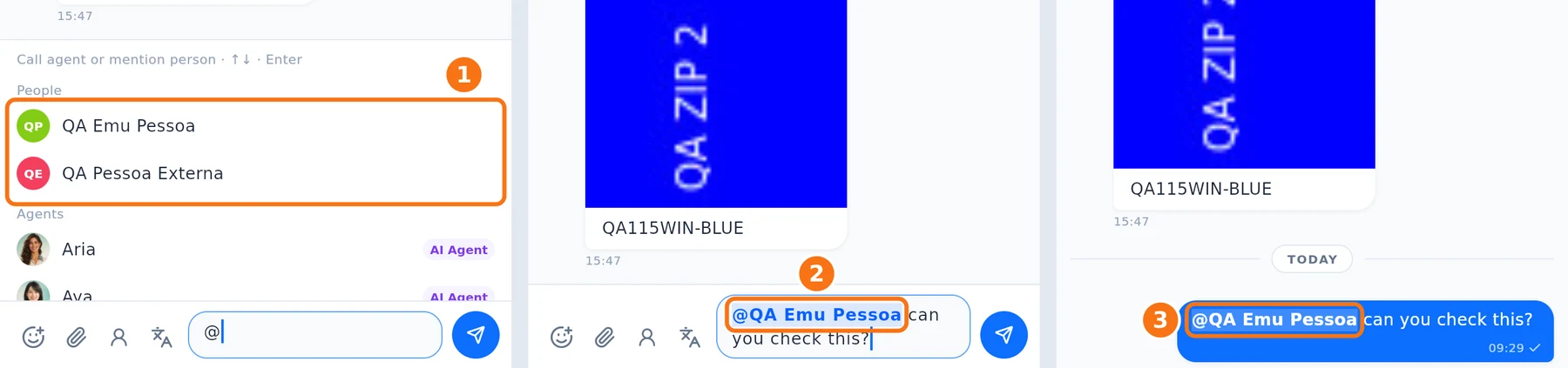
① Type @: the people in the group appear, with the agents below. ② The person you choose is highlighted in the box. ③ After sending, the name is colored in the message — names with a space too — and opens the profile when tapped.
Emoji, GIFs and stickers
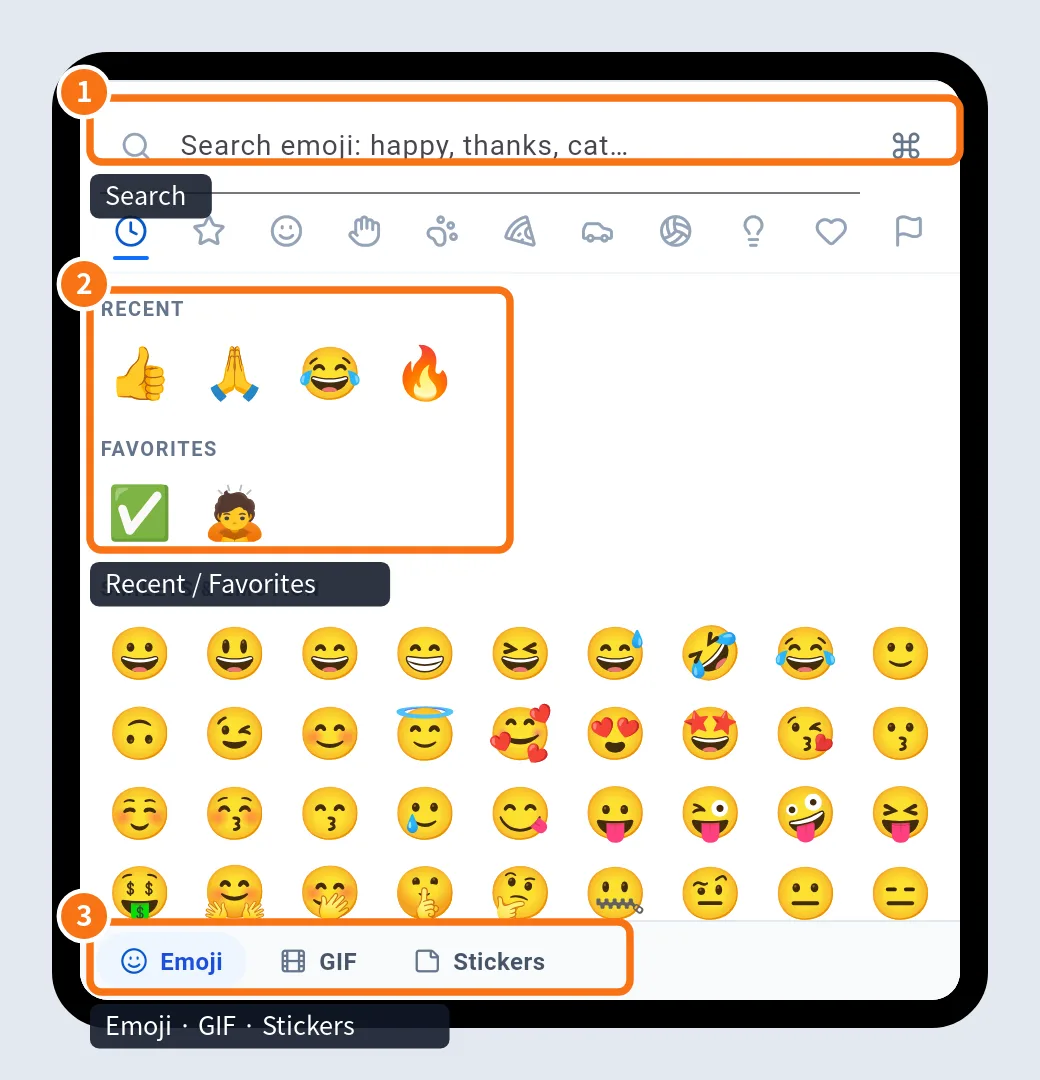
- Tap the smiley with + (③ in the first image).
- ① Search works in English, Portuguese and Japanese (e.g. "ok", "thanks", "cat").
- ② Recent and Favorites are at the top.
- ③ Switch between Emoji, GIF and Stickers with the bottom tabs.
- To keep a GIF or sticker in favorites, touch and hold it (on a computer, right-click or the ⭐).
GIFs and stickers come from a freely licensed catalog; credits are under Credits & licenses in the panel.
Long texts
A counter appears under the box (e.g. "3,950 / 4,000 characters"). Above 4,000 characters KOCHAT says "Long text: it will go as N messages in a row" and sends it in parts, without cutting anything.
Paste images and files
On a computer, copy a screenshot or file and press Ctrl+V (Mac: ⌘V) in the box, or drag files into the chat. A preview opens so you can check, add a caption and send. On the phone, hold the box and use Paste image when the keyboard offers it.
Common problems and what to do
- The @ list does not appear: mentions are for groups; you don't need them in one-to-one chats.
- Ctrl+V does not paste the file on the web: some browsers do not hand clipboard files over. Use the paperclip.
- The box is grey: you can't write in this chat (for example, the contact was removed or the conversation was closed).
- I tapped a mention and got "Not found": that person is from another company and is not your contact; profiles of people from another company do not open.
Related questions
- Message menu: react, reply, copy, pin and more
- Send photos, videos and files (preview and caption)
- Voice messages: record, play and change speed
- Translate messages and the whole chat