











KOCHAT · 界面与功能
How to send several photos or a video with a caption
From the paperclip to confirmation: pick several photos or a video, check the preview, remove or add items, write the caption and follow the upload.
此文章暂无您的语言版本,以English显示。
本页目录
What it is for
A common case: documenting a job with several photos and an explanation. Instead of sending photo after photo and then the text, send everything at once with a caption.
Step by step
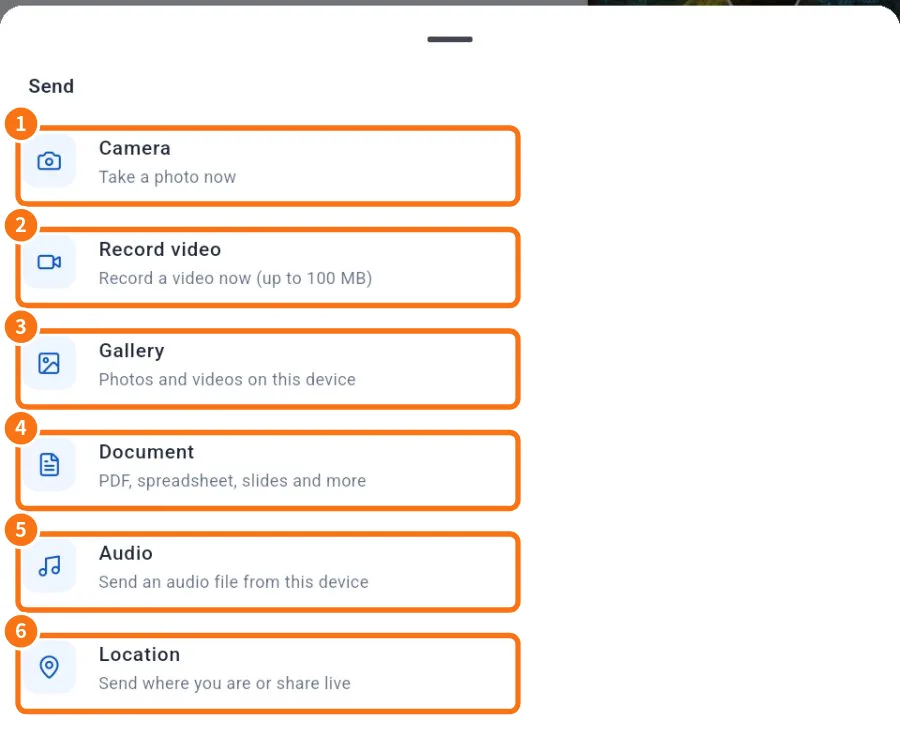
- Open the destination chat (or group).
- Tap the paperclip → Gallery (③).
- Mark the photos and/or video and confirm in the device picker.
- The Send N items screen opens with a preview of the first item and thumbnails below.
- Tap the thumbnails to check each item; videos play with a time bar.
- Wrong photo? Tap the × on its thumbnail. Missing one? Tap +.
- Write the explanation in the caption box (e.g. "Part 7 — before and after machining").
- Tap Send.
Note: Large JPEG photos are automatically reduced before sending (orientation is preserved). GIFs and PNGs keep their original appearance.
A caption on each photo, rotate and crop
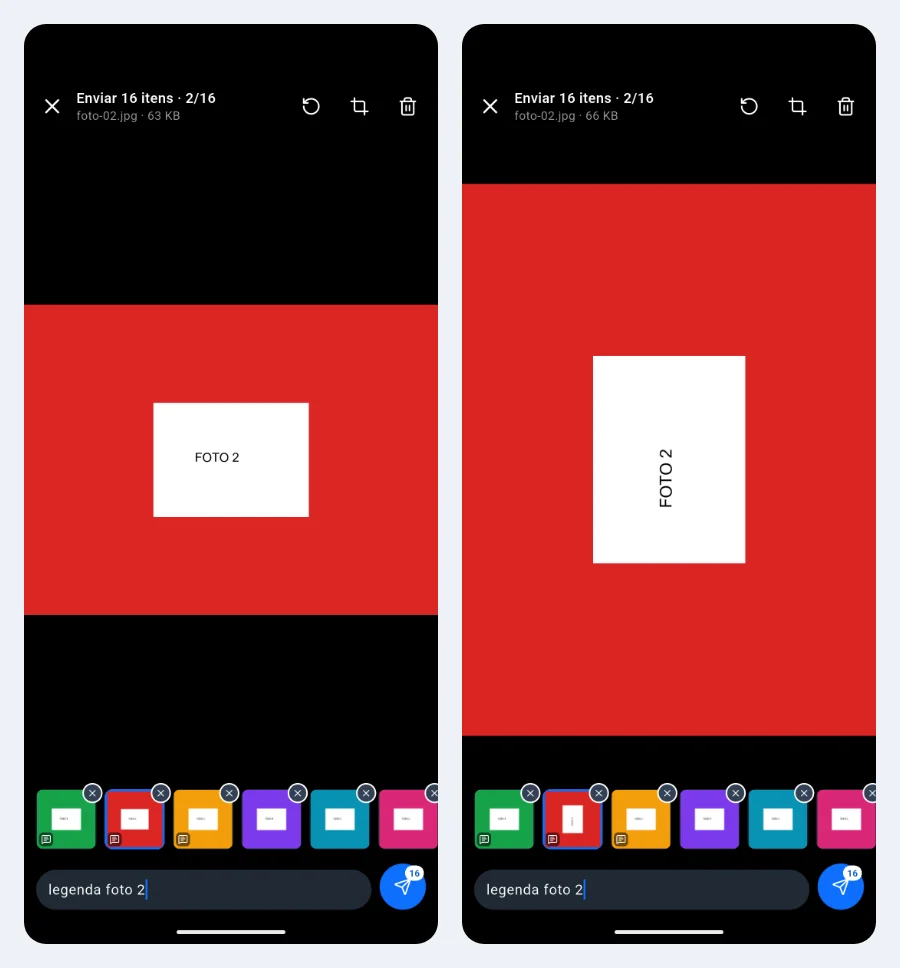
- Tap a thumbnail (or swipe the big photo) to switch items. Each photo, video or document has its own caption; thumbnails with a caption show a small bubble.
- On photos: rotate (round arrow) and crop (drag the corners and tap Done). The original photo on the phone does not change.
- The bin removes the open item; + adds more.
Sending continues in the background
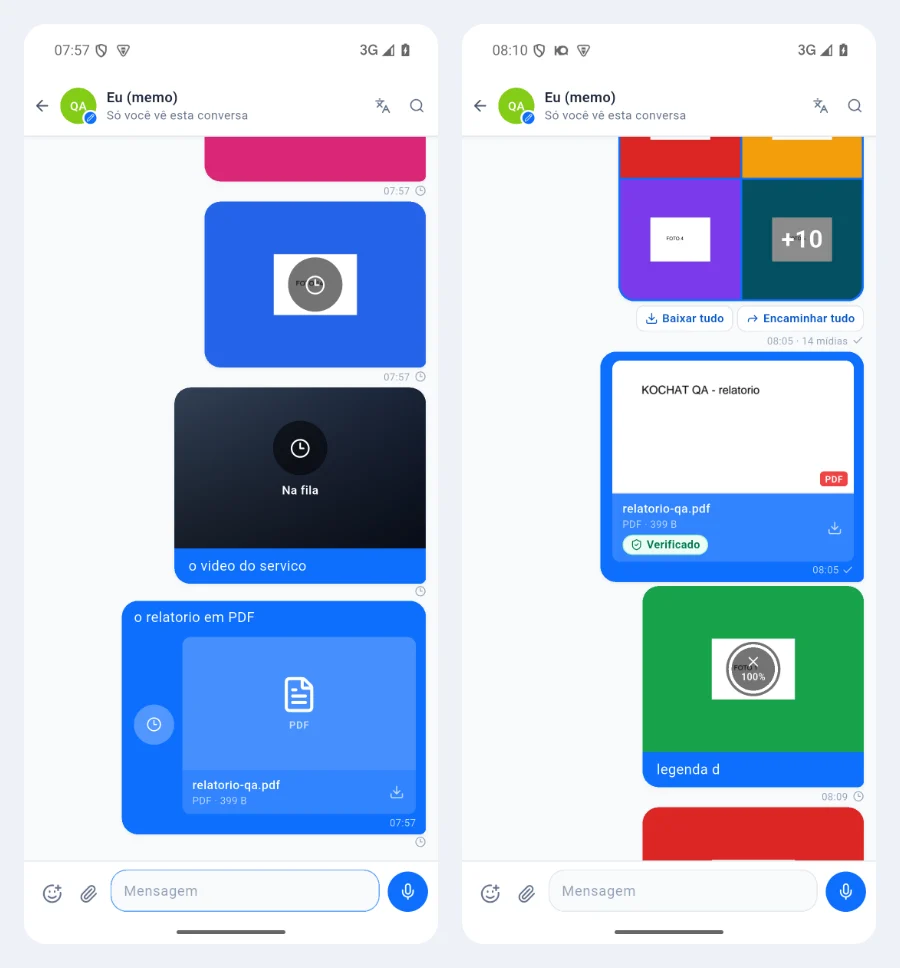
- When you tap Send the preview closes right away. Each item appears in the chat with its caption: clock = queued, ring with % = uploading, ✓ = delivered.
- You can type, send more photos, leave the chat or the app — everything goes into the queue, in order.
- Tap the clock or the ring to cancel only that item; the others keep going. An item that failed: tap to try again.
- No internet or app closed: when you come back, sending continues where it stopped, without duplicates.
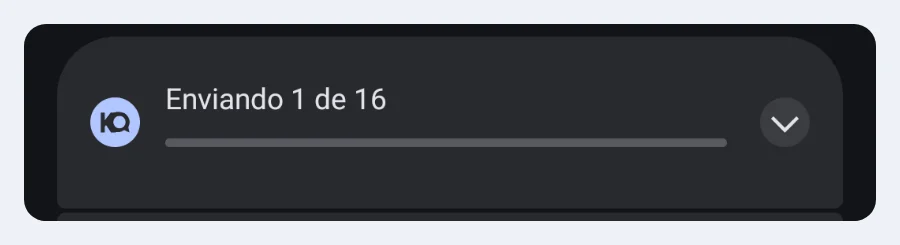
On Android a Sending 3 of 16 notification shows while it uploads. On the computer and KOCHAT web it works the same: the preview never blocks the screen and the progress is on the bubble (Portuguese screenshots).
On a computer
- Select images in a folder and drag them into the chat ("Drop to send to this chat"), or copy and paste with Ctrl+V / ⌘V.
- The same preview opens inside the chat; the chat list stays usable beside it.
- Write the caption and click Send.
Common problems and what to do
- Only one photo got selected: in the device picker, hold the first photo to enter multi-select.
- The video takes long: long videos take time to compress; use Wi-Fi.
- I closed the app while sending: when reopened, it continues; if it fails, touch and hold → Retry.
Related questions
- Send photos, videos and files (preview and caption)
- Open, download and save received files
- Writing: text, mentions, emoji, GIFs and stickers