











KOCHAT · 界面与功能
Calls: history and details
Open Calls from the menu to go straight to your history. Click a call to see the contact and every call with them.
此文章暂无您的语言版本,以English显示。
本页目录
Open Calls
- In the KOCHAT menu, tap Calls (the phone icon). The screen opens directly on your call history — there is no Favorites tab.
- Search for a person in your history.
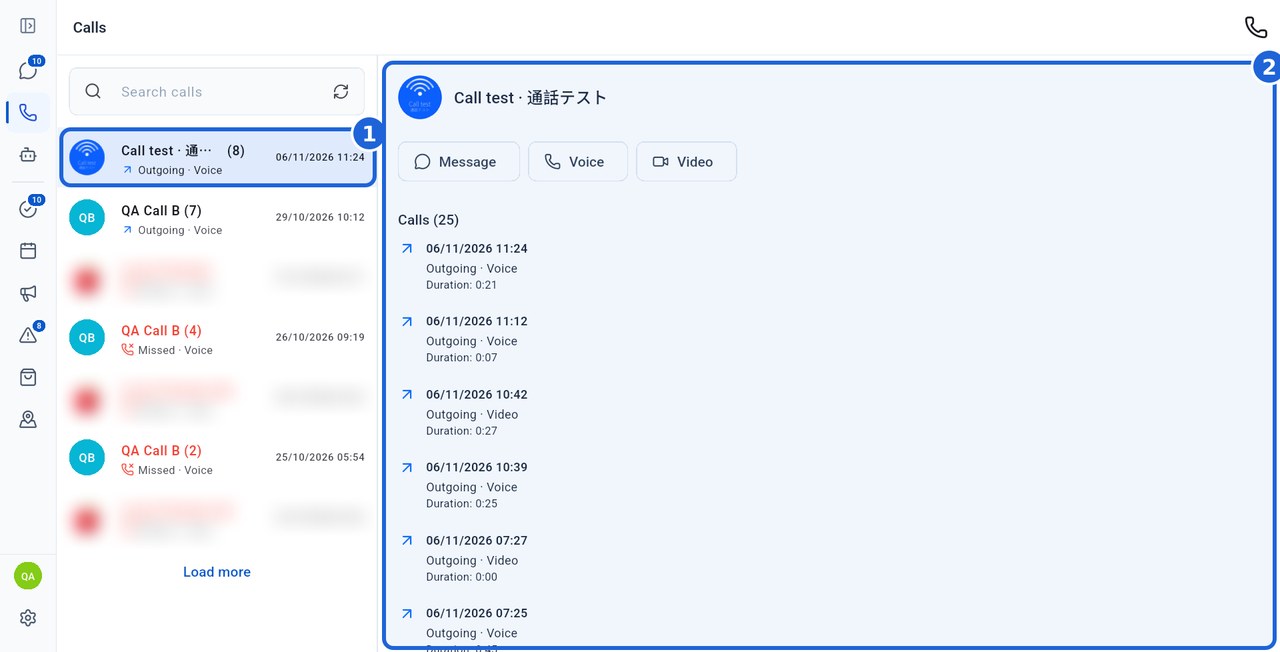
- Click (or tap) a call (1). On a computer, the contact's details and every call with them appear in a panel on the right (2): type, direction, date, time and duration. On a phone, the details open on their own screen.
Actions and notes
In the panel, the Message, Voice and Video buttons open the conversation or start the matching call. The phone icon at the top lets you pick a contact for a new call.
AI agents do not appear in the Calls list. To talk to one, go to AI agents and click it to open the conversation.
The colours on this screen follow the app theme, even when your computer is in dark mode.
Calls shows history accessible to your account, rather than a company-wide call log. Use the refresh icon and Load more when shown.