











KOCHAT · 界面与功能
Update KOCHAT and see What's new
How KOCHAT updates on each device (store, APK file, Windows, Mac, Linux), how to check your version and where to read what changed.
此文章暂无您的语言版本,以English显示。
本页目录
What it is for
Keeping KOCHAT up to date brings fixes for calls, notifications and attachments. Each platform updates differently; this guide shows them all.
See your version and What's new
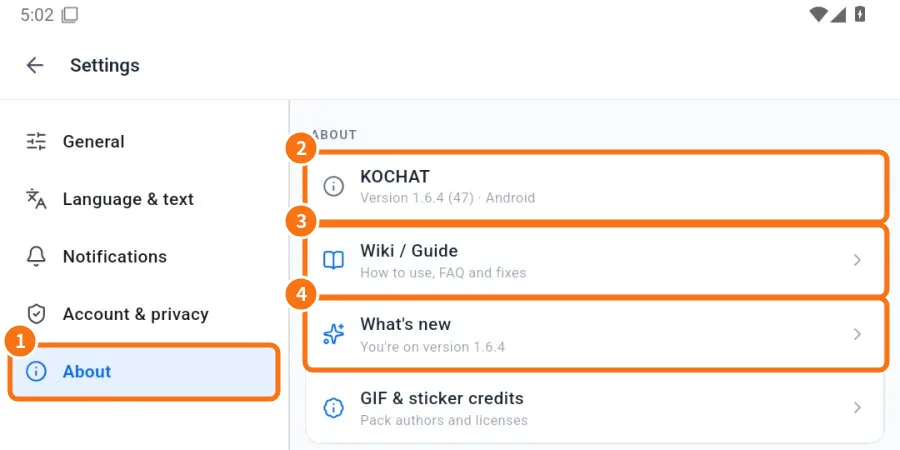
- Open Settings → ① About tab.
- ② The KOCHAT row shows the version, the number in brackets and the platform.
- ③ Wiki / Guide opens these manuals.
- ④ What's new shows what changed in each version. After an update, the news also appears once by itself; you can turn that off on the What's new screen.
Full history (1.8.44): the What's new screen lists every version, grouped by month and with the picture of each change. Scroll to the end to load more. Pictures of older versions come from the internet the first time and then open even offline.
Reopen What's new: images you have already loaded are kept on your device for the next visit, making the screen faster to open. Use the same path to open What's new again; images you have not loaded yet need an internet connection the first time.
How each platform updates
- Platform · How
- Android (Google Play) · Through the Play Store. If the version is too old, the banner Your version is out of date → Tap to update on the store appears.
- Android (company APK file) · The app itself tells you: Tap to download and install the new version. It downloads the file, checks it is identical to the published one and opens the Android installer. The first time, allow “install apps from this source”. Your chats stay.
- iPhone / iPad · Through the App Store (automatic or manual).
- Windows · By itself, in the background. Restart when the ready notice appears.
- Mac downloaded from the website · Tells you about the new version and takes you to the download.
- Mac from the App Store · Through the App Store.
- Linux · Install the new version your company provides.
- Browser · Always the latest version; reload the page.
Common mistakes
- The Play Store does not update my KOCHAT: if it came from an APK file, the Play Store cannot update over it (the signatures differ). Uninstall, install from the Play Store and sign in again.
- “The update was not installed”: check the install-apps permission and free space, then tap to try again.
- After updating, two KOCHAT windows are open: close one in the recent apps list; newer versions no longer do this.
Related questions
- KOCHAT on the computer (Windows, Mac and Linux)
- Install KOCHAT (phone, computer and web)
- Settings: what each tab has
- Problems: attachments, translation and desktop app