











KOCHAT · 界面与功能
Chats screen: list, tabs and search
The first KOCHAT screen: recent chats, Chats/Stories/Groups tabs, story rings on photos, search and People, unread counters and the new chat button.
此文章暂无您的语言版本,以English显示。
本页目录
What it is for
The Chats screen is where KOCHAT starts. It lists all your conversations, newest first, and shows how many messages you have not read yet. When someone is writing, the Typing… indicator now shows their photo and name instead of just generic text. From here you open a chat, start a new one and move to the other tabs.
What is on the screen
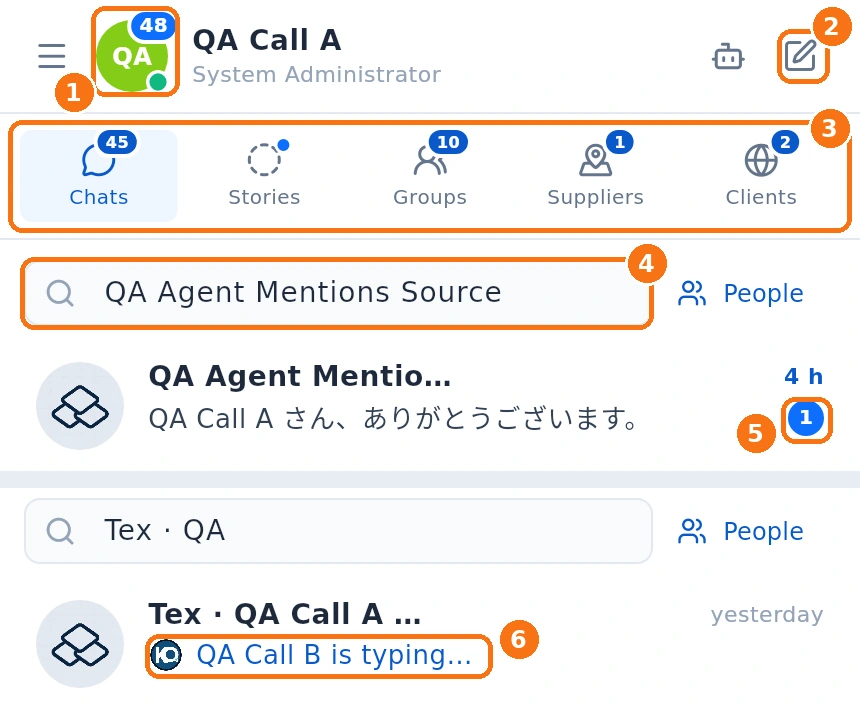
- Your photo: the colored dot is your status (green = Available). Tap it to change your status (Automatic, Available, Away, Busy, Invisible), the language, or to open My profile or Settings. The blue number on the photo is your total unread count.
- Pencil (New conversation): opens your contact list. Tap a name to chat, or New group to create a group.
- Tab bar (right below your name): Chats (all conversations), Stories (updates that disappear after 24 h — the tab is back in this bar on phones; a blue dot means there is a new story), Groups and, depending on your company plan, Suppliers and Clients (website chat). To find colleagues, use People next to the search box. Which tabs you see depends on your company plan and your account.
- Search conversation…: type part of the person's or group's name.
- Blue number: unread messages in that chat. A blue time means there is something new.
- Typing…: when someone types in a group, the chat list shows their photo and name. If they have no photo, it shows their initials. In direct chats, you see dots and a typing label.
@ icon: appears next to a conversation when someone mentioned you in it. It acts as a shortcut so you can quickly find and open the chat where you were mentioned.
Story ring: people who have posted a story show a ring around their photo in the chat list (colour = new, grey = already seen). Tap the photo to choose View story or View info.
Step by step
- Open KOCHAT. The Chats tab opens by itself.
- Tap a chat to open it.
- To find an older chat, tap the search box and type part of the name.
- To start a chat, tap the pencil and pick the person.
- For more options (pin, mute, archive), touch and hold a chat (on a computer, right-click).
Notices above the list
- No internet: you can keep writing; messages are kept and sent when the connection returns.
- Could not update: shows how old the data on screen is. Tap to try again.
- Update available: tap to open the store and install the new version.
Phone, desktop and web
On the phone, a chat opens full screen and Stories is back in the tab bar below your name, next to Chats and Groups (People is the button next to the search box). On a computer and in the browser, the list stays on the left and the chat opens beside it. In a wide window, the person's or group's details can open in a third column.
Common problems and what to do
- I can't find a chat: you may have archived it. A new message brings it back to the list. Also check the Groups tab.
- A tab is missing: tabs depend on the company plan and your account type (for example, guests do not see People).
- Counters look wrong: pull the list down or reopen the app to sync.
Related questions
- Pin, mute and archive chats
- Inside a chat: header, messages and read status
- Groups tab and group chats
- People tab: find colleagues and view profiles
- Stories tab: view and reply to updates