











KOCHAT · 界面与功能
Inside a chat: header, messages and read status
What each top button does (call, translation, text size, search, help), how to read the read status and what “Sending…” and “Failed” mean.
此文章暂无您的语言版本,以English显示。
本页目录
What it is for
The chat screen shows messages as bubbles: yours on the right in blue, others on the left, with names in groups. Photos appear as a lightweight preview (thumbnail); tap it to enlarge or download the original file. Chat actions sit at the top and the writing box at the bottom.
Top buttons (one-to-one chat)

- Phone: voice call.
- Camera: video call. (Both appear only in one-to-one chats and when the company plan includes calls.)
- Translation for this conversation: turns on automatic translation for this chat only.
- A− / A+: smaller or larger text. Shown on computers and tablets; on the phone use Settings › Text size.
- Magnifier: Search in conversation. Use the arrows to jump between results.
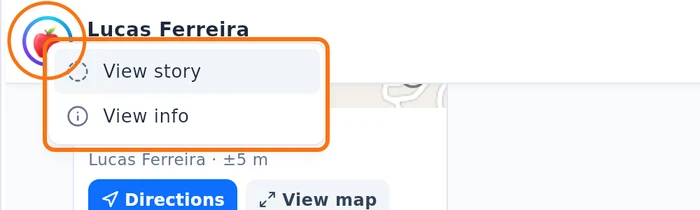
- Photo: if the person has a story, the photo shows a ring (colourful = new story, grey = already seen).
Tap the photo with the ring and choose View story or View info. Without a story, tapping the photo opens the person's info directly.
Tap the name to open Contact info or Group info (media, files, links, mute, pin).
Group chat
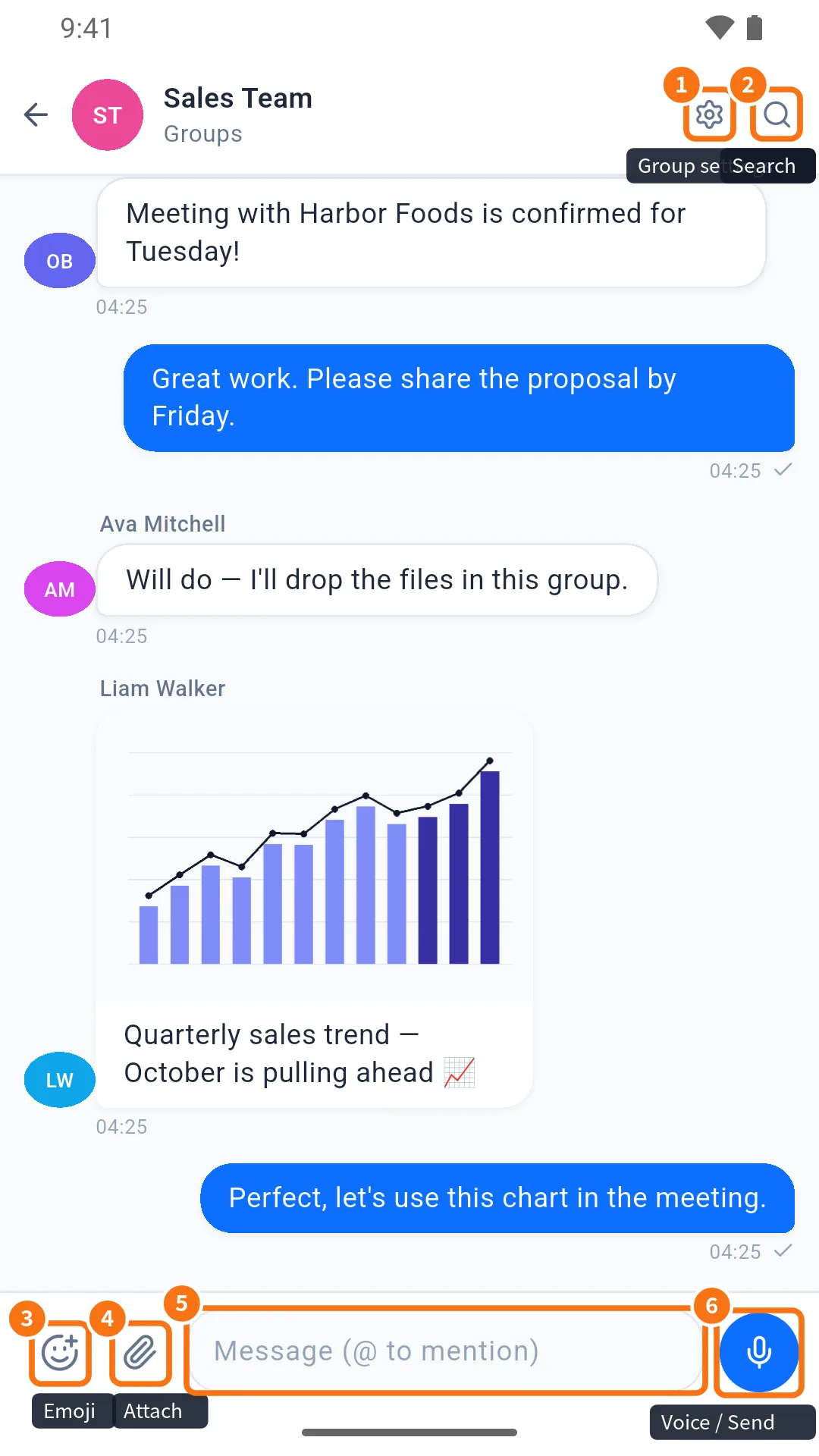
- Gear: Manage group (name, photo, members).
- Magnifier: search in the chat.
How to read the signs
- ✓ next to the time: the message reached the server (Sent).
- Read: the other person opened it. In groups, the bubble shows basic ticks; tap the message to open Message info for the full list — who has read it (with photo and time), who hasn't yet, and a counter such as "3/8 read". In one-to-one chats, Message info shows "Read" with the time, or "Delivered".
- Typing…: the other person is writing. The photo and name of who is writing now appear in the chat, at the top of the group and in the list.
- Sending…: still leaving your device (for example, no signal).
- Failed — will retry: the app retries by itself. You can also touch and hold and choose Retry or Discard message.
- Pinned in panel: a bar at the top with the pinned message. Tap it for options.
- Today and Yesterday dividers group the dates; calls show as lines ("You called · 0:32", "Missed call").
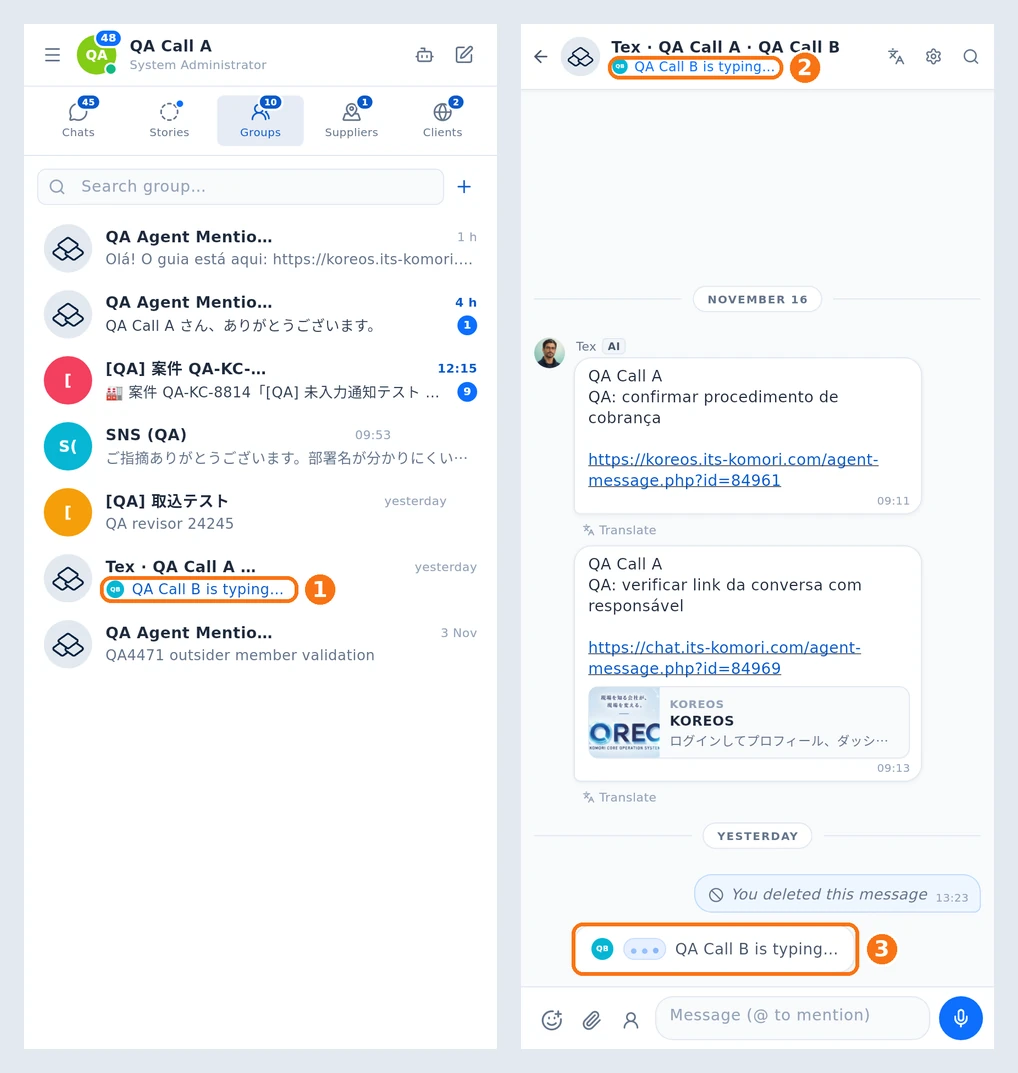
① In the list, the group shows the photo and name of who is writing. ② Tap the group: the top of the chat shows the same notice. ③ Below the messages, a bubble with the photo and name stays until the person sends or stops typing.
Common problems and what to do
- No call buttons: it is a group, a website conversation, or the company plan does not include calls.
- "No internet right now" in the box: write anyway; the message goes out when the connection returns.
- No A−/A+ on the phone: use Settings › Text size.
Related questions
- Writing: text, mentions, emoji, GIFs and stickers
- Message menu: react, reply, copy, pin and more
- Translate messages and the whole chat
- Make voice and video calls
- Chat info: media, files, links and search