











KoCAD · 界面与功能
Workflow: from a drawing (photo, PDF, DXF, DWG) to a 3D model
Three ways: trace the image in a sketch, convert a DXF/DWG (2D → 3D) or ask the AI (Generate with AI / Bob) — always with a preview before applying.
此文章暂无您的语言版本,以English显示。
本页目录
Which way to use
- I have a DXF or DWG: convert it directly (way A).
- I have a photo or PDF with dimensions: trace and draw over it (way B) or ask the AI (way C).
- I only have an idea or a sketch: AI (way C).
A. DXF/DWG → 3D
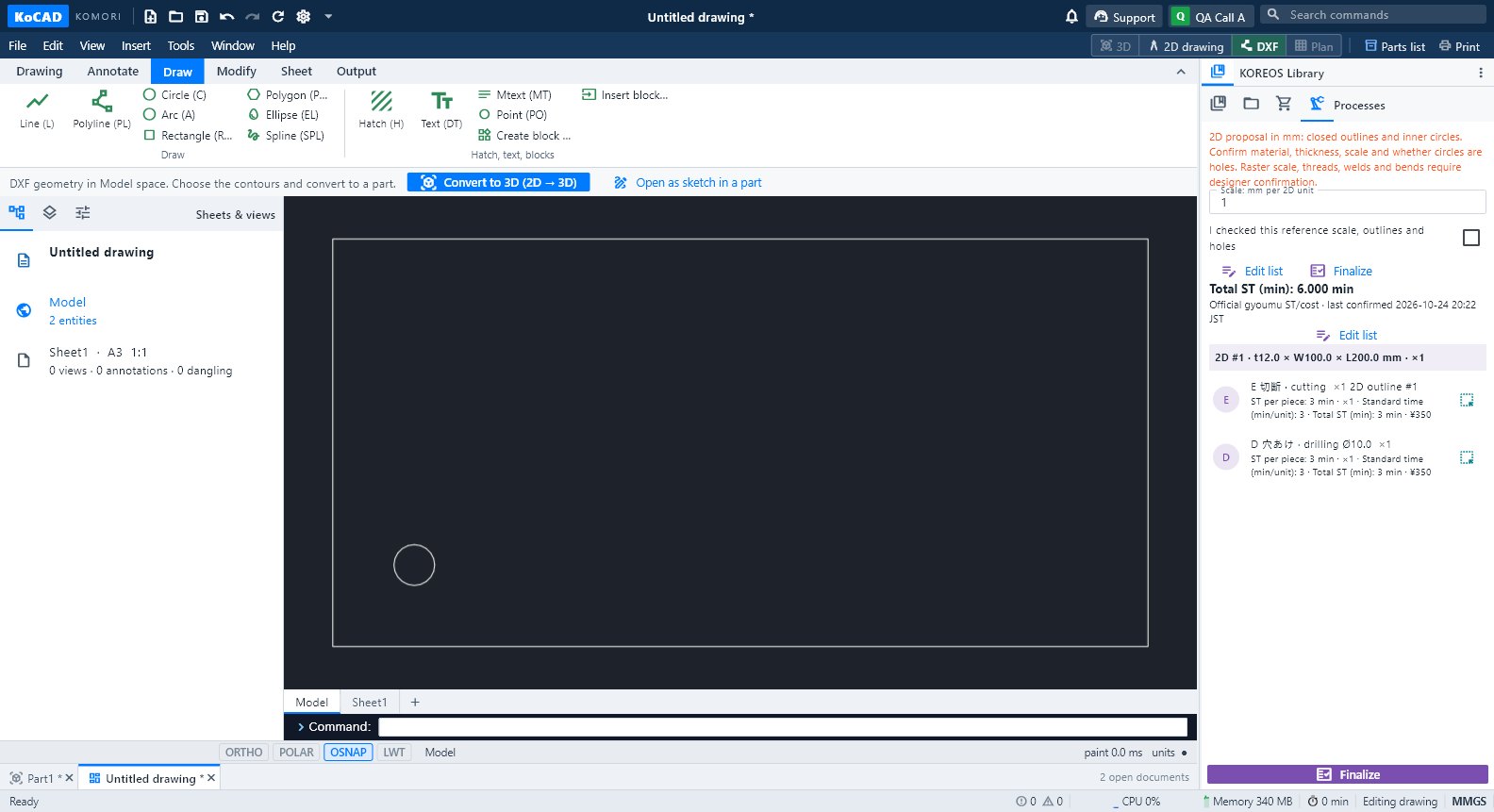
- File → Open… the DXF/DWG. It opens as a drawing; the geometry shows in Model.
- At the top choose Convert to 3D (2D → 3D) or Open as sketch in a part.
- Select the outline layers. Choose the method: Recognize JIS three views (aligned views: depth comes from the views), Extrude closed profile (one outline + depth in mm) or Structural members (section) (each line becomes a library profile).
- Check unit, thickness/depth and click Create solid. The original DXF is not changed; Ctrl+Z undoes.
B. Image reference
- New part → Sketch → Image reference → JPG/PNG/PDF.
- Mark two points with a known distance, type the mm, Apply and trace.
- Draw and dimension over the image; then extrude.
C. Generate with AI / Bob
- Advanced modeling → Generate with AI (or ask Bob in Support). Describe what you want and attach up to 4 images (PNG/JPEG/WebP).
- Choose the engine. In + Options: Vectorize to 2D, 2D → 3D directly, Initial parametric design or Background reference.
- Generate. The stages show (reading the drawing, dimensions, building the sketch). Cancel keeps text and images.
- Check the preview, sizes and warnings. Nothing changes in the document until Apply draft (one undoable operation). The DXF button saves the draft profiles.
Tips
- The AI does not invent what the drawing does not say: missing sizes become questions or editable assumptions. Review before manufacturing.
- Drawing views do not show hidden cavities: check the generated solid.
Common mistakes
- Depth highlighted in red: the value is missing. The suggestion is only a reference; type the real size.
- Image → DXF with imperfect reading: review the dimensions before continuing.