











KMR · Màn hình & chức năng
Staff portal in the browser
How staff use KMR in a phone or computer browser: sign in, confirm shifts, record the day and see news and payments.
Bài viết này chưa được dịch sang ngôn ngữ của bạn: đang hiển thị bản English.
Trong trang này
What it is for
If you have not installed the app, you can use the staff portal in a browser. It has the same features as the app: shift confirmation, clock-in and daily report, shifts, news, shift preferences, manuals, payment statements and profile. The records are shared: what you do in the portal shows in the app and vice versa.
How to sign in
- Open the address your company sent (for example the link in a shift e-mail or SMS) or kmr.its-komori.com.
- If it asks you to sign in, enter your e-mail / mobile and password.
- Shift links sent by the company may open the portal directly, without a password.
What is on the screen
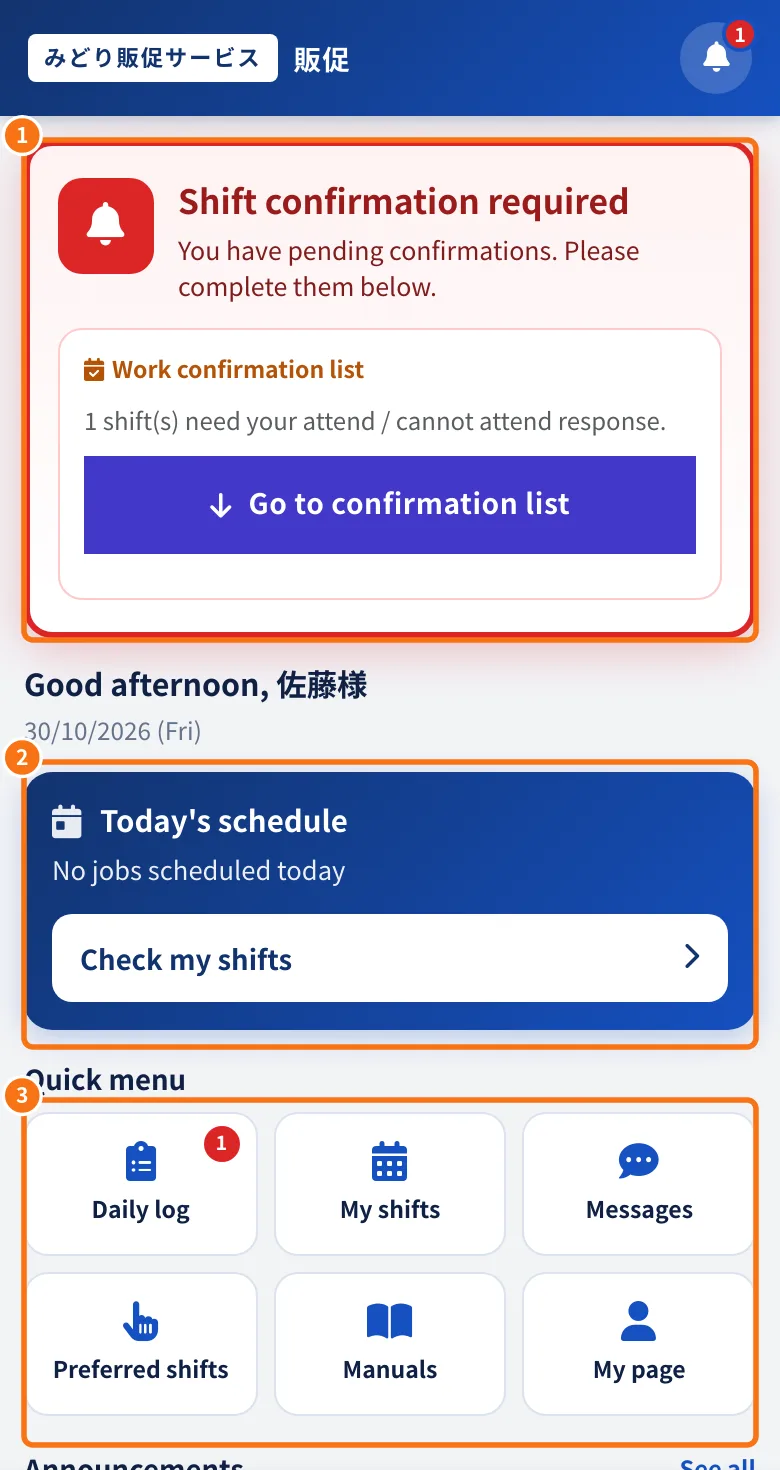
- ① When a shift needs your answer: Shift confirmation required, with the Go to confirmation list button.
- ② Today's schedule and the Check my shifts button.
- ③ Quick menu: Daily log, My shifts, Messages, Preferred shifts, Manuals and My page.
- At the bottom, the tabs: Home, Shifts, Daily log, Messages and My page.
Your day in the portal
- In Daily log, answer the work confirmation list (attend / cannot attend).
- On the day, use the same buttons as the app: leaving home, arrival, lunch and check-out, with the daily report questions.
- In Messages, read news, acknowledge it and ask the administrator.
- In My page, see your details, manuals and payment statements.
Differences between portal and app
- Without signal: only the app saves records to send later.
- Location and phone notifications work better in the app.
- In the portal's My page you can link a Google account to sign in without typing a password, when your company allows it.
Common mistakes
- The e-mail link no longer opens: old links may have been renewed by the company. Sign in with e-mail and password.
- Data does not update: reload the page.
Related questions
- Home screen (staff)
- Work tab: confirm the shift and record the day
- Getting started with KMR