











Karta · Pantallas y funciones
After a meeting: from the card you received to a saved contact and an introduction email
The full routine for people who receive cards every day. You photograph the cards, review the data, note the meeting context in the memo, decide who on the team can see them and, if you want, send your own digital card as an introduction. Each step has its own article; this is the order that avoids rework and duplicates.
Este artículo aún no está traducido a su idioma: se muestra la versión en English.
En esta página
What this is for
The full routine for people who receive cards every day. You photograph the cards, review the data, note the meeting context in the memo, decide who on the team can see them and, if you want, send your own digital card as an introduction. Each step has its own article; this is the order that avoids rework and duplicates.
Step by step
- Before scanning, open Cards and search the name or company: if the person already exists, open that card and update it instead of creating another.
- Open Scan and photograph the front of each card without glare; photograph the back of the same card or use Skip.
- With many cards, make a batch of up to 10 and go to review before starting another batch.
- In review, check name, company, title, phone and email on each card; correct what recognition got wrong.
- Tap Save all and read the individual result; pending cards stay waiting for review in the scan area.
- Open the saved card and note the meeting context in the memo — the customer's interest, possible partnerships and internal observations. The memo is visible to teammates who can see the card and is excluded from public links and vCards.
- Choose privacy (on the scan screen or later on the card): Only me, or My team when a colleague also needs the contact, with an end date if sharing is temporary.
- To introduce yourself, make sure My card is complete and use the introduction sending: tick only the recipients you want and read the preview and language.
- Confirm sending and follow the result of each email.
- Later, find the contact with the Cards search or by company in Companies, and use the phone, email or vCard buttons.
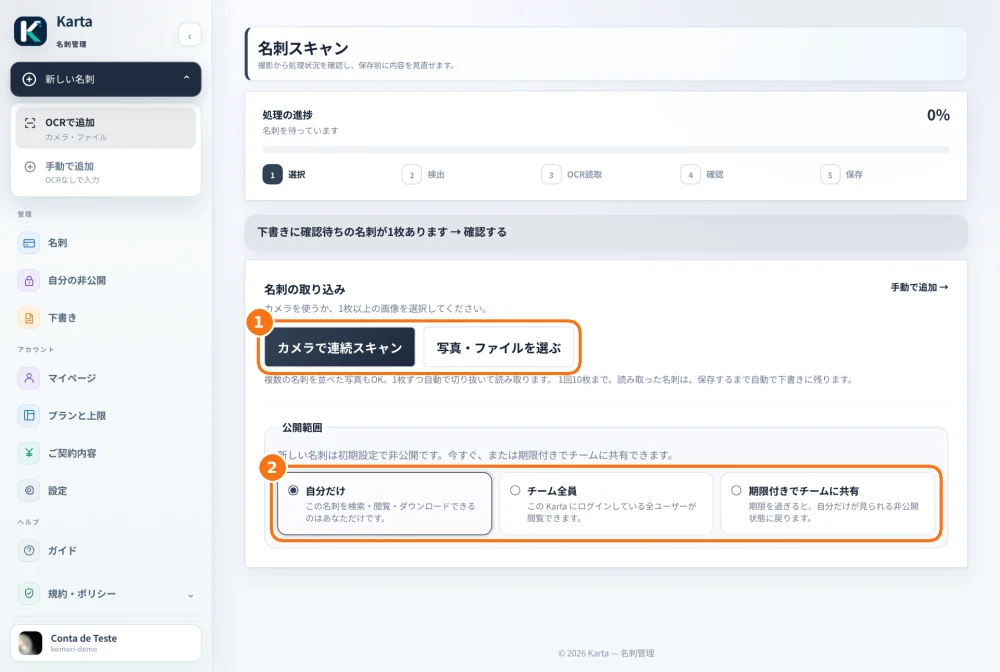
Demo screen (the Karta web version is shown in Japanese).
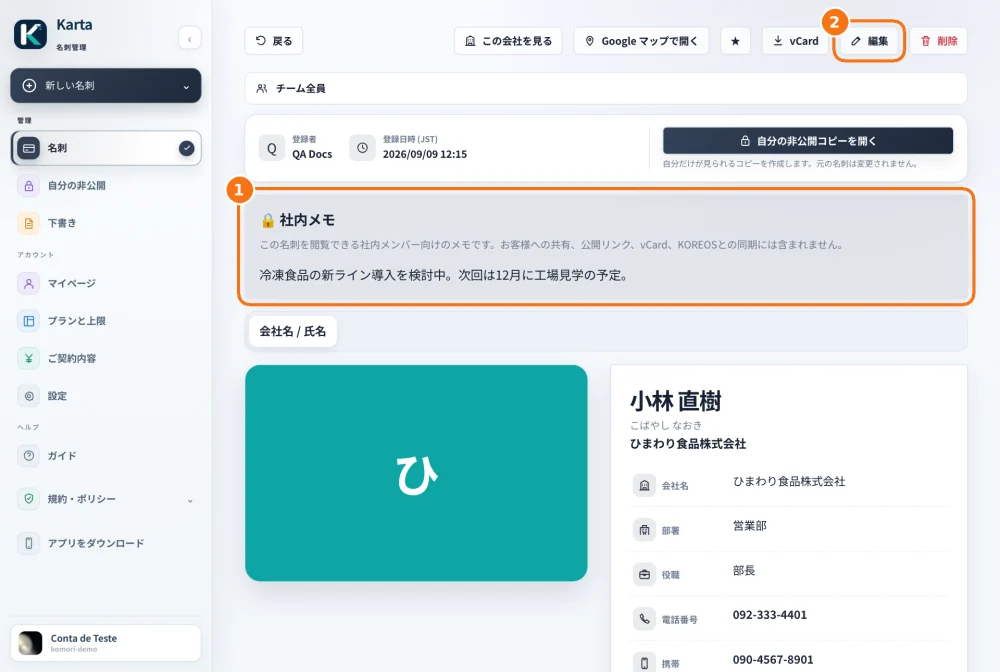
Demo screen (the Karta web version is shown in Japanese).
Tip
If something goes wrong
Duplicate contact: open both, keep the more complete one and correct the other; do not scan again. Colleague cannot see the card: check privacy and the end date. No recipient available for sending: the contact has no email, is a duplicate or already received the introduction. Card limit reached: the owner checks Plans and limits.
Related articles
- FAQ: 20 answers