











Karta · Primeros pasos
Getting started with Karta
What Karta is, how to create your account and how to add your first business card.
Este artículo aún no está traducido a su idioma: se muestra la versión en English.
En esta página
What Karta is
Karta is a business card manager. You take a photo of a card, text recognition (OCR) fills in the name, company and contact details, and everything is filed by company and by person so you can find it later.
It works in the browser (computer, tablet or phone) and in the official app for Android and iPhone, with the same account and the same data.
Create your account
- Open karta.its-komori.com in your browser.
- Tap No account yet? Create one.
- Enter your email and choose a password.
- From then on, use Sign in with that email and password.
First task: add a card
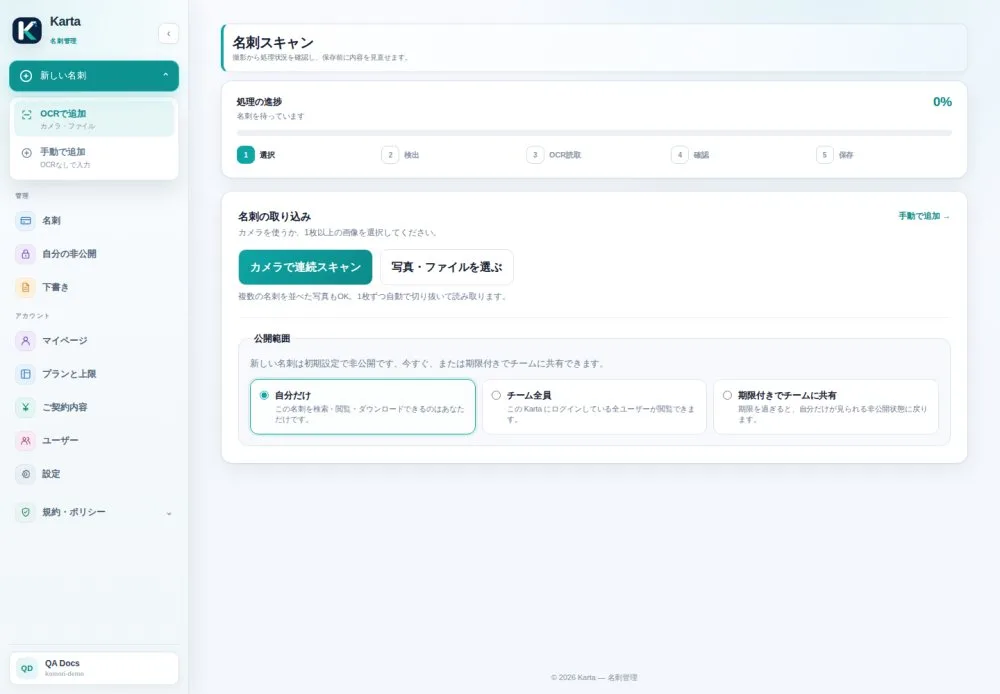
- In the side menu, tap New card and choose Add with OCR.
- Tap Continuous camera scan and photograph the card, or Choose photo/file to use an image you already have.
- Wait for the reading. The bar at the top shows the steps: detect, read, review and save.
- Check the details that were read. If a field is wrong, fix it right there.
- Choose who can see the card (under Privacy) and save.
Done: the card now shows in the card list and under its company.