











Karta · Pantallas y funciones
Add or correct a contact
Use manual entry without a photo, or edit an existing saved card.
Este artículo aún no está traducido a su idioma: se muestra la versión en English.
En esta página
What this is for
Use manual entry without a photo, or edit an existing saved card.
Step by step
- Open New card, or open a saved card and choose Edit.
- Enter the name, company, job and known contact details; leave unknown fields empty.
- Add an internal memo to record descriptions, the customer's interest in KOMORI and potential partnerships. The memo is visible only to your team and is excluded from public links and vCards.
- Check phone and email character by character.
- Review ownership and visibility before saving.
- Save and reopen the detail. In the app, Save stays above the keyboard.
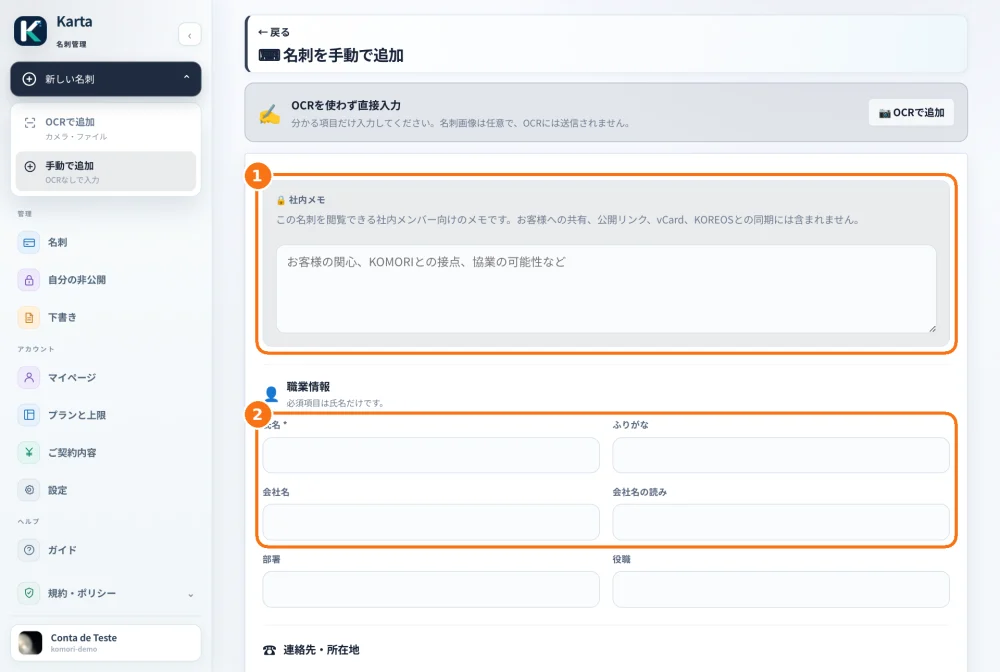
Demo screen (the Karta web version is shown in Japanese).
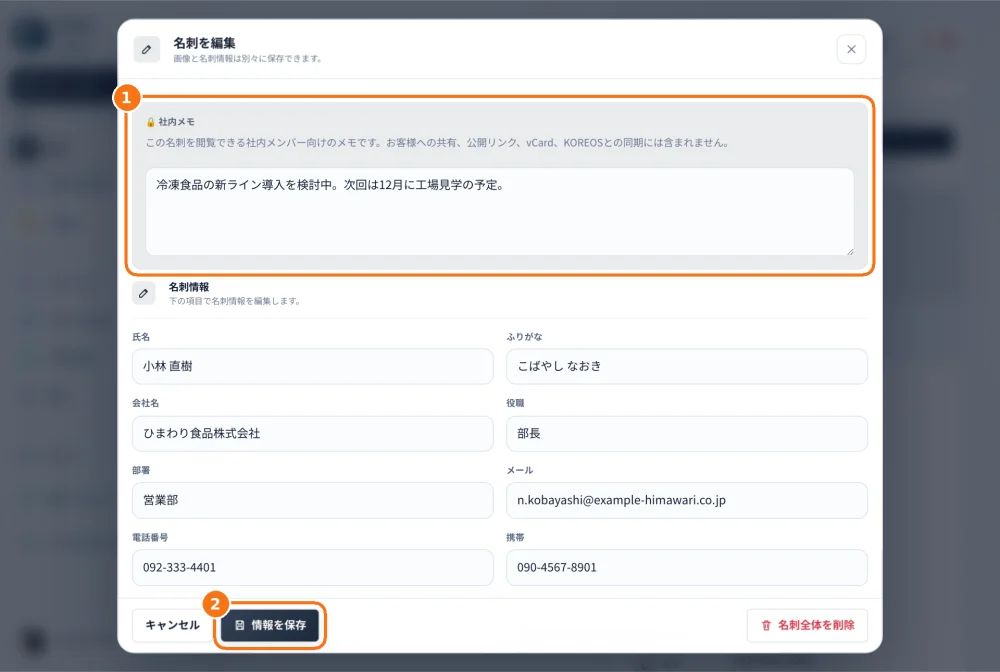
Demo screen (the Karta web version is shown in Japanese).
Tip
If something goes wrong
If a correction does not persist, check that you saved and reopened the same card in the same company. Copying data to another service need not update Karta.
Related articles
- Find, filter and export a card
- Set team visibility and an expiry